How to download invoices from Porkbun
Booksmate downloads Porkbun invoices automatically: add Porkbun in Booksmate, press Fetch All, and your invoices are downloaded for you. Manual steps are listed below if you prefer to download them yourself.
How do you download a Porkbun invoice?
Log in at porkbun.com, open ACCOUNT, then View Orders and click the Order ID. Right-click and choose Print, or press Command-P, then save the page as a PDF.
- The invoice is the order page, not a separate billing inbox.
- Print then Save as PDF is the download step.
How do you save a Porkbun invoice as a PDF?
Open the Order ID, use Print from the right-click menu or Command-P, then choose Save as PDF.
- You need to open each Order ID before you can print it.
- Confirm the saved PDF matches the order you selected.
Automatically download Porkbun invoices
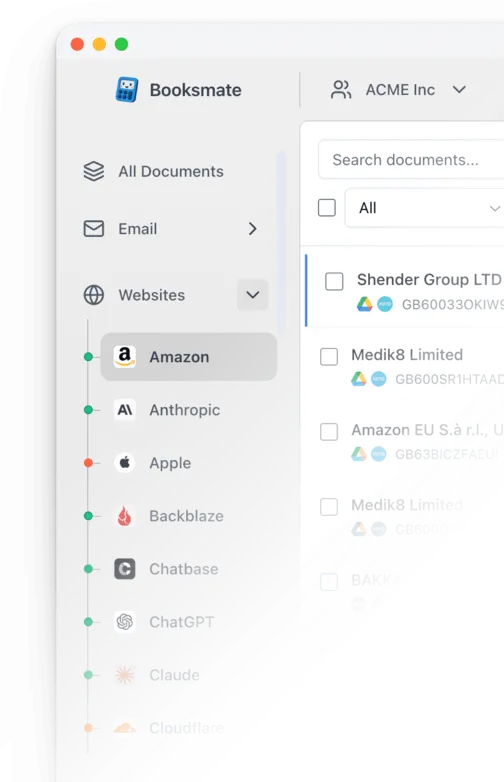
Booksmate downloads Porkbun invoices automatically in seconds. Add Porkbun in Booksmate, press Fetch All, and every invoice is downloaded for you without manual login.
-
Add
Porkbun inside Booksmate.
- Press Fetch All and log in to your Porkbun account.
- Done! Your invoices are automatically downloaded for you.
Start collecting Porkbun invoices automatically
Booksmate downloads your Porkbun invoices and saves them as PDFs, so you never log in manually again.
Sign up for Booksmate
Add Porkbun inside Booksmate
Press Fetch All and Booksmate downloads your invoices
No risk. Cancel anytime.
Manually download Porkbun invoices
- Navigate to https://porkbun.com/ and log in
- Click "ACCOUNT"
- Click "View Orders"
- Click on the Order ID
- Right click and choose Print. Or use the ⌘ + P shortcut
- Save the page as PDF
Porkbun Invoice FAQs
Is it safe to use Booksmate with Porkbun?
Yes. Booksmate runs on your own computer and never stores your Porkbun password, so your login details are not shared with any third party.
Can I download old invoices?
Yes. When you first add Porkbun to Booksmate, Booksmate downloads the full invoice history that is available in your Porkbun account.
Does Booksmate support email invoice collection?
Yes. Booksmate gathers invoices from your email inbox in addition to web portals like Porkbun, giving you one complete invoice collection setup.
Can I download all my Porkbun invoices at once?
Yes. Booksmate downloads your complete Porkbun invoice history automatically. Add Porkbun, press Fetch All, and every available invoice is saved to your computer.
Are Porkbun invoices saved as PDF files?
Yes. Booksmate saves every invoice as a PDF, so they are easy to organize, share, or upload to your accounting software.