Articles
Converting from QB Desktop to Online: Step-by-Step Guide
You’re probably in the same spot most firms and small business owners hit before converting from qb desktop to online. The software still opens, the file still holds years of history, and everyone keeps saying the cloud is easier. But the part that keeps people stuck isn’t the click-by-click conversion. It’s the fear that once the migration tool finishes, the numbers won’t tie, inventory will look different, payroll balances will get weird, and nobody will know whether the new file can be trusted.
That fear is justified.
The actual transfer is often the shortest part of the project. The hard part is the cleanup work after the import. That’s where good migrations are won or lost. If you prepare the Desktop file properly, know what QBO changes behind the scenes, and audit the result immediately, the move is manageable. If you skip those steps, you can spend weeks chasing opening balance issues that should have been caught on day one.
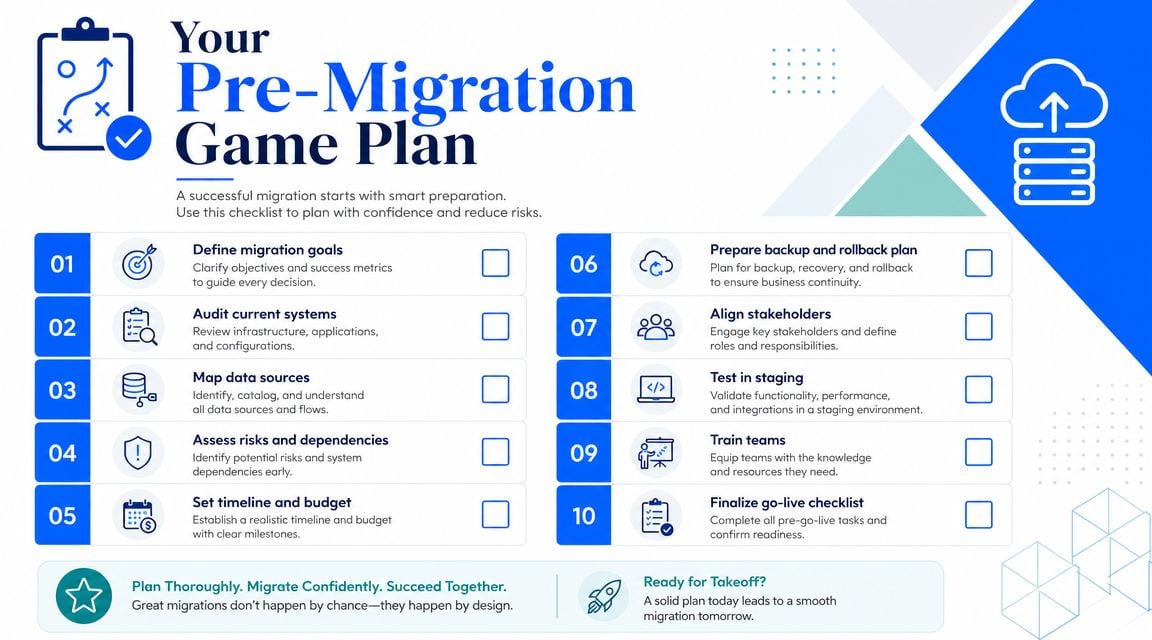
Your Pre-Migration Game Plan
Most conversion problems start before anyone clicks Export.
The biggest mistake is opening a new QuickBooks Online company too early. Intuit gives you a 60-day migration window once the QBO company is created, so the prep work needs to happen before that clock starts. Intuit also notes that you should run key reports as of the conversion date and understand that extra A/R and A/P balances from Desktop are merged into default accounts in QBO during conversion, which is why report prep and account cleanup matter so much in Intuit’s migration guidance.
Lock the conversion date first
Pick a date and defend it.
Don’t migrate in the middle of unfinished payroll, unreconciled bank activity, or a month-end close that’s half done. The cleaner the cutoff, the easier the tie-out afterward. If you have outside payroll, sales tax filings in progress, or inventory receiving not yet entered, finish that work first.
A good conversion date usually has three qualities:
- Closed activity: Bank recs, credit card recs, and major posting cycles are current.
- Clean subledgers: Customer and vendor balances make sense before they move.
- Manageable timing: Staff can pause normal work long enough to validate the result.
Practical rule: Don’t use the migration tool to fix accounting problems you already have in Desktop. Move clean books, not hopeful books.
Build the report pack you’ll compare later
This is the part many users rush through, then regret.
Before converting from qb desktop to online, save a report set from Desktop as of the exact conversion date. Export or archive them in a way your team can retrieve quickly after the move. At minimum, keep:
- Profit & Loss: Year-to-date through the conversion date.
- Balance Sheet: As of the conversion date.
- Trial Balance: This catches account-level issues the Balance Sheet can hide.
- Bank balances: Current cash positions by account.
- A/R Aging Summary: Customer balances by age bucket.
- A/P Aging Summary: Vendor balances by age bucket.
- Sales tax or VAT/GST reports: If you’ll need combined Desktop and QBO reporting later for filing periods.
- Account transaction detail: Useful when a single line on the financials doesn’t match.
These aren’t just backups. They are your evidence. Once a discrepancy appears in QBO, you need a frozen snapshot of what “correct” looked like in Desktop.
Clean up known trouble spots before export
If you’ve got multiple A/R or A/P accounts in Desktop, pay attention here. QBO uses a single A/R account and a single A/P account, and the conversion can push extra balances into default suspense customer or supplier accounts if the subledger and general ledger don’t align. That means you should reconcile A/R Aging Summary to the A/R control account, and A/P Aging Summary to the A/P control account, before moving.
Also review:
- Pending payroll work: Finish processing before migration.
- Multi-user mode: Switch to single-user mode before starting the transfer.
- Desktop version: Update QuickBooks Desktop to the latest release first.
- Attachments and custom fields: Assume some items may need manual review afterward.
- Class tracking: If you rely on classes, confirm the target QBO subscription supports what you need and that the feature will be enabled.
Treat this like a systems project, not a bookkeeping errand
A solid accounting migration follows the same discipline as any other cloud move. If you want a broader operational checklist, these cloud migration best practices are useful because they frame migration as planning, testing, rollback readiness, and validation, not just file transfer.
That mindset matters. A rushed migration usually creates more manual cleanup than the team expected. A planned migration gives you a baseline, a sequence, and a rollback path.
Navigating the Core Conversion Process
Friday at 4:30 p.m., someone clicks Convert, gets the confirmation email later that night, and assumes the hard part is over. Monday morning, the bank balance is off, open invoices look odd, and the owner wants to start sending invoices from QBO immediately. That is the actual conversion process in practice. The export itself is only one step. The job is controlling what happens right after it lands.
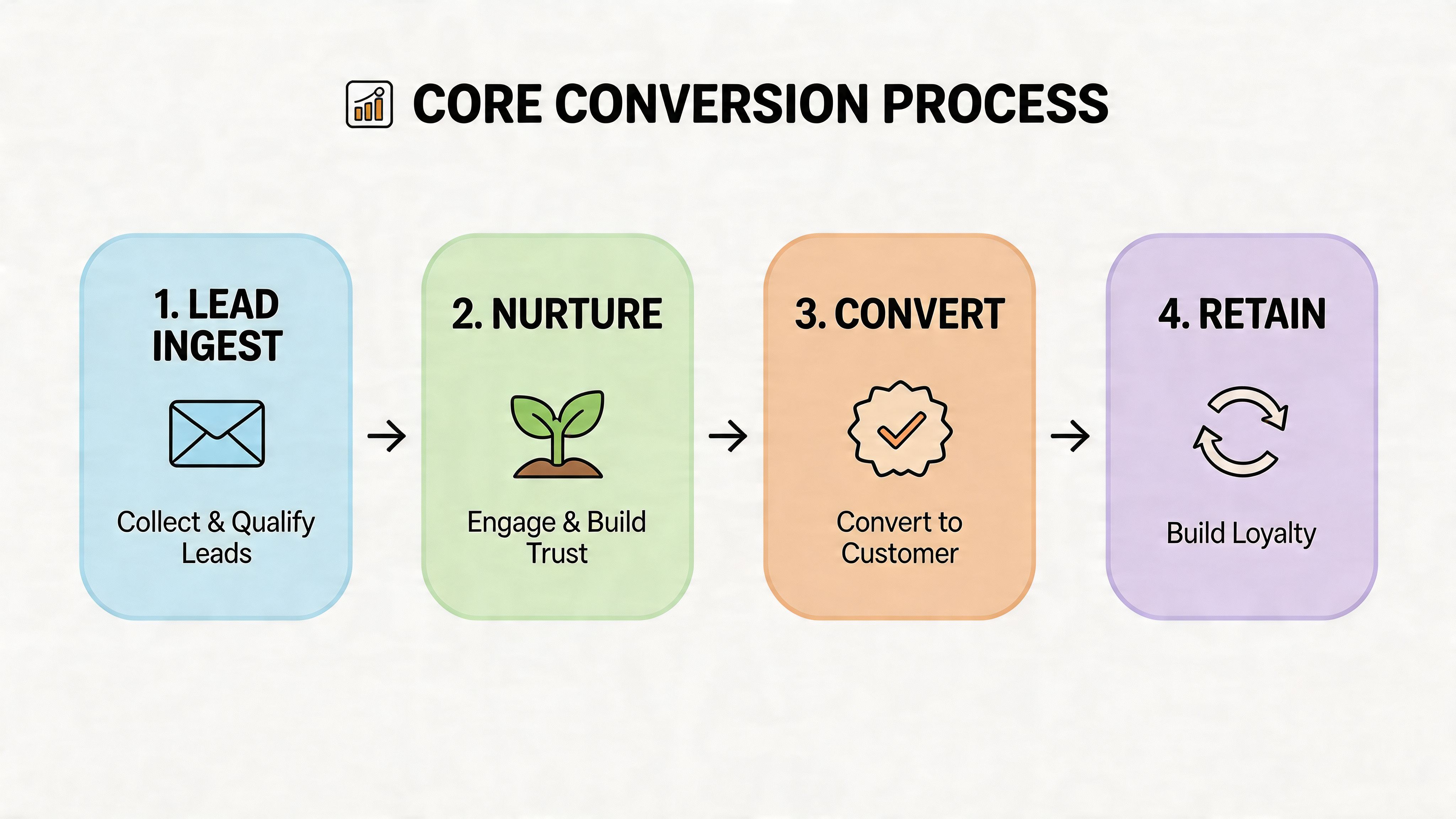
The mechanics are usually simple if the file was prepared properly. Open the correct Desktop company file, run the export from Desktop, sign into the target QBO company, answer the prompts, and let the process finish. Then wait for the completion email before anyone starts entering new transactions in Online.
A standard sequence looks like this:
- Open the final Desktop file that was reviewed and approved for migration.
- Confirm no one is still posting to that file.
- Run the export utility from QuickBooks Desktop.
- Sign in to the target QBO company and confirm it is the right subscription and right company.
- Answer the inventory prompt carefully if inventory is enabled.
- Start the conversion and let it process without interruption.
- Wait for the email confirmation before logging into QBO for review.
- Freeze routine bookkeeping until the opening validation is done.
That last step saves a lot of pain. If the staff starts invoicing, receiving payments, or matching bank feeds before the first review, you lose the clean line between conversion issues and new activity.
The prompts that deserve actual judgment
Two screens cause more cleanup than the rest of the workflow.
The inventory prompt is not a casual yes-or-no click. If inventory drives margins, purchasing, or lender reporting, pause and confirm the accounting impact with whoever owns the financials. A technically successful import can still create reporting that needs explanation later.
The target company prompt matters just as much. I have seen teams convert into the wrong QBO file, especially when a firm manages multiple subscriptions for clients with similar names. Before starting, confirm the legal entity name, subscription level, and whether that QBO company contains any live activity. If it does, stop and verify whether overwrite risk is acceptable.
What the tool does not tell you
The software moves data. It does not tell you whether the books still make operational sense.
That gap shows up fast. Customer names may come over fine, but payment terms, inactive list items, sales tax setup, attachments, or custom workflows often need human review. The conversion can finish without errors and still leave a file that is awkward to use day to day.
This is also where timing matters. Small files may finish quickly. Larger files can take much longer, and the completion email often arrives after business hours. Plan for that. Schedule the migration so the first login to QBO happens when someone can review it immediately, not twelve hours later after staff has already started working in the new system.
When a standard conversion is the wrong tool
Some Desktop files should not go through a simple DIY conversion and hope-for-the-best approach.
Be more cautious if the file is very large, heavily customized, full of old list clutter, tied to complicated payroll history, or central to inventory reporting. The same is true for firms migrating several clients on a deadline. In those cases, the export is only part of the project. The primary work is staging, testing, documenting exceptions, and deciding what will be rebuilt manually in QBO.
Set up the handoff before anyone logs in
A disciplined handoff prevents the most common post-conversion mess.
Assign one person to compare the opening reports. Assign one person to control new entries in QBO. Save the pre-conversion Desktop reports in a shared folder. Keep a copy of the Desktop file and archive access for tax, audit, and historical lookups. Then build the first round of QBO automation only after the balances check out. Bank rules, recurring invoices, approval flows, and app syncs save time in the cloud, but they also spread bad mappings quickly if you turn them on before the cleanup is done.
That is the trade-off with QBO. Once the migration is stable, automation makes the monthly close faster and cleaner. If you rush into automation before validating the converted data, you scale the errors instead of the process.
What Changes The Reality of Your Data in QBO
The file may convert successfully and still not behave the way it did in Desktop.
That’s not always a failure. Sometimes it’s how QuickBooks Online is designed. A significant risk is assuming that identical data produces identical reporting logic. It doesn’t.
Inventory doesn’t come over on the same accounting logic
For product-based businesses, this is the biggest structural change.
QuickBooks Desktop uses average cost for inventory valuation, while QuickBooks Online uses FIFO only. During conversion, the tool uses the weighted average at the time of migration to establish the value of the first FIFO layer. Intuit’s Firm of the Future guidance flags this as a major reconciliation point because it can materially affect cost of goods sold and margin reporting in this inventory conversion explanation.
That means a business can migrate “correctly” and still see reporting that feels different afterward. The software didn’t necessarily lose data. It may be applying a different costing framework to future inventory flow.
If inventory is central to your business, compare the same reporting periods after migration and look closely at COGS and inventory asset balances. This is one area where accountants need to explain the why, not just hunt for an error.
Receivables and payables get simplified
Desktop users often build around multiple A/R or A/P accounts. QBO doesn’t keep that same structure.
Instead, QBO works with a single A/R account and a single A/P account. During conversion, additional A/R and A/P balances can be merged into default suspense customer or supplier accounts when the Desktop structure doesn’t translate cleanly. This is why a file can “balance” overall while customer-level or vendor-level detail still needs cleanup.
That also changes how you should read the migrated file. Don’t assume the control account tells the whole story. Review the aging reports and inspect any unusual names or suspense-style entries that appear after the move.
A migration can preserve totals while still distorting the detail that operations rely on every day.
Some items transfer. Some only half-transfer
The broad rule is simple. Core accounting data usually comes across better than specialized setup.
Custom reports created in Desktop can migrate, but they still need validation. Attachments often need separate handling. Tax reporting periods may require a combined Desktop and QBO approach after the conversion date. Classes can convert for QBO Plus subscribers if class tracking is enabled, but that doesn’t remove the need to test the reporting output you use.
Here’s the practical cheat sheet.
Data Type
How It Converts to QBO
Required Action
Profit & Loss and Balance Sheet data
Core financial history generally transfers
Compare line by line against Desktop report pack
Chart of accounts
Transfers, but structure may appear different in use
Review account mapping and naming conventions
A/R balances
Moves into QBO’s single A/R framework
Check A/R Aging against the control account and inspect suspense-style customer balances
A/P balances
Moves into QBO’s single A/P framework
Check A/P Aging against the control account and review unusual supplier balances
Inventory
Converts into QBO’s FIFO environment
Reconcile inventory asset and COGS impact after conversion
Classes
Can convert for QBO Plus when enabled
Confirm class tracking is turned on and test historical reporting
Custom reports
May transfer
Validate filters, columns, and totals
Attachments
May not transfer automatically
Archive separately and rebuild access workflow if needed
Tax reports
Reporting may be split between systems around the cutover
Preserve Desktop tax reports and combine with QBO figures as needed
Transaction detail archives
Best preserved from Desktop exports
Store securely for audit and lookup work
What this means in practice
The point of converting from qb desktop to online isn’t to force QBO to act like Desktop. It won’t.
The goal is to understand which changes are expected, which changes indicate a problem, and which reports become your new control points. Firms that accept that reality early usually finish with cleaner books and fewer surprises. Firms that expect a pixel-for-pixel replica usually end up frustrated by perfectly normal structural differences.
The Post-Migration Audit You Cannot Skip
Monday morning is usually when this goes sideways. The conversion finished over the weekend, everyone logs into QBO, and the file looks usable at a glance. Then the controller runs A/R aging, the Balance Sheet is off from the Desktop close package, and nobody knows whether the problem came from the conversion, old cleanup that never happened, or a setting changed after go-live.
That is why the important work starts after the migration tool finishes.
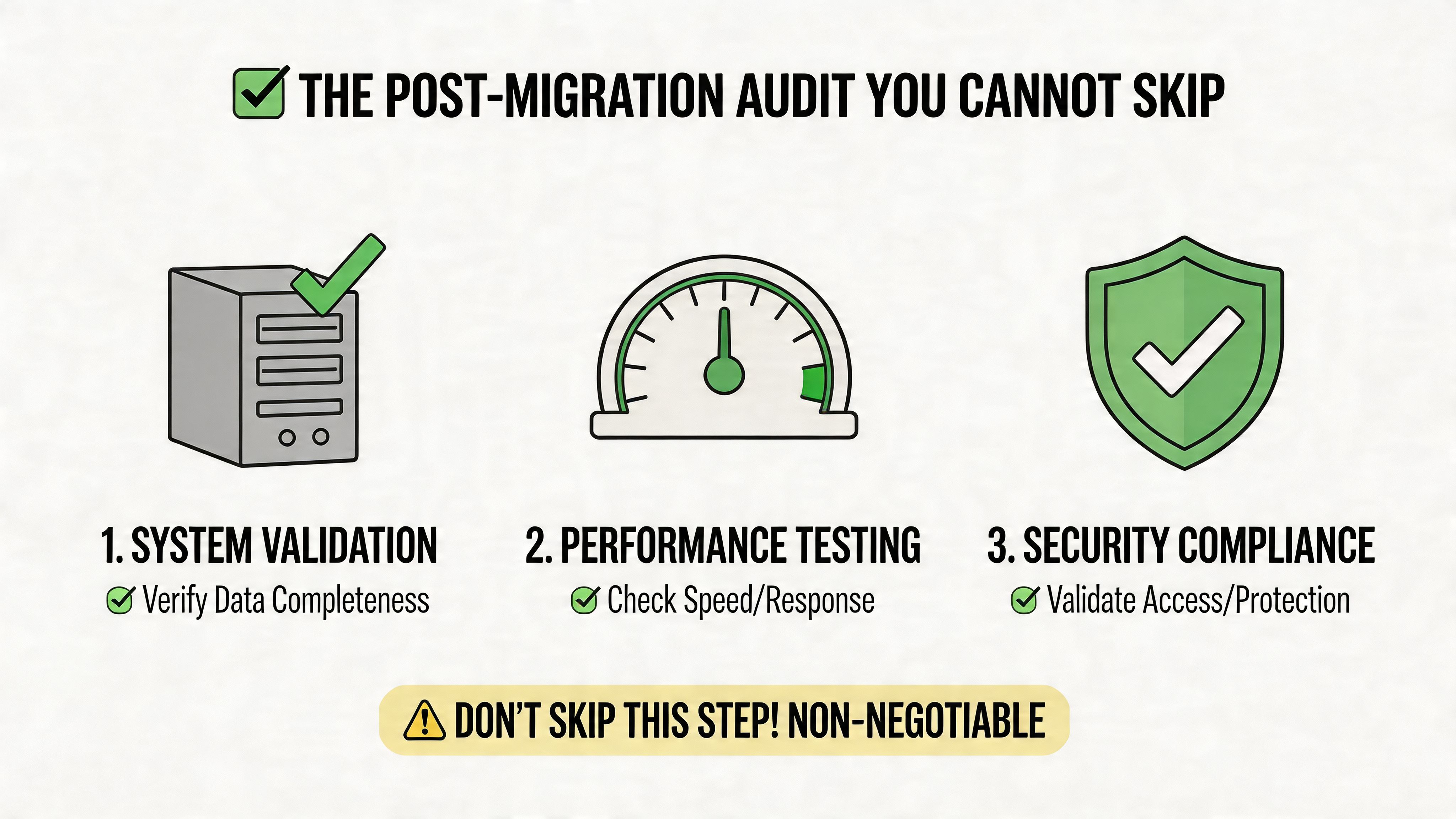
Run the audit before normal processing picks up
Use the first post-conversion review window to prove the opening data is reliable. Once new invoices, bill payments, deposits, and reconciliations start piling into QBO, every bad opening balance gets harder to isolate.
Start with matching reports from Desktop and QBO using the same date and the same accounting basis. Pull:
- Balance Sheet as of the conversion date
- Profit & Loss year-to-date through the conversion date
- A/R Aging Summary as of the conversion date
- A/P Aging Summary as of the conversion date
- Trial Balance if you need to isolate a mismatch quickly
Save PDFs or exports from both systems in one audit folder. Label them clearly. I use file names that include report name, basis, and date because teams waste a lot of time comparing a cash-basis report in one system to an accrual-basis report in the other.
Check the reports in the order that saves time
Start broad, then narrow the scope.
- Balance SheetThis tells you fast whether the opening file is broadly usable. If cash, receivables, payables, liabilities, or equity are off, stop there and trace the gap before reviewing detail reports.
- Profit & LossLook for reclassified amounts, sign flips, or accounts that no longer behave the way they did in Desktop.
- A/R and A/P agingCompare each aging report to its control account inside QBO. Then inspect the name-level detail. A total that ties can still hide misapplied balances under the wrong customer or vendor.
- Trial Balance and transaction detailUse these only after you know which section is broken. Going line by line too early turns a one-hour review into an all-day chase.
Write down every variance before fixing anything. Record the report, date, basis, affected account, and amount. That sounds basic, but it prevents the common mistake of making three cleanup entries and then losing track of which one solved the problem.
Focus on the discrepancies that create downstream problems
A small difference is still a setup problem until you can explain it.
The trouble is not the size of the variance. The trouble is what that variance does next. It can throw off bank recs, distort management reporting, create odd customer statements, or leave the tax preparer sorting through conversion entries months later.
Put extra attention on these areas:
- A/R and A/P detail: Match aging totals to the ledger, then review unusual balances by name
- Opening balance equity and retained earnings: Confirm nothing landed there by accident during cleanup
- Payroll liabilities: Check current and historical balances if payroll was active in Desktop
- Inventory asset and COGS: Confirm the post-conversion numbers make sense in QBO’s inventory logic
- Undeposited Funds and uncleared bank items: These often create confusion in the first reconciliation
- Sales tax and other liabilities: Review for old adjustments or converted entries that no longer present cleanly
Experience is critical. A file can look mostly right and still be unsafe to use.
Decide whether to fix in QBO or start over
Not every discrepancy deserves a manual patch.
If the issue is isolated and well understood, such as one mapping problem or a few old unapplied transactions, cleaning it up in QBO is usually fine. If multiple control accounts are wrong, inventory is distorted, or A/R and A/P detail is messy on both sides, it is often faster to clean the Desktop file and reconvert than to keep stacking corrections into a weak opening file.
That decision needs to happen early. Waiting a week usually doubles the work because operating activity gets mixed in with conversion cleanup.
Build the post-migration workflow right away
The audit is only half the job. The other half is setting QBO up so the team does less manual work than it did in Desktop.
Once the numbers tie, turn to the cloud workflow:
- Set up bank feeds and bank rules carefully. Review the first batches instead of auto-adding everything.
- Use recurring transactions for stable monthly activity like rent, loans, and fixed vendor bills.
- Configure receipt capture and attachment habits so source documents are easy to find.
- Create custom management reports and close checklists inside QBO.
- Add approval and review steps for bill pay, expense coding, and reconciliations.
- Use dashboard alerts and scheduled reports so exceptions show up before month-end.
This cleanup and automation phase is what many migration guides skip. The conversion tool moves data. It does not build a reliable monthly close process for you.
A good post-migration audit ends with two results. The opening numbers tie, and the new QBO workflow is simpler to maintain than the old Desktop routine.
Troubleshooting Common Conversion Headaches
The idea of a perfect migration sounds nice. Real files rarely cooperate.
Official guides focus on the mechanics of moving data. They spend less time on the accounting messes users face after the import. Intuit’s own community forums include users describing the process as a “nightmare”, especially in non-profit and complex payroll situations where liability refunds and adjustments convert into journal entries that disrupt opening balances in this community discussion.
That lines up with what accountants see in practice. The transfer may complete. The books still need work.
Headache one with financials that don’t tie
A Balance Sheet that’s off by a little is usually a structure issue, not a mystery.
Common causes include A/R or A/P detail not lining up with control accounts before migration, old unapplied entries, or account mapping that looked harmless in Desktop but behaves differently in QBO. Start with the Trial Balance, then compare the mismatched account in detail.
Use this fix order:
- Check report settings: Same date, same accounting basis, same filters.
- Inspect control accounts: Compare A/R Aging Summary to A/R, and A/P Aging Summary to A/P.
- Review suspense-style names: Look for default customer or supplier balances created in conversion.
- Trace to transaction detail: Only after the summary mismatch is identified.
Headache two with payroll and liability accounts
Many otherwise clean conversions go sideways at this point.
Complex payroll histories, liability refunds, and prior adjustments may land as journal entries that don’t behave the way staff expect in QBO. The totals may be technically present, but the path from transaction to report changes enough that opening balances appear wrong or liabilities don’t clear cleanly.
When that happens:
- Freeze further cleanup changes until the exact account problem is identified.
- Match the opening liability balances to the final Desktop reports.
- Review journal entries created in conversion and identify what each one replaced.
- Decide whether to adjust in QBO or restart after Desktop cleanup if the issue is foundational.
For non-profits, fund tracking and liability presentation can make these issues feel worse because even a technically balanced file may no longer support the reporting staff relies on.
Headache three with data that seems missing
Sometimes the data isn’t gone. It just didn’t migrate in the format the team expected.
Custom fields, attachments, templates, and unusual list structures are common examples. The books may still be workable, but operational convenience drops fast when staff can’t find documents or reporting dimensions where they used to live.
Ask three questions before declaring data lost:
Question
Why it matters
What to do
Is the data absent, or just restructured?
QBO often stores or presents data differently
Search the list, transaction, and report views before assuming failure
Was this item part of the core accounting data?
Core transactions usually migrate more cleanly than setup details
Check the Desktop archive for the original version
Is this worth manual rebuild, or should the migration be redone?
Some fixes are simple, some are not
Make the decision early before more QBO activity piles on
Know when to stop and roll back
Not every broken migration should be patched.
If the issues are widespread, opening balances don’t tie, and cleanup would require a chain of manual entries that nobody fully understands, go back to the backup, clean the Desktop file, and start over. That’s not failure. That’s control.
The worst approach is forcing the new system live because the conversion technically finished. If the numbers can’t be trusted, the migration is incomplete no matter what the screen said.
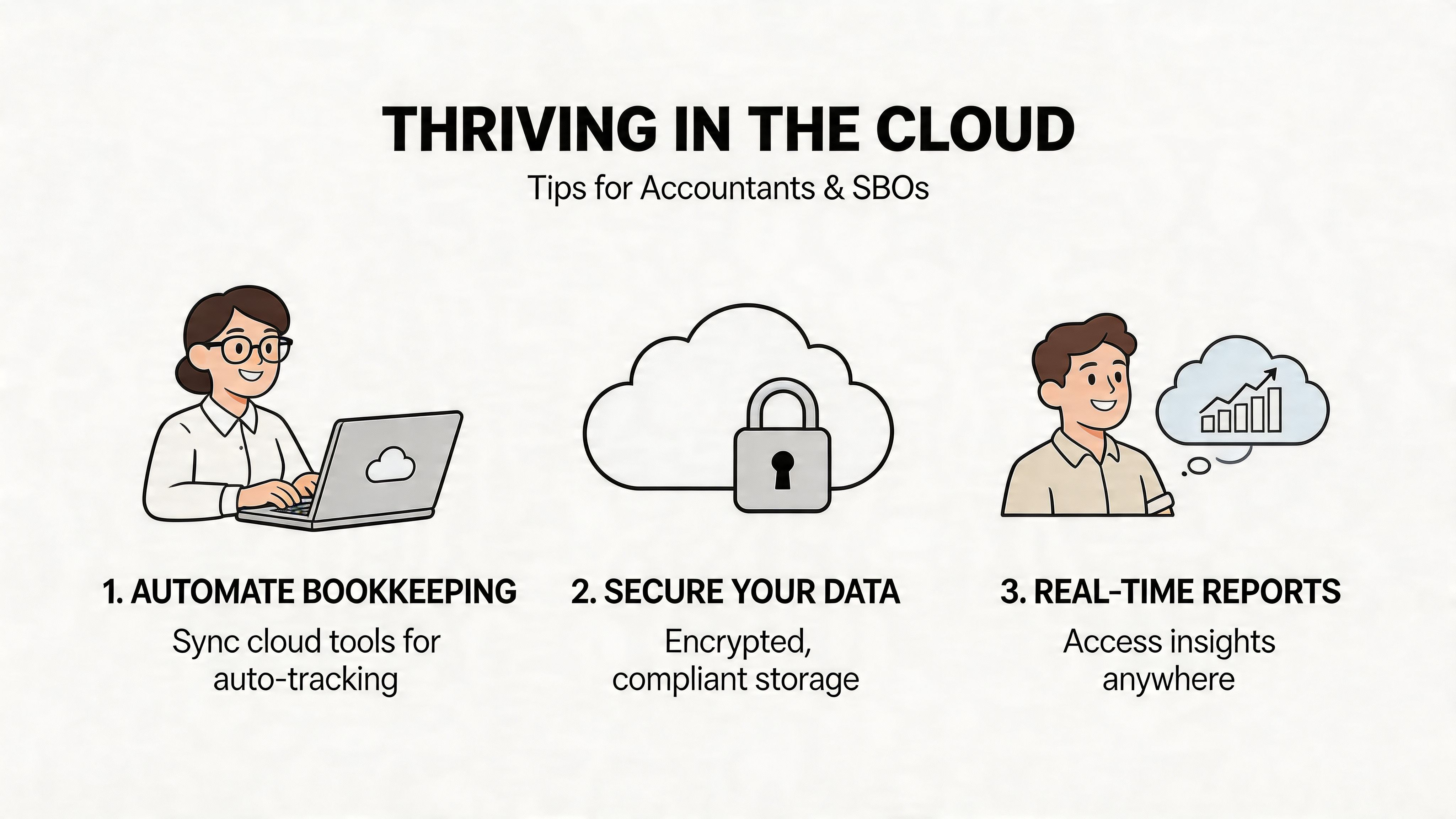
Thriving in the Cloud Tips for Accountants and SBOs
A good migration doesn’t end with matching reports. It changes how the accounting work gets done.
That matters because many teams convert from qb desktop to online, then keep operating as if they’re still on Desktop. They still chase invoices manually, still rely on local habits, and still build month-end work around old constraints. QBO gives them cloud access, but not a cloud workflow.
Standardize the post-conversion routine
For accountants managing multiple clients, the hard part isn’t one migration. It’s doing the fifth one without reinventing the process.
Intuit notes that accountants often struggle with batch migrations, outdated Desktop versions, and support deadline pressure, and that practitioners report the online tool can perform better for larger files in some cases in Intuit’s migration services guidance. The practical takeaway is simple. Build a repeatable onboarding checklist for every migrated client.
That checklist should include:
- User access review: Confirm admin roles, accountant access, and approval controls.
- Feed setup: Reconnect bank feeds and test the categorization rules.
- Sales tax and payroll review: Verify how these workflows will run in QBO going forward.
- Report package rebuild: Recreate the management reports the client uses.
- Document capture workflow: Decide where bills, receipts, and vendor invoices will enter the system.
Cloud software only saves time when the team redesigns the workflow around it.
Stop rebuilding manual habits in a browser
Often, many small business owners waste the upside of QBO.
If staff are still downloading invoices one by one from Amazon, Stripe, Google, Microsoft, PayPal, supplier portals, and shared inboxes, they’ve moved software without fixing process. The better play is to use the migration as a forcing event to automate intake, document collection, and coding review.
That shift usually improves three things:
- Consistency: Fewer missing documents at month-end
- Speed: Less time spent chasing vendor paperwork
- Data quality: Better support for reconciliations and audits
A broader read on what firms gain from outsourced operational support is this article on managed cloud service, which is useful for thinking beyond software licenses and toward system reliability, maintenance, and workflow support.
Build the new workflow around control points
QBO works best when the team defines where data enters, who reviews it, and which reports prove it’s right.
For accountants, that means standard month-end review packs and a consistent exception process. For owners, it means fewer ad hoc workarounds and fewer “I’ll upload it later” habits. If the cloud file becomes a dumping ground for half-finished entries and scattered documents, the migration didn’t solve much.
A solid cloud routine usually has these traits:
Area
Better cloud habit
Vendor invoices
Collected automatically or routed into a single intake process
Receipts
Captured promptly and attached to the transaction workflow
Bank activity
Reviewed on a regular cadence with clear approval rules
Reporting
Standardized reports run the same way each period
Client communication
Questions resolved inside a documented month-end process
The firms that benefit most treat migration as redesign
The software move matters. The operating model matters more.
When firms pair QBO with stronger document capture, cleaner approvals, and fewer manual handoffs, the benefits compound in day-to-day bookkeeping. The books get updated faster, support is easier to find, and post-close cleanup shrinks.
That’s the part many migration articles miss. The transfer gets your history into the cloud. The workflow changes are what make the cloud worth it.
If you’re moving to QuickBooks Online and want the new workflow to be less manual than the old one, Booksmate helps collect invoices and receipts from portals and inboxes, organize them in one place, and prepare them for export into your accounting process. It’s a practical way to reduce document chasing after the migration, which is often where teams either gain efficiency or fall right back into old habits.