10 Best Free Receipt Scanner Apps (2026, Tested)
We tested free receipt scanner apps for accuracy, PDF export and limits. See which free app is best for scanning and tracking receipts.

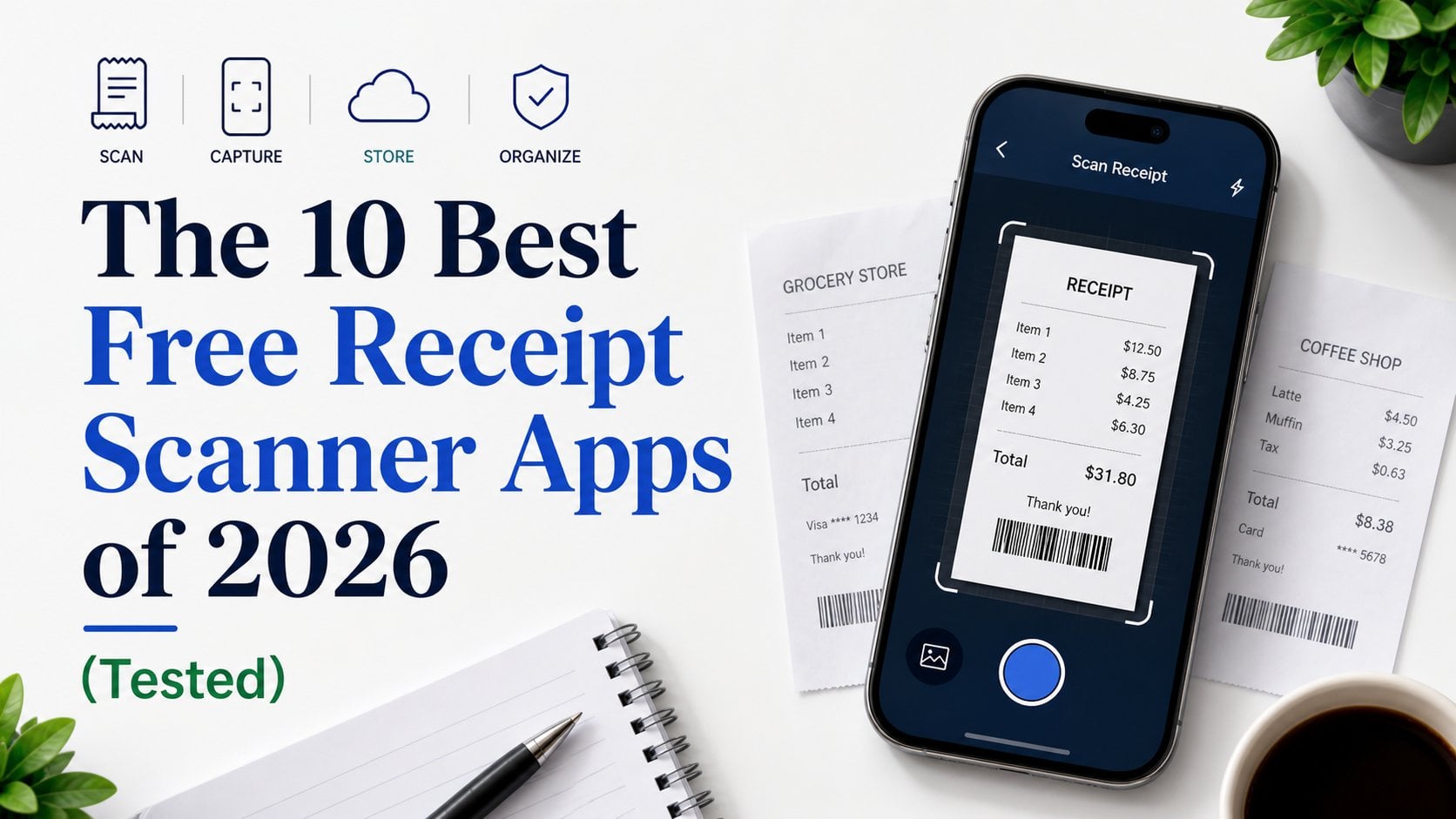
Your stack of receipts is really slowing things down, requiring manual data entry and causing delayed reimbursements. I’ve explored various options to discover the best way to scan receipts that actually works.
Our picks at a glance (October 2026)
- Best free PDF scanner: Adobe Scan, for clean, searchable PDFs.
- Best scanner already on your phone: Apple Notes on iPhone, Google Drive on Android.
- Best free plan for a small team: Zoho Expense, with 20 receipt scans per user per month.
- Best for freelancer expense reports: Smart Receipts, for PDF and CSV reports.
- Best for invoices that arrive as PDFs: Booksmate, which collects them from supplier portals and inboxes (14-day free trial, then from $19/month).
Before You Choose: Two Types of Scanner Apps
Receipt scanner apps are available in two main categories. The right choice depends on your goal: either digitizing paper or automating data entry for accounting.
| Mobile scanner apps | Expense apps | |
|---|---|---|
| Main job | Turn paper into a clean PDF | Read vendor, date and total into fields |
| Output | PDF or image | Data you can export or sync to accounting software |
| Best for | Archiving, personal use, a few receipts a month | Business expenses, reimbursements, bookkeeping |
| Typical free limit | Usually unlimited scans | Usually a monthly scan cap, or a trial only |
Quick Decision Guide:
- Need to digitize paper for your records? Use a Mobile Scanner App.
- Need to capture data for bookkeeping? Use an Expense Management Platform.
Our Testing Process
To ensure reliable results, we thoroughly evaluated each app according to the following five criteria:
- OCR Accuracy: We examined how effectively each app could interpret the merchant, date, and total amount from receipts.
- Free Plan Limits: We checked the number of free scans or reports available and identified any essential features that required payment.
- Speed & User Experience: We timed how swiftly we could convert a paper receipt into a saved, usable file.
- Integrations: We verified the ability of each app to connect with popular accounting software such as QuickBooks and Xero.
- Export Formats: We looked at whether each app could export data in formats like PDF or CSV.
Methodology
Our methodology involved testing each app in a real-world setting where we scanned various types of receipts, including those from local grocery stores, cafes, and online purchases. We aimed to simulate typical user scenarios to assess practical performance.
Test Insight
For instance, Adobe Scan impressed us with its ability to accurately capture details from even the most crumpled receipts, ensuring vital information wasn’t lost.
Group 1: Mobile Scanner Apps (For Digitizing Paper)
These apps serve as digital filing cabinets, perfect for turning paper into high-quality PDFs but not for extracting expense data for bookkeeping.
1. Adobe Scan
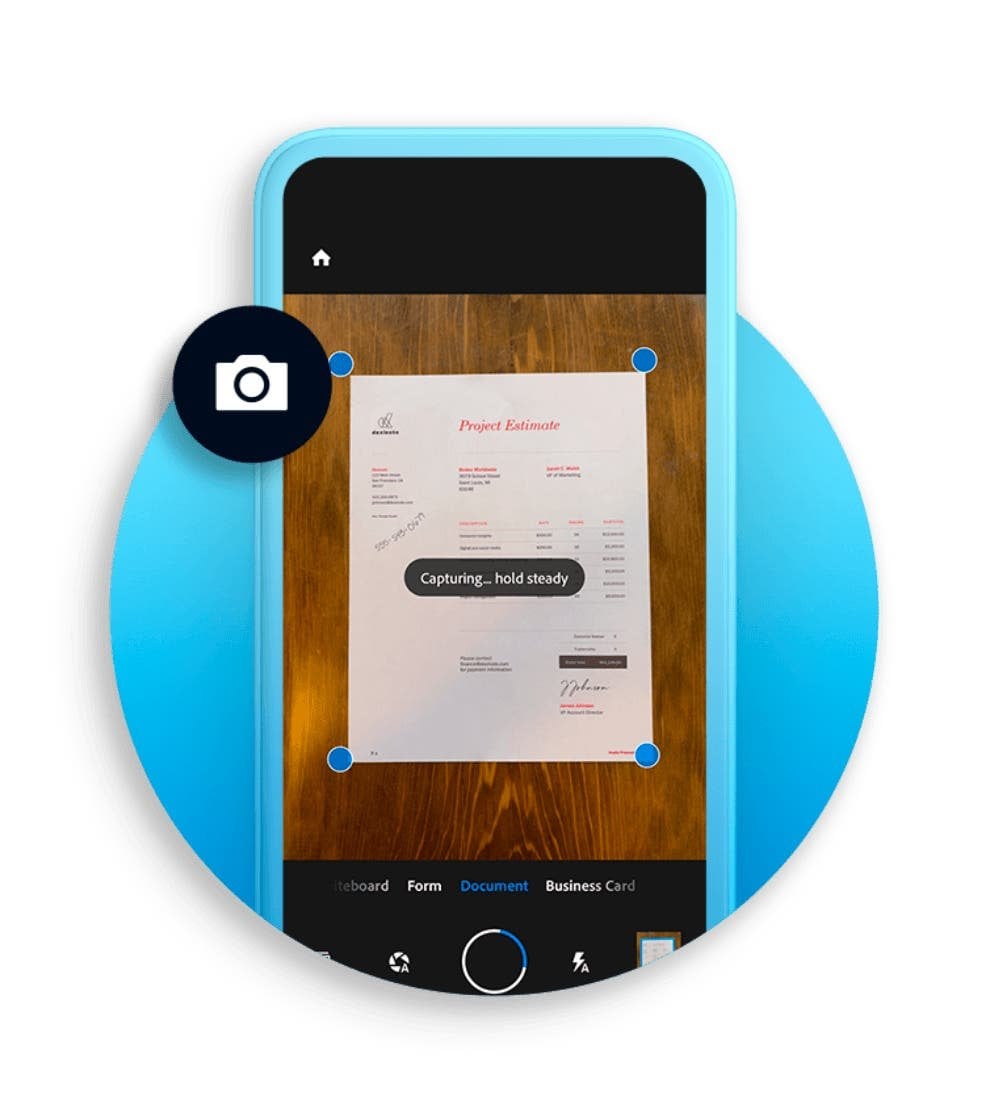
- Positioning: A top-notch document scanner for creating clean, searchable PDFs.
- **Pros:**Excellent OCR makes PDF text searchable.
- Automatically removes shadows and straightens images.
- Integrates smoothly with the Adobe Acrobat ecosystem.
- Generous free version for scanning and saving.
- **Cons:**Does not extract expense data (merchant, total) into fields.
- Advanced PDF editing requires an Acrobat subscription.
- More of a general document scanner than a dedicated expense tool.
- Pricing: Free for scanning. Paid plans unlock advanced PDF features.
- Best for: Teams already using the Adobe suite who need to create high-quality PDF archives.
2. Google Drive (Built-in Scanner)
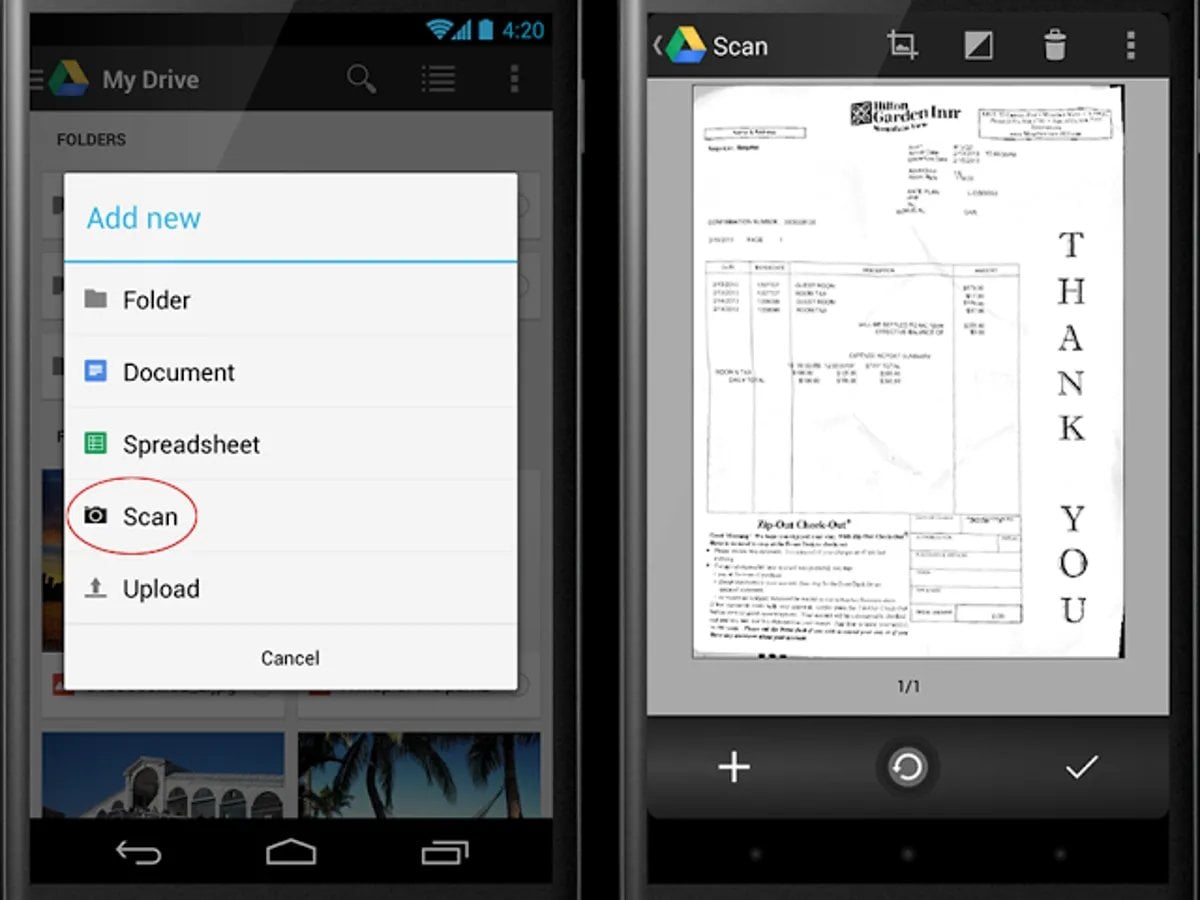
- Positioning: A handy scanner built into the Google Drive app for direct-to-cloud saving.
- **Pros:**No extra app to install if you already use Google Drive.
- Saves scans directly to a chosen cloud folder.
- Scanned text becomes searchable within Google Drive.
- Simple, one-tap scanning process (especially on Android).
- **Cons:**Does not extract expense data.
- Minimal editing features beyond basic cropping.
- Functionality is less robust on iOS compared to Android.
- Pricing: Free with your Google account (subject to Drive storage limits).
- Best for: Google Workspace users who need to save receipt images to a central, shared folder.
3. Apple Notes (Built-in Scanner)
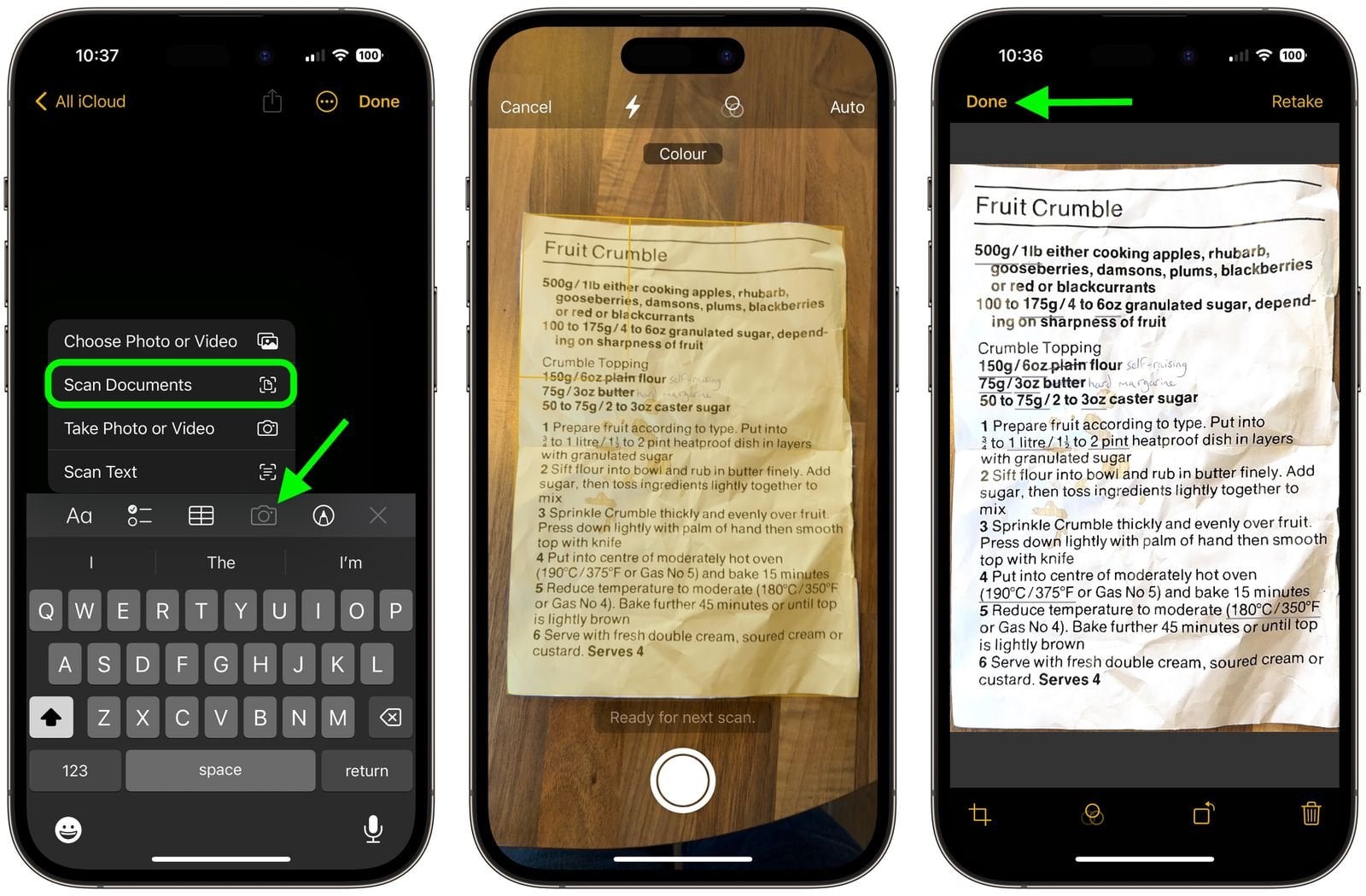
- Positioning: A seamless, native scanner for iPhone and iPad users.
- **Pros:**Built directly into iOS and iPadOS. No download needed.
- Fast, automatic document detection and cropping.
- Scans sync instantly across Apple devices via iCloud.
- Easy to mark up or sign scans.
- **Cons:**Scans live inside the Notes app, which can get disorganized.
- No data extraction.
- Sharing to other systems is a manual process.
- Pricing: Free and built into iOS, iPadOS, and macOS.
- Best for: Individuals in the Apple ecosystem who need to capture a few receipts quickly.
4. Genius Scan
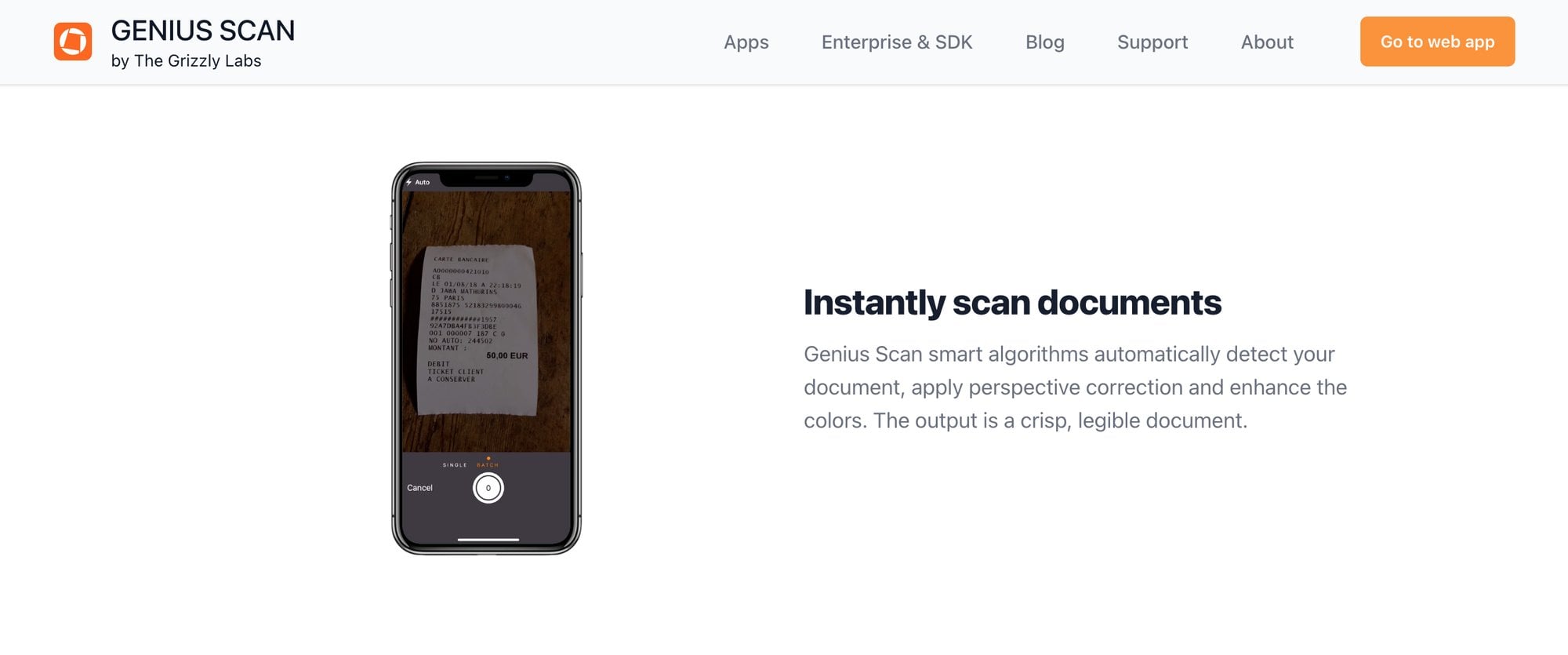
- Positioning: A privacy-focused mobile scanner that works offline.
- **Pros:**Works completely offline, giving you control over your data.
- Unlimited scans on the free plan.
- Reliable edge detection and image correction.
- Export to various cloud services (manual process).
- **Cons:**OCR for searchable PDFs is a paid feature.
- Automated cloud uploads require an upgrade.
- No expense data extraction.
- Pricing: Free for unlimited scanning. Paid plan unlocks OCR and auto-export.
- Best for: Privacy-conscious users who want a reliable offline scanner.
Group 2: Expense Management Platforms (For Data Extraction)
These apps go beyond scanning. They use OCR to read receipt data and simplify the process of expense reporting and bookkeeping.
5. Zoho Expense
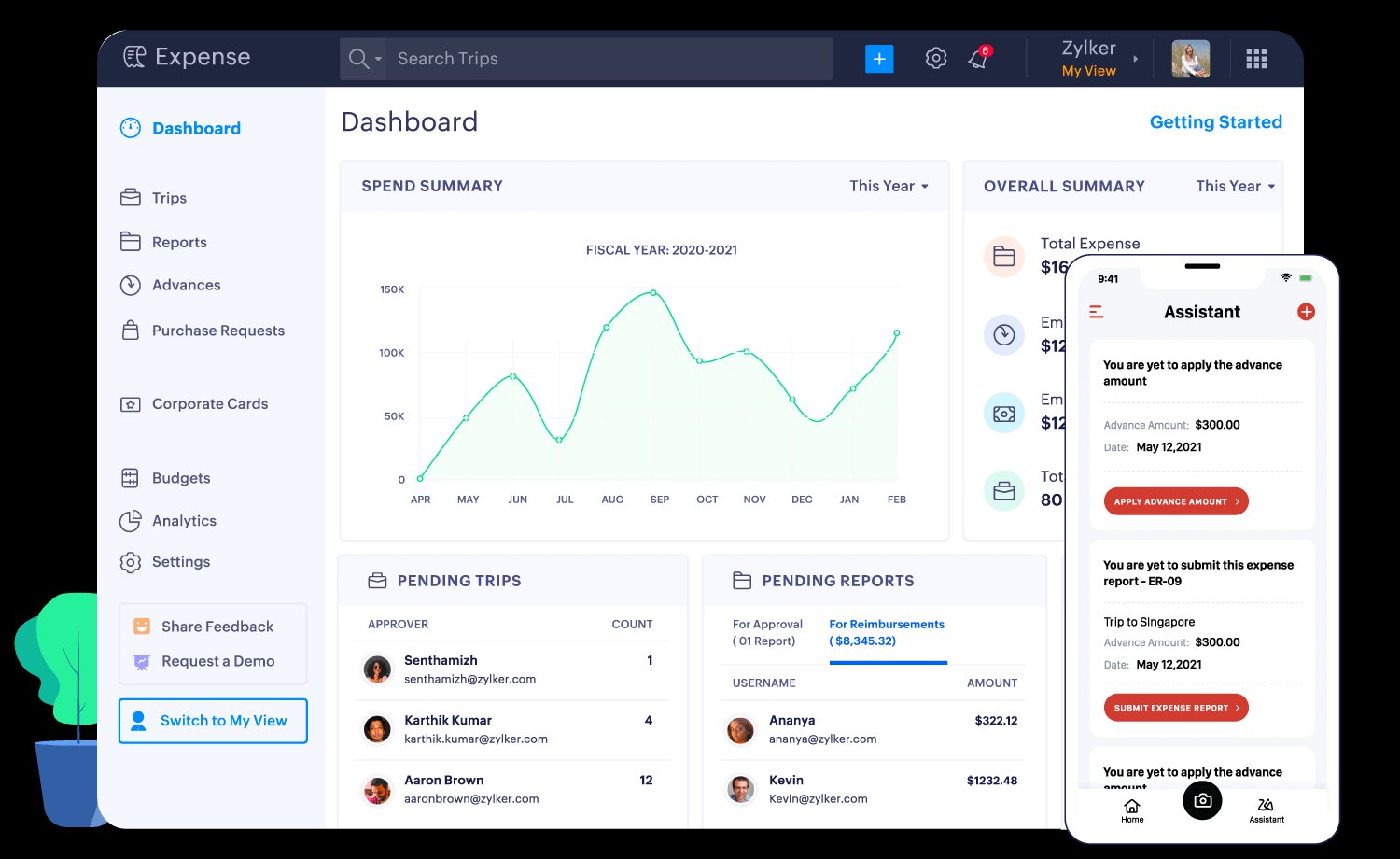
- Positioning: A full expense management system for small teams.
- **Pros:**Free plan for up to 3 users.
- OCR automatically extracts key expense data.
- Allows you to create and submit expense reports for approval.
- Part of the larger Zoho business ecosystem.
- **Cons:**Free plan is limited to 20 “Autoscans” per month.
- Can feel complex for users who just want a simple scanner.
- Best for teams, not necessarily solo users.
- Pricing: Free plan for 3 users. Paid plans offer more features and higher limits.
- Best for: Small businesses that need a structured expense reporting and approval process.
6. Expensify
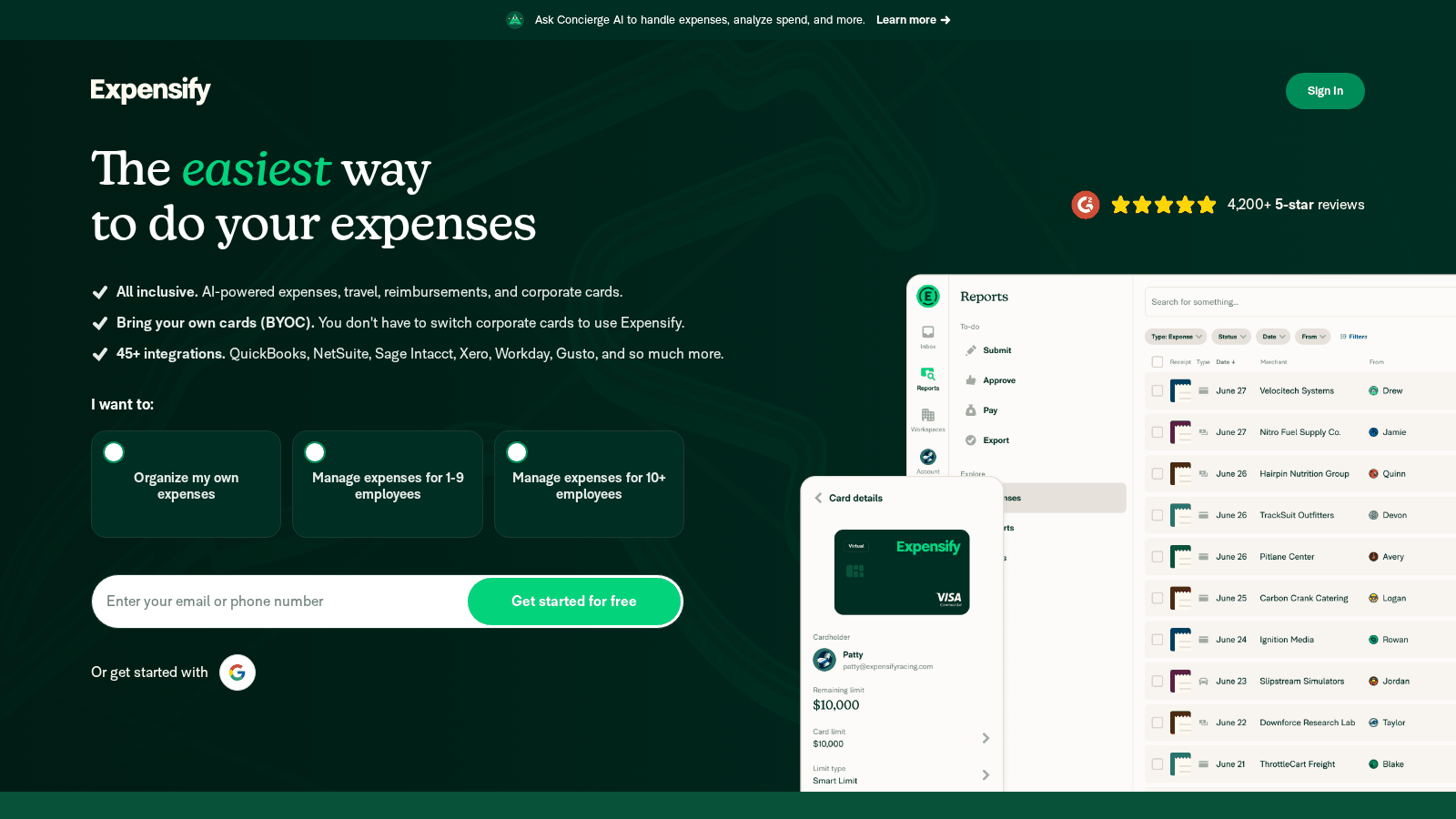
- What it is: an expense app for scanning receipts and submitting expenses for approval and reimbursement.
- Pricing: Expensify has a free Submit plan for individuals who submit expenses to an approver when their company does not use Expensify. Team plans (Collect and Control) are paid.
- Good at: the Collect plan connects to QuickBooks and Xero. Control adds multi-step approvals and ERP integrations.
- Best for: employees who need to get expenses approved and reimbursed.
Wave Receipts (not free any more)
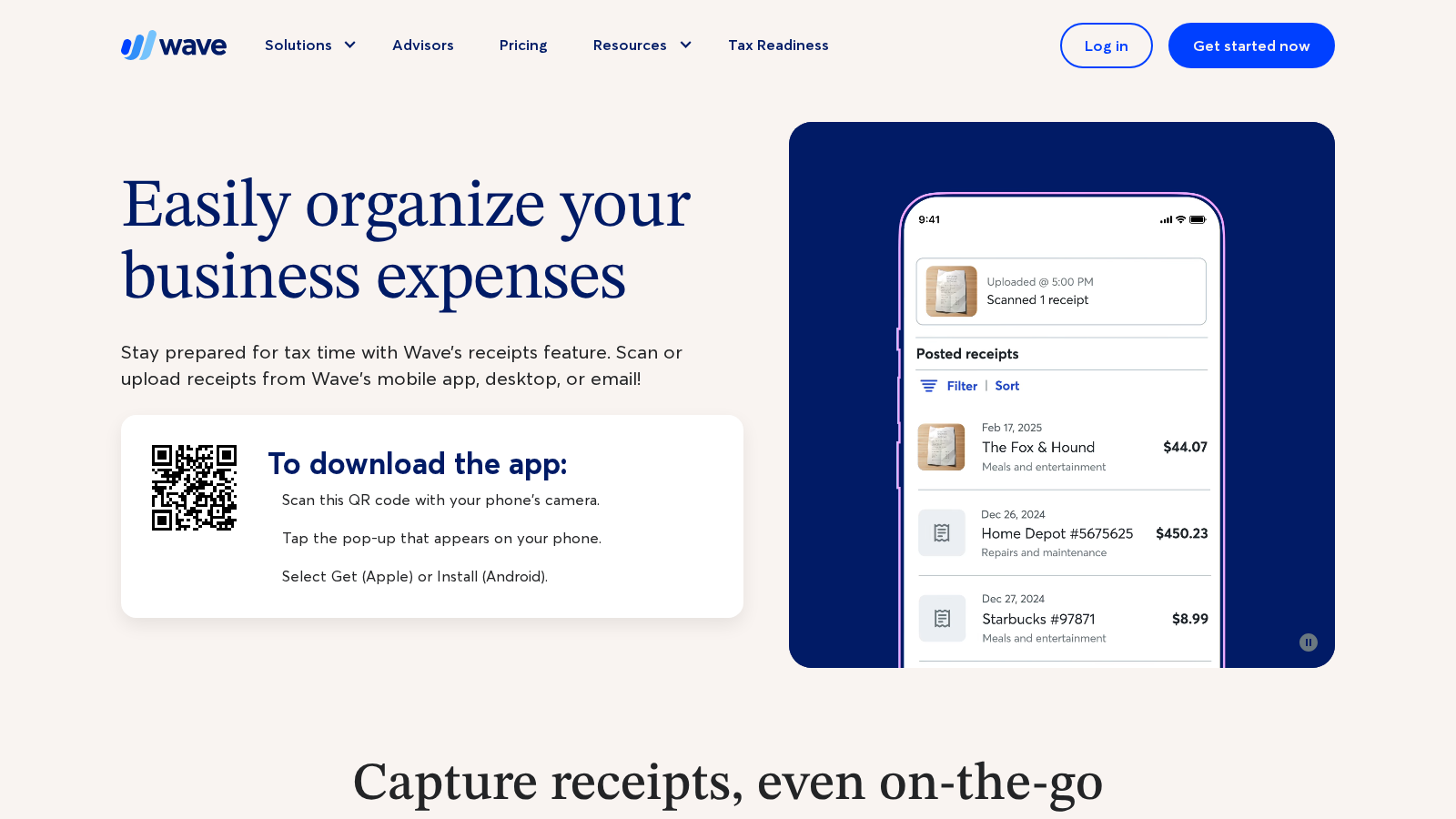
- What it is: the receipt feature inside Wave's accounting app. It shows up at the top of many "free" lists because Wave accounting itself has a free plan.
- Pricing: receipt scanning is paid. Wave lists it at $8/month or $72/year, and it is also included in Wave Pro at $19/month (Wave pricing page, October 2026).
- Good at: unlimited scans once you pay, bulk upload of up to 10 receipts at a time, and email forwarding of digital receipts straight into Wave's books.
- Best for: people who already keep their books in Wave.
7. Smart Receipts
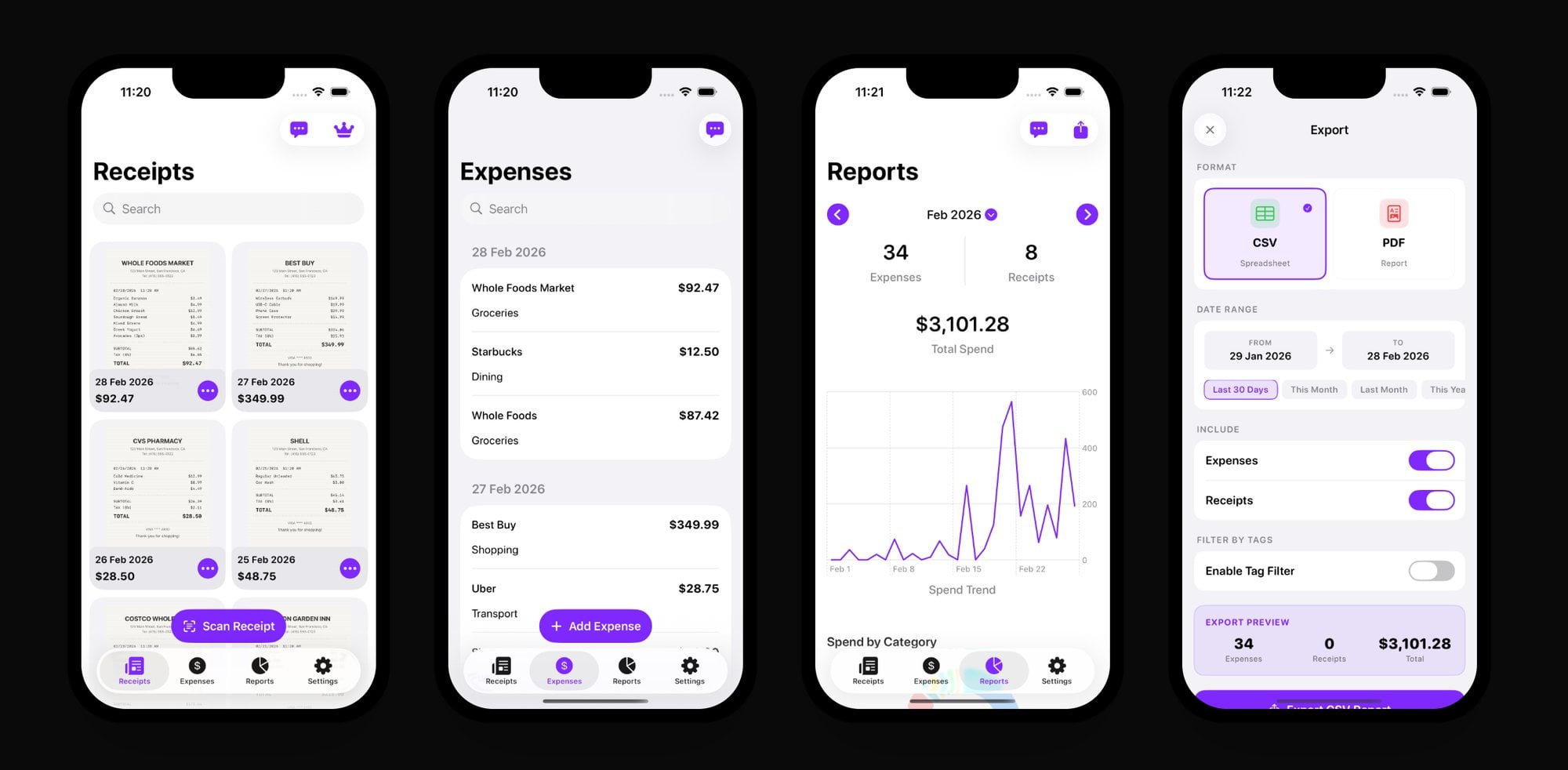
- Positioning: A simple tool for turning scanned receipts into expense reports.
- **Pros:**Purpose-built for expense reporting.
- OCR extracts merchant, date, and amount.
- Generates PDF and CSV reports.
- Customizable categories for organizing expenses.
- **Cons:**Receipt recognition is a Pro feature. The free plan is manual entry.
- User interface is functional but dated.
- No direct accounting software integrations.
- Pricing: Free plan for manual entry, with PDF, CSV and ZIP report exports. Pro adds receipt recognition and is $99.99/year or $12.99/month (Smart Receipts website, October 2026).
- Best for: Freelancers and individuals who need to generate simple expense reports.
8. SwiftScan
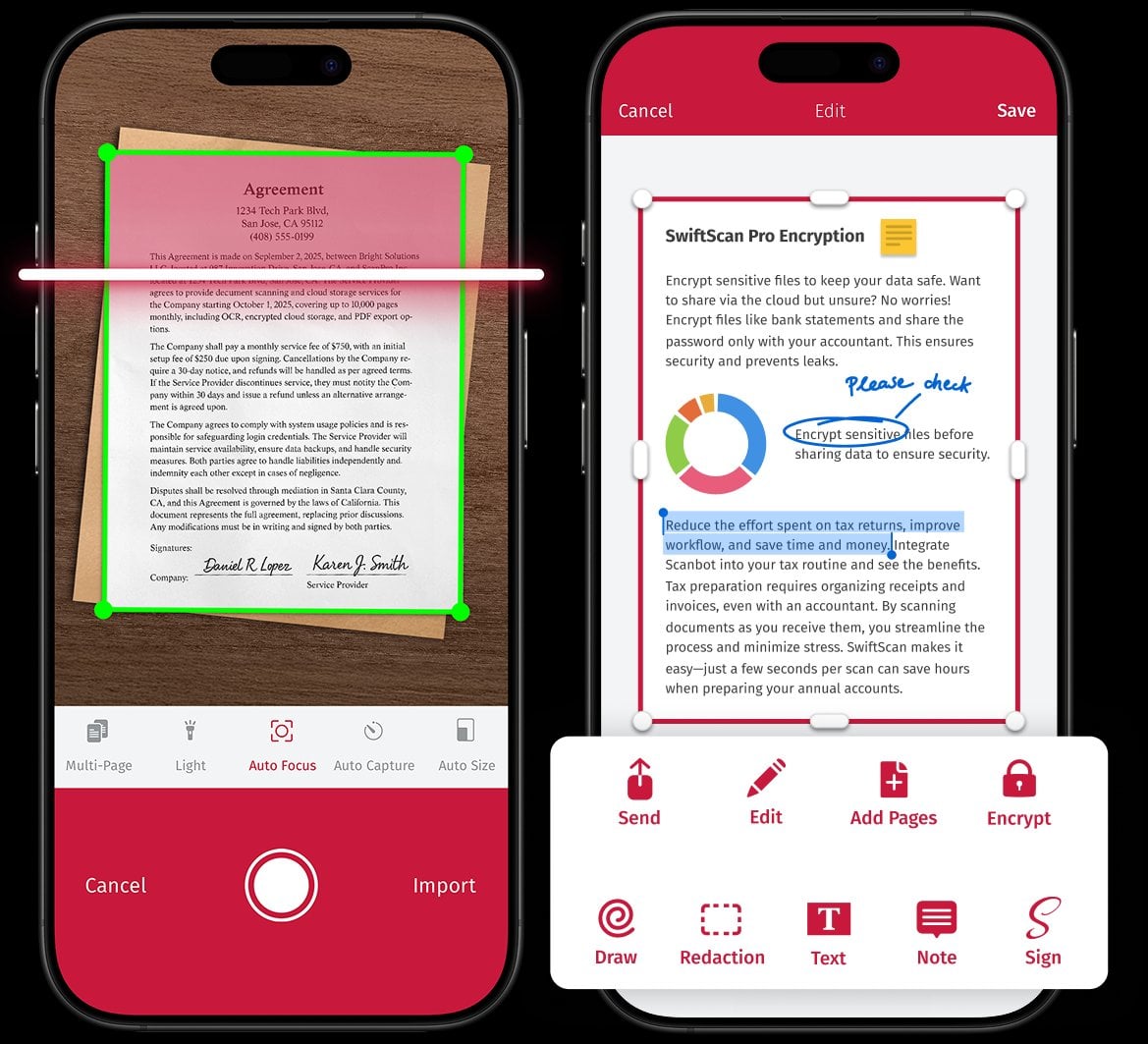
- Positioning: A fast and polished mobile scanner with workflow automation features.
- **Pros:**Excellent speed and scan quality.
- Smart file naming templates automate organization.
- Clean, modern user interface.
- Supports multi-page documents easily.
- **Cons:**OCR is a paid feature.
- Automatic cloud upload is a paid feature.
- The free version heavily prompts you to upgrade.
- Pricing: Free for basic scanning. Subscription unlocks OCR and automation.
- Best for: Power users who want a fast scanning experience and are willing to pay for automation features.
9. Veryfi
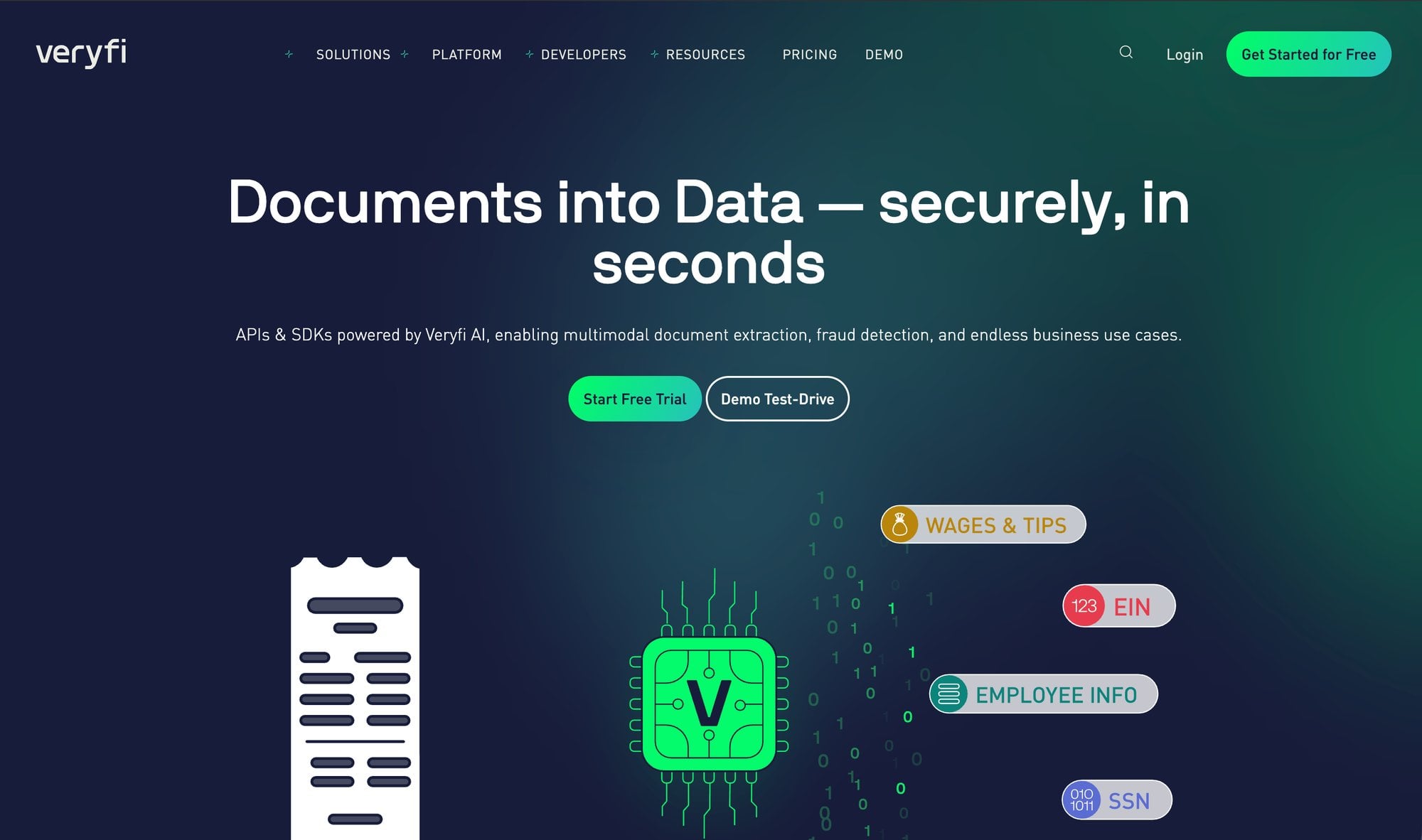
- Positioning: A high-accuracy OCR engine with an app for expense capture.
- **Pros:**Extremely fast and accurate real-time OCR.
- Extracts line-item details, not just totals.
- Handles multiple currencies and taxes.
- Data can be synced to QuickBooks, Xero, and other platforms.
- **Cons:**Free plan is very limited in document count.
- Primarily geared towards developers and enterprise users.
- Not a long-term free solution for active use.
- Pricing: Veryfi's developer API has a free tier of up to 100 documents a month. Check Veryfi's site for current expense app pricing.
- Best for: Businesses testing high-end OCR technology before committing to a paid plan.
10. Shoeboxed
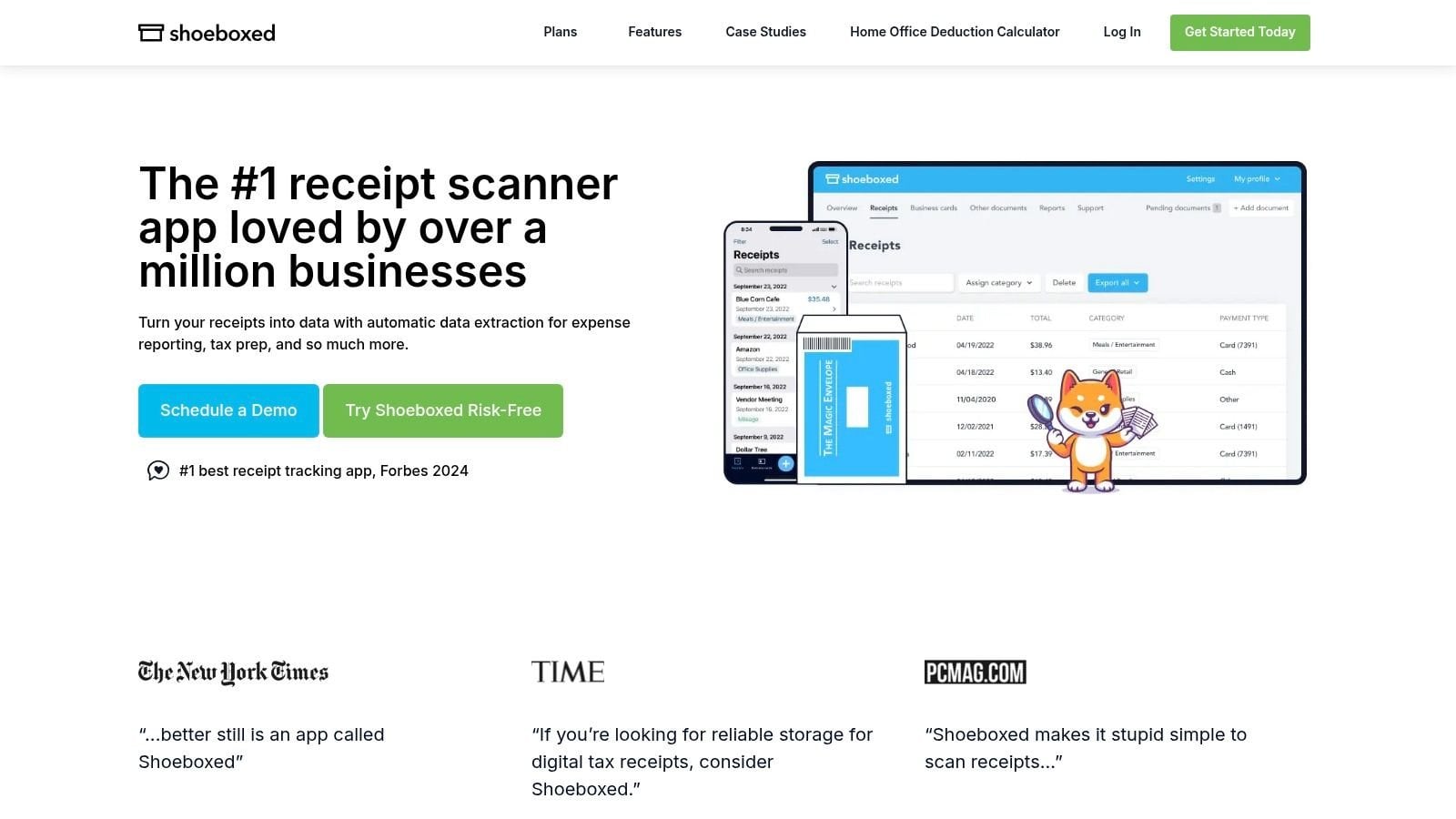
- Positioning: A trusted tool for organizing receipts and managing expenses.
- **Pros:**Converts paper receipts into usable data.
- Offers a mail-in service to scan paper documents for you.
- Integrates with accounting software like QuickBooks.
- Provides expense reports and mileage tracking.
- **Cons:**No free plan. Every plan comes with a 30-day money-back guarantee instead.
- More expensive than some other options for higher volume.
- Pricing: not free. Starter is $9/month (50 digital scans a month); QuickBooks Online and Xero sync start on Pro at $29/month (Shoeboxed pricing page, October 2026).
- Best for: Users who want a reliable way to digitize and organize receipts with the option to mail them in for scanning.
Quick Comparison Table
| App | Free? | Free limit | Reads receipt data | Accounting sync |
|---|---|---|---|---|
| Adobe Scan | Free | Check site | Searchable PDF only | No |
| Google Drive scanner | Free | No scan limit (uses Drive storage) | Searchable PDF only | No |
| Apple Notes | Free | No scan limit (uses iCloud storage) | No | No |
| Genius Scan | Free plan | Unlimited scans | No (OCR is a paid feature) | No |
| Zoho Expense | Free plan | 20 receipt scans per user per month | Yes | Check site |
| Expensify | Free Submit plan for individuals | Check site | Yes | QuickBooks and Xero on the paid Collect plan |
| Smart Receipts | Free plan | Manual entry; PDF, CSV and ZIP exports | Pro plan only | No |
| Wave Receipts | Paid | No free plan: $8/month or $72/year | Yes | Wave accounting |
| SwiftScan | Check site | Check site | Searchable PDF only | No |
| Veryfi | Free API tier | 100 documents per month on the API | Yes | QuickBooks, Xero |
| Shoeboxed | Paid | No free plan: from $9/month, 30-day money-back guarantee | Yes | QuickBooks Online, Xero (Pro plan and up) |
| Booksmate | Free trial | 14-day trial, then from $19/month | Yes, for digital invoices | Xero, DATEV, sevDesk, Lexware |
Prices and limits as of October 2026, from each app's own website.
What about invoices that never touch paper?
Most of a small business's receipts now arrive as PDFs: in your inbox, or behind a login on sites like Amazon, Google Ads, Stripe and your software subscriptions. A scanner app can't reach those. An Amazon invoice downloader can.
Booksmate is built for that part. It signs in to your supplier portals from your own computer and collects the invoices each month, then sends them to Xero, DATEV, sevDesk, Lexware or Google Drive. It connects to 500+ portals. It is not free: there is a 14-day free trial, then plans start at $19/month.
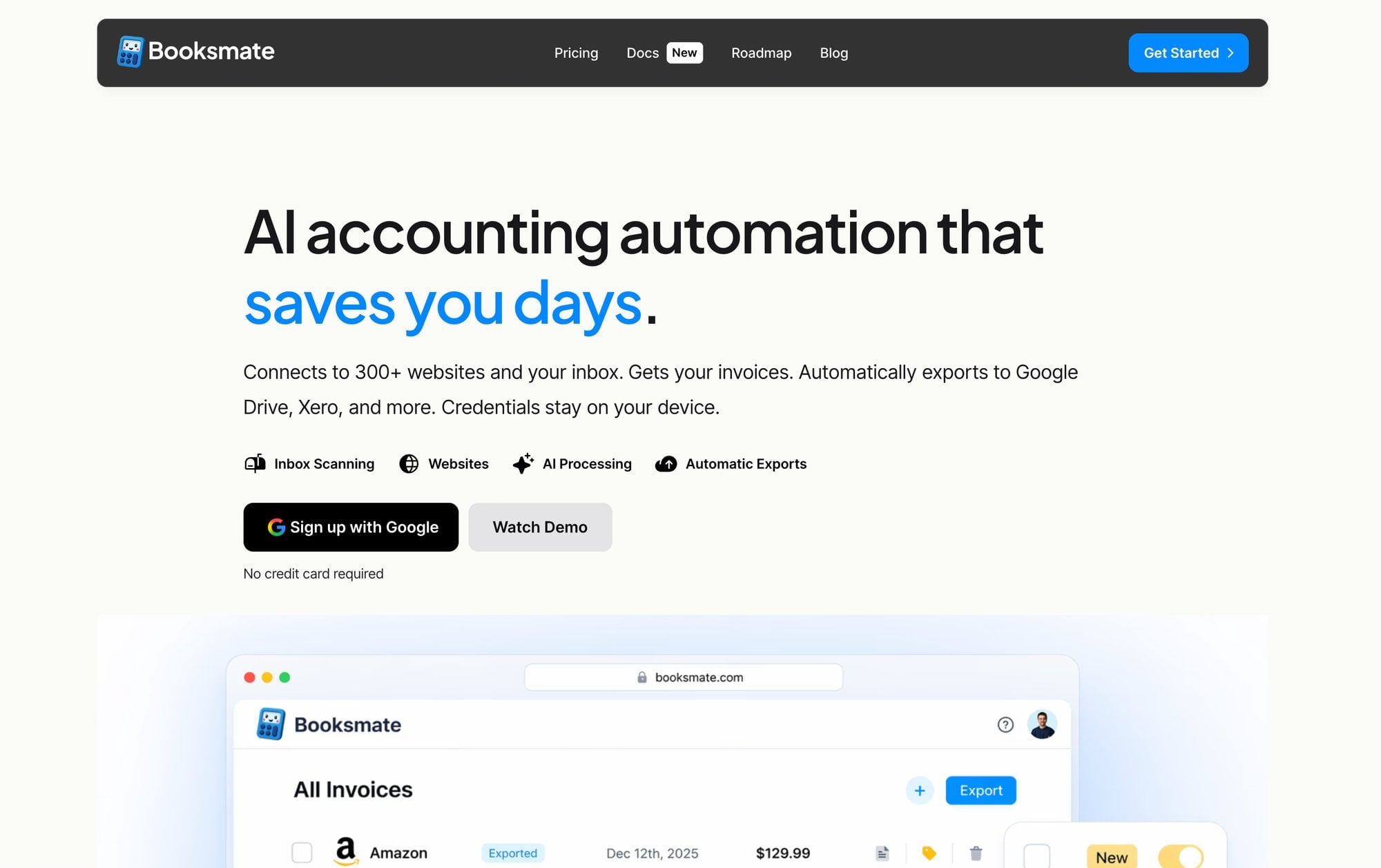
For small business owners, this is usually the bigger job. A scanner app covers the few paper receipts from the week. The portal PDFs (utilities, phone, software, advertising) are what take hours at monthly bookkeeping time, and Booksmate collects those for you. If you are comparing it with Dext, see our Dext alternative for UK small businesses.
How to Choose the Right App for You
- **Best Overall:**If you just want to get rid of paper clutter: Use the scanner already on your phone (Apple Notes or Google Drive). It’s fast, free, and gets the task done.
- **Best for Paper Receipts:**If you need clean, searchable PDF archives for your records: Use Adobe Scan. The quality is excellent and it works seamlessly with other business tools.
- **Best for Freelancers:**If you are a freelancer who needs to create simple expense reports: Use Smart Receipts. It’s designed specifically for turning receipts into a CSV or PDF report.
- **Best for Small Businesses:**If you are a small business starting to manage team expenses: Use Zoho Expense. The free plan allows you to build a proper approval workflow for up to 3 users.
- **Best for Accountants/Bookkeepers:**If your problem is manually entering digital invoices from email: Skip using a scanner app. Your issue is data entry, not paper. Use Booksmate to automate the entire process from collection to accounting sync.
Free receipt scanner app
A free receipt scanner app should do three things well: capture a clear receipt image, extract the merchant, date and total with OCR, and keep the receipt searchable for expenses or tax records. If you only need occasional paper scans, a free mobile scanner is enough; if you need bookkeeping-ready data, choose an expense platform with receipt extraction.
- For simple personal receipts, built-in tools like Apple Notes or Google Drive may be enough.
- For business expenses, look for OCR, categories, exports, and accounting workflow support.
- For automated collection, use a receipt scanner app for automated receipt capture.
Free receipt scanner app for personal use
For personal use, pick a free app that stores receipts, lets you search by merchant or date, and exports images or PDFs when needed. You usually do not need accounting integrations unless you are tracking business expenses, reimbursements, or tax deductions.
- Best fit: Apple Notes, Google Drive, Adobe Scan, or a lightweight receipt app.
- Poor fit: enterprise expense platforms if you only scan a few household receipts each month.
Free receipt scanner app for Android
Android users can start with Google Drive's built-in scanner for simple PDFs, or use a dedicated receipt scanner when they need OCR fields and expense categories. The key difference is whether the app only saves an image or extracts usable receipt data.
- Use Google Drive or Adobe Scan for basic receipt images and PDFs.
- Use a receipt or expense app if you need merchant, date, tax and total extraction.
Receipt scanner software for Windows free
Free Windows receipt scanner software is usually weaker than mobile scanning because laptops do not have a good receipt capture workflow. For Windows users, the practical setup is scanning with a phone, then syncing receipts to Google Drive, OneDrive, email, or a receipt management app.
- If the receipt starts on paper, capture it with a phone first.
- If the receipt starts in email, use email search, cloud storage, or an automated receipt tool.
Invoice scanner app vs receipt scanner app
A receipt scanner app captures proof of purchase from shops, restaurants, travel, and small expenses. An invoice scanner app handles supplier invoices with invoice numbers, due dates, VAT or tax fields, line items, and approval workflows.
- Use a receipt scanner for small purchases and reimbursement records.
- Use invoice scanning software for supplier invoices, accounts payable, and bookkeeping workflows.
For related workflows, compare a receipt organiser app comparison, read about OCR for receipt data extraction, or see how Booksmate handles extracting invoices and receipts automatically.
What is the best free receipt scanner app?
The best free receipt scanner app depends on whether you only need a clean PDF or need receipt data entered into your accounts. Adobe Scan is strong for free PDF capture, while a dedicated expense platform is better when OCR, categorisation and accounting export matter.
- Choose a phone scanner for occasional paper receipts and simple archiving.
- Choose an expense platform when you need merchant, date, tax and total extracted into fields.
- Check the real free-plan scan limit because OCR and exports are often paid features.
Is there a free receipt scanner for Windows?
Windows users can scan receipts free with a connected scanner and Windows Scan, but dedicated free receipt-management software is limited. Browser-based tools are usually more practical when you need OCR, organisation or export.
- Windows Scan creates image or PDF files but does not structure expense data.
- Browser-based receipt tools work without installing desktop software.
- For bookkeeping, confirm the tool exports to Excel, QuickBooks or Xero.
Frequently Asked Questions (FAQ)
**1. Can I just use my phone’s camera?**You can, but a scanner app is better. It automatically detects edges, straightens the image, removes shadows, and converts it to a clean PDF. A camera photo is just a crooked, poorly lit image.
**2. Is the OCR on these free apps good enough for taxes?**For extracting key data (vendor, date, total), yes, the OCR on platforms like Zoho Expense or Smart Receipts is generally reliable. However, the IRS requires a legible copy of the receipt, so the most important thing is the image quality, which all these apps provide.
**3. What’s the difference between a “searchable PDF” and “data extraction”?**A searchable PDF (from Adobe Scan, Google Drive) lets you search for text within the document image, like using CTRL+F. Data extraction (from Booksmate, Zoho Expense) reads the text and puts it into structured fields like “Vendor Name,” “Total Amount,” and “Date,” which can then be used in software.
**4. Do I need to keep the paper receipt after scanning it?**Often not, but it depends on where you are and what the receipt is for. In the US, the IRS accepts electronic copies of records if they are stored in a system that keeps them complete, legible and retrievable (Rev. Proc. 97-22). In the UK, HMRC accepts digital copies for most records (Keeping your pay and tax records). Check with your accountant before you throw away originals for large purchases or assets.
**5. When should I upgrade from a free app to a paid one?**Upgrade when manual data entry becomes your new bottleneck. If you spend more than an hour a month typing information from your scanned receipts into a spreadsheet or accounting software, a paid automation tool like Booksmate will save you time and money.
**6. Do cash-back apps like Fetch count as receipt scanners?**They scan receipts to give you rewards, not to keep records. For bookkeeping, use one of the apps above.
Ready to stop chasing down digital invoices and let automation handle the busywork? Booksmate connects directly to your email and supplier portals to automatically collect, extract, and sync every bill and receipt with your accounting software. Try Booksmate today and see how much time you can get back.
For teams that need a more complete workflow, explore receipt organiser apps designed for collection, review, and filing.