Articles
Demo QuickBooks Online Like a Pro: A Complete Guide
You’re probably in one of two spots right now. Either you have a QuickBooks Online demo coming up and don’t want to sound like you’re reading menu labels out loud, or you’ve already done that kind of demo and watched the prospect smile politely while checking out mentally.
That happens when the demo quickbooks online process turns into software tourism. You click Dashboard, Sales, Expenses, Reports, Payroll, then ask, “Any questions?” The buyer leaves knowing the product has a lot of buttons, but not why they should care.
A strong QBO demo feels different. It follows the buyer’s work. It shows how a business owner gets answers faster, how a bookkeeper reduces cleanup, or how an accounting team handles invoice volume without creating a mess. The software is the vehicle. The story is the sale.
Beyond a Feature Tour
The demos that lose clients usually fail for a simple reason. They answer “what’s in QuickBooks?” instead of “what problem goes away if you use it well?”
A flat demo often sounds like this: here’s the dashboard, here’s invoicing, here’s banking, here’s reports. Nothing is wrong with those screens. The problem is that none of them are connected to a real frustration.
A better demo starts with tension. Maybe the owner is chasing overdue invoices. Maybe the controller can’t trust the month-end numbers because bank feed review is inconsistent. Maybe the firm is buried in receipts and vendor bills from portals and inboxes.
Practical rule: If you can’t name the pain before you share the screen, you’re not ready to demo.
When I train new associates, I tell them to stop thinking like presenters and start thinking like operators. An operator knows that invoicing matters because cash collection matters. Bank rules matter because cleanup time matters. Reports matter because decision speed matters.
That shift changes your language.
Instead of saying, “QuickBooks has a cash flow view,” say, “Here, an owner checks whether next week feels tight before they commit to spending.”
Instead of saying, “You can reconcile here,” say, “This is how your bookkeeper proves the books match reality instead of hoping they do.”
The story that works
A useful QBO demo usually follows one of these narratives:
- Owner narrative: money in, money out, what’s overdue, what’s profitable.
- Accountant narrative: coding control, bank review, reconciliation, reporting consistency.
- Operations narrative: invoices arrive from too many places, staff rekey data, mistakes show up later.
Each path makes the same product feel relevant to a different buyer.
The prospect doesn’t need a grand tour. They need to recognize their own work on your screen.
That’s when a demo quickbooks online session becomes memorable. Not because you showed more. Because you showed less, but made it count.
Preparing Your Demo Environment
A polished demo starts before the call. If your browser is cluttered, your tabs are random, and you’re improvising sample scenarios, the buyer feels that immediately.
QuickBooks Online gives you a clean place to practice and present. QuickBooks Online offers a free, no-commitment test drive demo using the sample company “Craig’s Design and Landscaping Services,” and changes aren’t saved, which makes it a safe place to learn and present workflows without touching live books (QuickBooks Online test drive demo).
Start with the right environment
Use the test drive, not your own client file and not a half-built sandbox.
There are two main options:
- Standard QBO test drive: Good for most baseline demos and workflow walk-throughs.
- QBO Advanced test drive: Better when the conversation involves batch invoicing, user permissions, custom fields, or management reporting.
The sample company helps because you don’t have to build from scratch. It already gives you something to talk through.
What to set up before you present
Don’t log in cold and wing it. Prepare the screens in the order you plan to use them.
A practical pre-demo checklist:
- Open the exact company first. Confirm you’re in the sample file and not another tab.
- Choose your path. Decide whether you’re showing an owner flow, accountant flow, or operations flow.
- Clean your browser. Close unrelated tabs, silence notifications, and bookmark the few pages you’ll use.
- Pre-check your transactions. Know which invoices, expenses, customers, and reports you’ll reference.
- Rehearse transitions. Moving from dashboard to invoice to reports should feel deliberate, not accidental.
Know the demo’s limits
The sample environment is useful, but it isn’t the same as a live implementation.
That matters because prospects will ask for edge cases. If you pretend the demo shows everything, you lose credibility. If you explain what the sample is good for and where it stops, you sound experienced.
A few limits matter in real conversations:
- Saved changes won’t persist. That’s useful for practice, but it means you can’t build a long narrative across multiple sessions inside the same sample.
- Not every specialized workflow appears naturally. Industry-specific setups often need explanation rather than live proof.
- Advanced demo constraints exist. If you’re using the Advanced sample, some capabilities shown in training material won’t always be fully available in the demo environment.
Make it feel real without faking it
The best prep move isn’t adding complexity. It’s choosing examples that match the buyer’s world.
If you’re speaking to a service business, center the conversation on estimates, invoices, deposits, and overdue receivables. If you’re speaking to a bookkeeping firm, focus on bank feed rules, account mapping, and month-end review. If the buyer handles a lot of vendor paperwork, make sure your examples include bills arriving from portals and email.
A demo feels customized when the workflow fits the audience, not when the sample data looks exactly like their business.
One more point. If you’re using QBO Advanced, say upfront that the demo is strongest for core workflows such as invoicing, permissions, and process control. That keeps the conversation grounded and avoids a side trip into features the sample won’t represent well.
Tailoring Your Demo to the Audience
A small business owner and a senior bookkeeper can watch the same screen and care about completely different things. If you give them the same demo, one of them will disengage.
That’s why tailoring matters more than polish. The audience decides what counts as value.
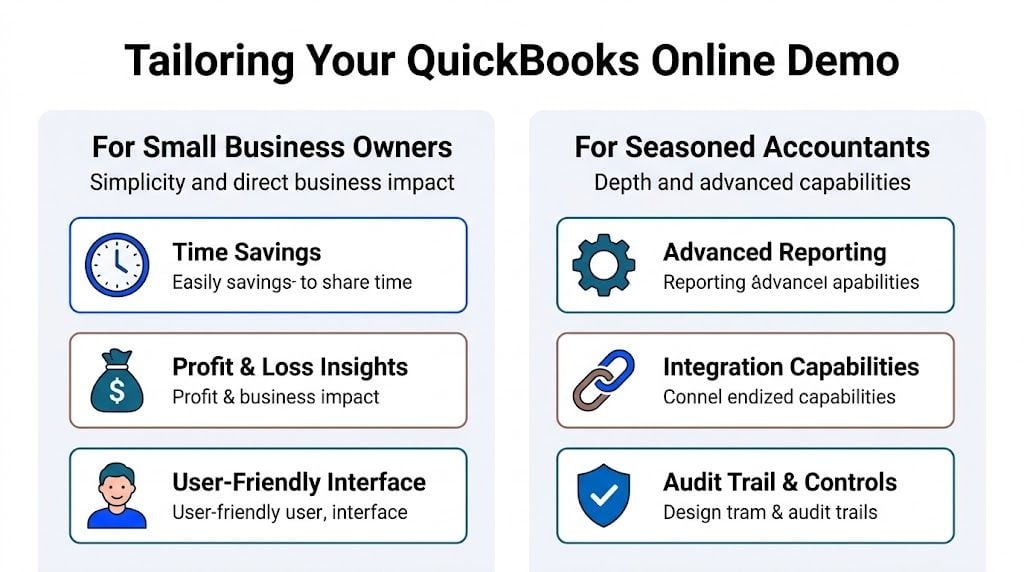
For small business owners
Owners usually don’t want an accounting lecture. They want confidence that the system won’t slow them down and that it will help them understand the business faster.
Start higher up. Stay visual. Keep the language practical.
A strong owner-focused path usually centers on:
- Time savings: Show how routine tasks move quickly and how fewer steps mean less admin drag.
- Profit and loss visibility: Open a report only when it answers a real question, such as “Are we making money on current activity?”
- Ease of use: Point out where daily tasks happen without making the software sound simplistic.
This audience often responds well to a short sequence:
- Business overview
- Cash position
- Invoicing
- Basic reporting
- What they would do weekly
You’re not trying to prove every capability. You’re trying to remove fear.
For accountants and bookkeepers
Accounting professionals usually have the opposite concern. They assume they can learn the screens. What they want to know is whether the workflow holds up under pressure.
That means your demo should speak to control.
Use this path instead:
Audience
What they care about
What to show
Business owner
Simplicity and visibility
Dashboard, invoices, cash view, P&L
Accountant or bookkeeper
Accuracy and efficiency
Chart of accounts, bank rules, reconciliation, reports
Firm leader
Team consistency
Permissions, repeatable processes, review flow
For accountants, strong talking points include:
- Chart of accounts discipline: Explain how structure affects reporting quality later.
- Bank rules and categorization: Show how standardization reduces repetitive review.
- Reconciliation workflow: Emphasize proof, not convenience.
- Reporting depth: Focus on what can be reviewed consistently month after month.
What not to mix up
The fastest way to lose an owner is to start explaining the finer points of account structure before they see any business value.
The fastest way to lose an accountant is to spend ten minutes on surface-level dashboard widgets while skipping controls.
That difference sounds obvious, but it gets missed all the time.
If the buyer asks, “Can my team keep this clean?” they’re asking an accountant question. If they ask, “Can I see where my money is going?” they’re asking an owner question.
A simple way to choose your path
Before you share the screen, ask three questions:
- Who will use QBO most often?
- What takes too long today?
- What mistake or delay frustrates you most?
The answers shape your route.
If they mention overdue billing, lead with invoices and collections. If they mention messy cleanup, lead with bank feeds and reconciliation. If they mention growing staff, show permissions and process consistency.
The audience-specific close
How you end the demo should match how you started.
For owners, close with the operational result. They should leave seeing fewer unknowns and faster visibility.
For accountants, close with the process result. They should leave seeing a cleaner handoff, less rework, and more reliable review.
That’s what turns a generic demo quickbooks online session into a conversation that moves a deal forward.
A Structured Walkthrough of Core Features
When the audience is clear, the walkthrough should feel like a workflow, not a software scavenger hunt.
Use a sequence that follows how work happens. Start broad, move into transactions, then land in review and reporting.
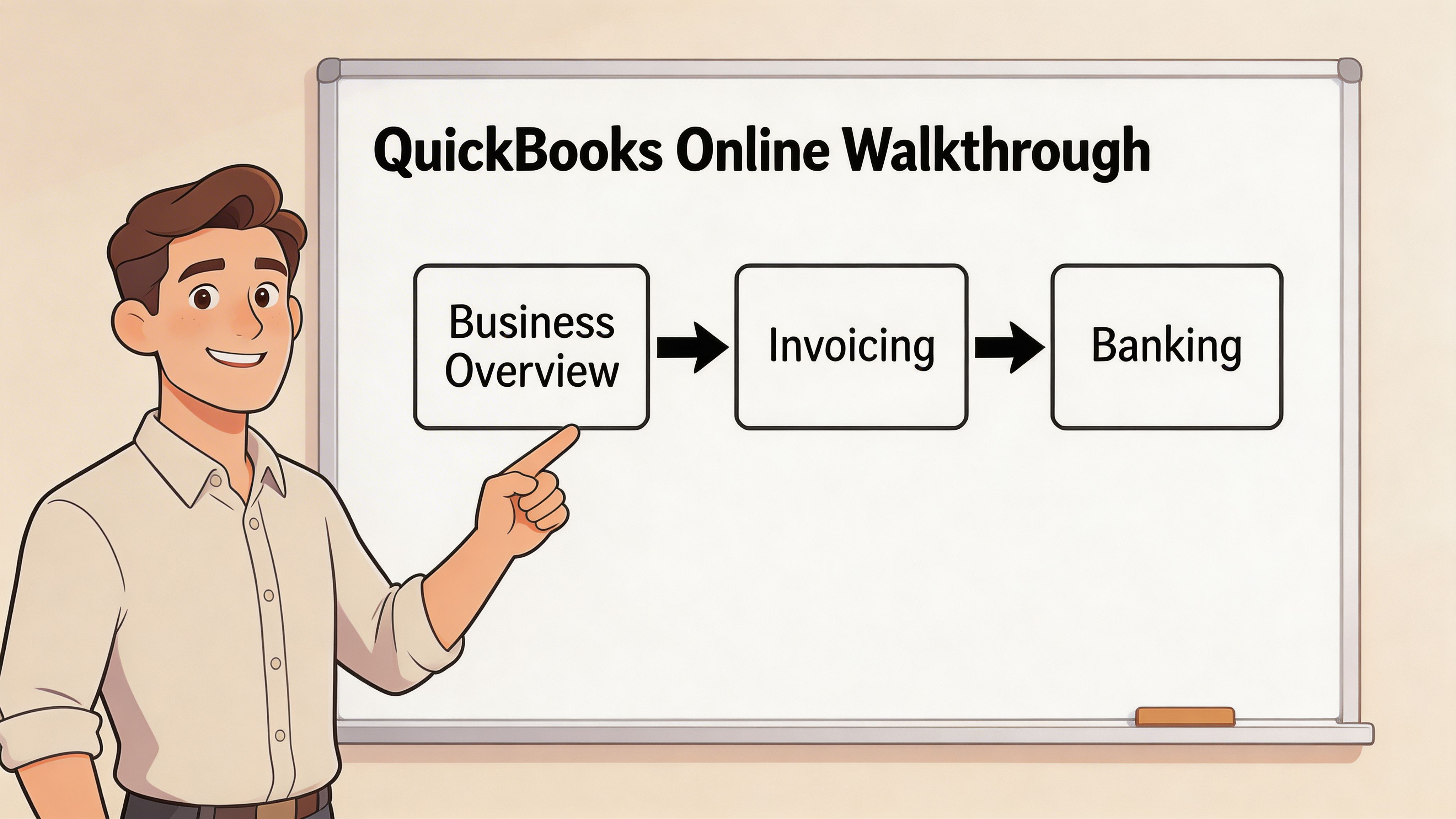
Open with the business view
Start on the overview screen and frame it in business language.
Don’t say, “This is the dashboard.” Say what the buyer can answer from this page. Is sales activity moving? Are receivables aging? Is spending in line with expectation? The first screen should orient them, not impress them.
Then move into cash flow or account activity if the audience cares about timing and liquidity. Keep it brief. The goal is to create context for the transactional screens that follow.
Move into invoicing and money in
Invoicing is one of the easiest places to create a value-based conversation because the pain is obvious. Late invoices, missed invoices, and inconsistent follow-up are expensive operationally even if the buyer doesn’t say it that way.
Show the invoice flow from creation to send status to follow-up. Keep your commentary anchored to outcomes:
- Faster creation: Less admin work before a bill goes out.
- Cleaner presentation: More consistency when multiple staff send invoices.
- Better visibility: Easier to see what’s open and what needs attention.
If the audience is a higher-volume team, QBO Advanced shines here. In QuickBooks Online Advanced demos, batch invoicing can lead to 20% faster processing than manual entry, and using QBO’s sample CSV template can help users succeed on the first try at a rate of over 85% (QBO Advanced batch invoicing demo).
That statistic only matters if you explain the trade-off. Batch invoicing is great for repeated structures and larger volumes. It’s less useful when every invoice is highly customized and reviewed case by case.
Show expense and bank workflow like an operator
A weak demo clicks into expenses and says, “You can enter bills here.”
A strong one says, “Here, consistency either starts or breaks down.”
For this part, walk through:
- Expense entry: show where coding happens and why that affects reporting later.
- Bank feed review: explain that imported transactions are only useful if the review process is disciplined.
- Rules: describe how teams reduce repetitive categorization without giving up oversight.
- Reconciliation: position it as the checkpoint that proves the books match the bank.
Good demos don’t treat bank feeds as magic. They treat them as a workflow that needs review standards.
A short visual can help if the buyer wants to see the flow in another format.
End in reports, not features
Reports should be the payoff. By the time you open Profit and Loss, the buyer should already understand where the numbers came from.
That’s why reports belong near the end of the walkthrough. They’re not a menu item. They’re the result of clean processes upstream.
A practical close looks like this:
- Open one management report or core financial report.
- Tie it back to the workflows you just showed.
- Explain what a weekly or monthly review would look like in real life.
If you’re demoing Advanced, focus on reporting as a process advantage, not a pile of options. Finance teams care when reports are reusable and easier to update without manual reformatting.
The whole sequence should feel coherent: business view, transactions, controls, answers.
That’s the structure buyers remember.
Showcasing Next-Level Automation with Booksmate
The easiest way to make a QBO demo feel modern is to stop pretending bookkeeping starts inside the accounting file.
It doesn’t. Work starts where documents arrive. Vendor portals. Email inboxes. Receipts forwarded by staff. Download folders nobody fully owns.
That’s why an integration example often lands harder than another in-product click path.
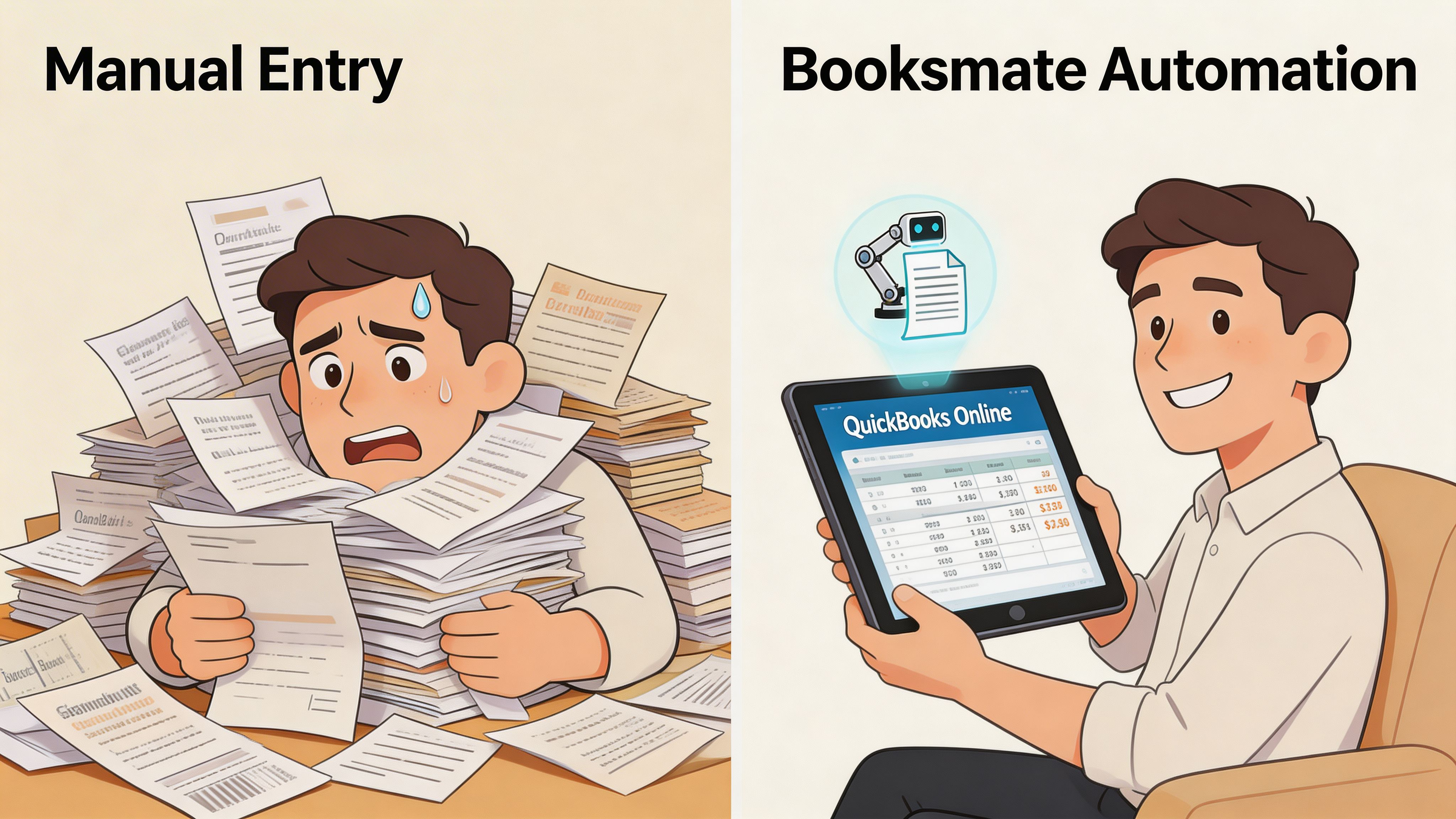
The before and after that buyers understand
Use a simple contrast.
First, describe the manual process. A team member logs into a supplier portal, downloads an invoice, renames the file, saves it, retypes the header details, checks tax, enters the bill, and hopes nothing was missed. Repeat that over and over for Amazon, Stripe, Microsoft, Google, PayPal, and inbox attachments.
Then show the automated version. Documents are collected, data is extracted, and the team reviews organized information before export into the accounting workflow.
You don’t need inflated claims for this. Buyers already know the manual version is ugly.
Why this works in a demo
An integration moment changes the conversation from “Can QuickBooks do accounting?” to “How does this whole process get cleaner?”
That’s a much stronger sales position.
A practical script sounds like this:
- Manual path: “Here’s the work your team is doing before QuickBooks even enters the picture.”
- Automation path: “Here’s how document collection and extraction can be standardized before the accounting review starts.”
- Accounting handoff: “Now the QBO entry is reviewable instead of manually rebuilt.”
This is also the right time to speak about system design. If the buyer is thinking beyond one app, a solid primer on SaaS software integration helps frame why connected workflows matter operationally, not just technically.
Keep the promise realistic
The point of an automation segment isn’t to imply that no human review is needed.
The point is to show where human time should be spent. Staff should review exceptions, not act as copy-paste machines. Controllers should check coding and approvals, not hunt through ten portals to find missing PDFs.
The best automation demos don’t remove judgment. They remove clerical repetition.
That line matters because experienced accountants are skeptical for good reason. They’ve seen “automation” sold as magic when it was really just another cleanup problem.
If you present automation as a cleaner intake layer feeding a controlled QBO process, it feels credible. It also gives the buyer a clearer picture of return. Not abstract efficiency. Fewer manual touches, fewer missed documents, and a more consistent export into the books.
That’s where a demo stops being a product tour and starts becoming a process redesign conversation.
Handling Objections and Tough Questions
Questions in a QBO demo are usually a buying signal. Silence is worse.
The trick is not to defend the software like a fan. It’s to answer like an advisor who understands where the software fits and where it doesn’t.
Common objections and stronger answers
**“This seems too complex for my small business.”**Answer with scope, not pressure. “You won’t use every part on day one. We’d start with the few workflows you’ll touch weekly, then add structure as the business grows.”
**“How does this work for nonprofits?”**Be direct. Standard QBO demos often lack nonprofit-specific features like fund accounting, and July 2025 UI changes can confuse users who learned the older layout, so it’s better to acknowledge the gap and discuss workarounds or supporting tools instead of pretending the sample company covers it all (nonprofit and UI change discussion).
**“The screen doesn’t look like what I saw before.”**That’s common with redesigns. Explain that navigation changes can affect familiarity, but the core workflow conversation still matters more than menu placement.
Turn limitations into trust
A smart answer often sounds like this:
“The demo environment is good for showing the process logic. For specialized workflows, I’d rather be clear about what the sample does and doesn’t represent.”
That kind of response lowers resistance because it doesn’t oversell.
For teams that present often, general presenter best practices are worth reviewing too. Not for theatrics. For cleaner pacing, better question handling, and stronger screen-share habits.
The close when the questions get tough
If the buyer asks a narrow edge-case question you can’t prove live, don’t fake it.
Say what you know, state the demo limitation, and offer the next step. That might be a specific follow-up, a workflow review, or a deeper implementation discussion. Buyers trust clarity more than improvisation.
If your team spends too much time chasing invoices across portals and inboxes before they ever reach QuickBooks, Booksmate is worth a look. It helps accountants, bookkeepers, and finance teams collect documents automatically, extract the key data, and organize everything for export so your QBO workflow starts with cleaner inputs instead of manual download-and-type work.