Articles
Download QBO App: Your Complete 2026 Guide
You’re usually looking to download QBO app when work is already in motion. A client texts asking whether an invoice cleared. You’re out of the office. You need to snap a receipt before it disappears into a glove box, review an expense while waiting in line, or check a payment status without opening a laptop.
That’s where the app stops being a convenience and starts being part of the bookkeeping routine. Used well, it gives you fast access to the parts of QuickBooks Online that matter most in the field, while your deeper cleanup and reporting still happen at the desk. The trick is getting the setup right from the start, especially if you manage client data, team permissions, and receipt-heavy workflows.
Why Your Business Needs the QBO App
A lot of bookkeeping delays come from tiny gaps in timing. The receipt gets lost before anyone captures it. The owner remembers an expense three days later. A customer asks for an invoice copy while you’re away from your desk.
The QBO mobile app closes those gaps. Intuit says QuickBooks serves more than 7 million customers across its products, and the mobile app can reduce manual data entry by up to 50% for users according to Intuit’s own efficiency studies (Google Play listing for Intuit QuickBooks for Business).
That matters in real bookkeeping work. If you can review transactions, send invoices, and capture documents the moment they happen, cleanup gets easier later. You’re not rebuilding a week from memory.
Where mobile helps most
- At the client site you can confirm a transaction without asking someone to “send it later.”
- During travel you can review open invoices and basic activity without hauling out a laptop.
- Right after a purchase you can capture supporting documents before they disappear.
Practical rule: Use mobile for capture, review, and quick approvals. Use your larger screen for reconciliations, reporting, and anything that requires side-by-side checking.
For teams drowning in paper slips and emailed attachments, it also helps to tighten the front end of receipt handling. If you’re reworking your collection process, this guide to receipt software for small business is useful because it focuses on how documents get into the system in the first place.
The app isn’t a replacement for disciplined bookkeeping. It’s the fastest way to stop small tasks from turning into month-end problems.
Mobile vs Desktop App What's Right For You
The better question isn’t “Which one should I use?” It’s “Which one should I use for this task?”
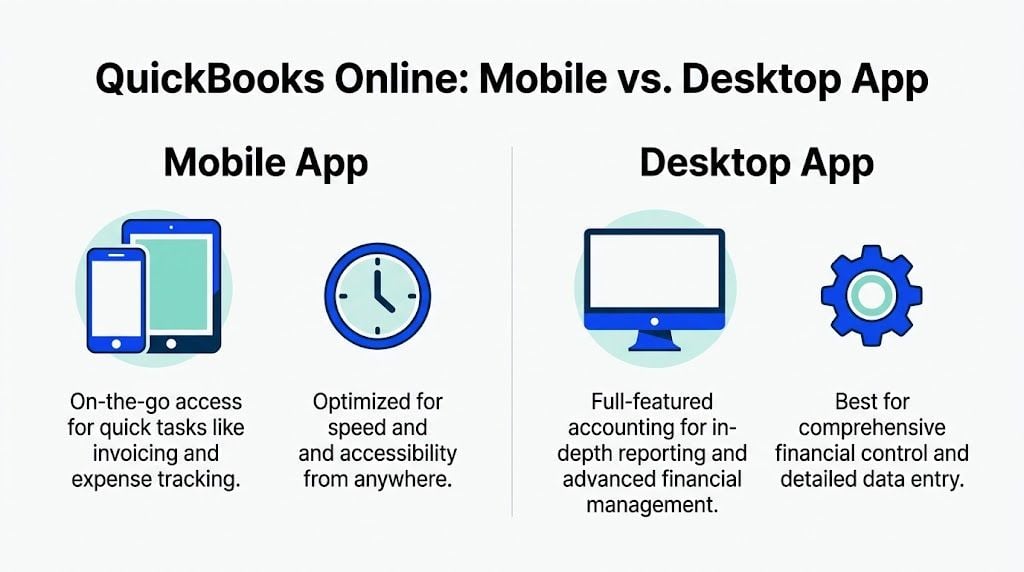
If you spend your day approving, checking, and moving quickly, mobile makes sense. If you’re handling detailed reporting, multiple companies, or longer sessions in one file, the desktop app is stronger.
What the desktop app does better
The QBO desktop app includes persistent sign-in and split-screen views, and Intuit benchmarks say desktop users report 30% faster report generation than web-only access (QuickBooks Online Advanced desktop app details).
That’s a practical advantage for:
- Accountants managing several entities
- Bookkeepers doing report review
- Teams that need longer, uninterrupted sessions
- Anyone who wants less browser clutter
Split-screen matters more than it sounds. When you’re checking source detail against the main record, fewer tab switches usually means fewer mistakes.
What the mobile app does better
The mobile app wins when speed matters more than depth.
Task
Mobile app
Desktop app
Receipt capture
Best option
Possible, but not ideal
Quick invoice checks
Fast
Fine, but slower to open on the go
Expense review in the field
Strong
Desk-based
Multi-window report work
Limited
Better fit
Long bookkeeping sessions
Not ideal
Best fit
Mobile is for moments. Desktop is for sessions.
The setup I recommend
For most small firms and in-house finance teams, the cleanest workflow is simple:
- Use mobile for receipt capture, invoice follow-up, quick customer checks, and approvals.
- Use desktop for report-heavy work, cleanup, and deeper review.
- Keep permissions aligned so the person using mobile only sees what they need.
That combination keeps the books moving without forcing every task into the same tool.
Downloading the QBO App on Your iPhone or iPad
If you’re on iPhone or iPad, the cleanest path is through the App Store. Don’t overcomplicate it, but do verify you’re downloading the official QuickBooks app before signing in.
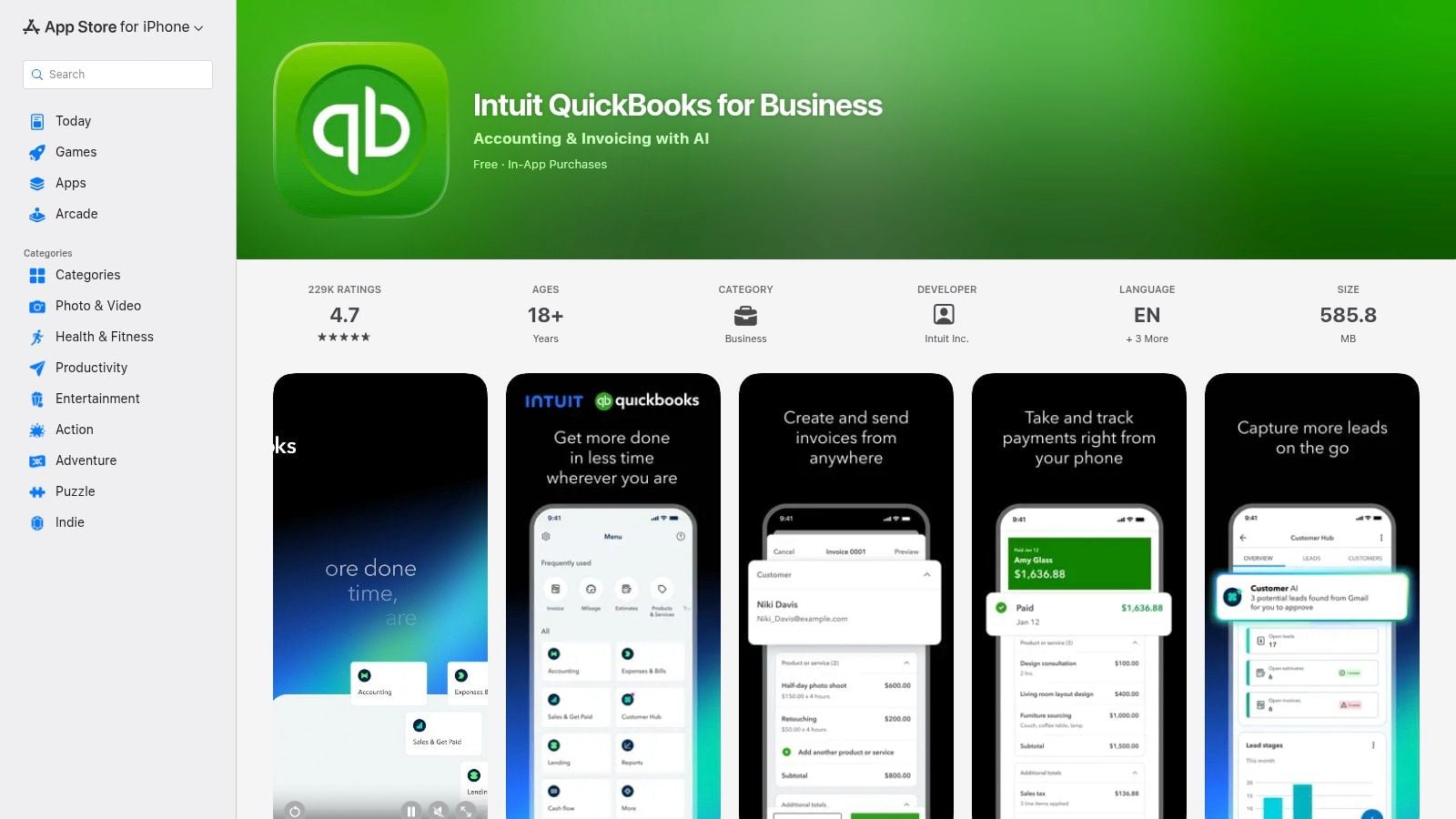
Step by step on iOS
- Open the App Store.
- Search for QuickBooks Online.
- Confirm it’s the official Intuit app.
- Tap Get or the download icon.
- Once installed, open the app and sign in with your Intuit credentials.
- Complete the one-time verification prompt if asked.
- Turn on Face ID or your preferred biometric option when prompted.
The app requires iOS 15 or newer, and the App Store download process has a 97% first-attempt success rate globally. Biometric login options like Face ID can reduce authentication time by up to 60% (QuickBooks mobile app download help).
Security settings to enable right away
Once you’re in, don’t stop at the login screen.
- Enable biometric login so staff aren’t typing passwords in public places.
- Allow notifications selectively if you need invoice or approval awareness.
- Review photo and camera permissions so receipt capture works only when intended.
- Use device passcode protection on any phone that accesses client books.
If you’re equipping staff and don’t want to buy new Apple hardware for everyone, a vetted buying guide like where to buy refurbished iPhones UK can help you source devices that are still suitable for secure business use.
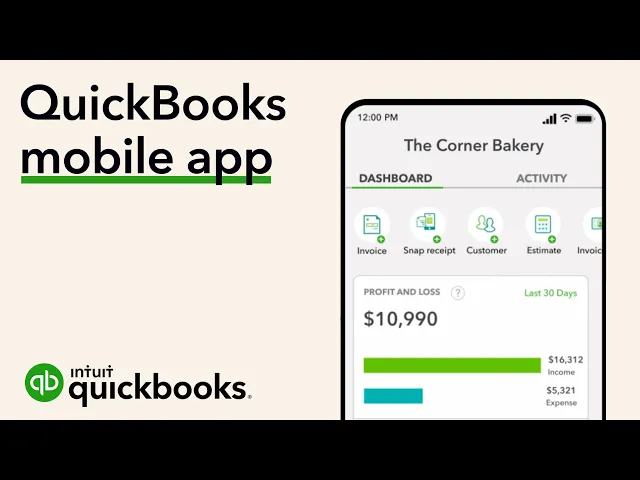
A quick visual walkthrough helps if you're setting this up for a team member for the first time.
What to check after first login
Open one customer, one invoice, and one expense-related screen. Make sure the user can see what they need, and no more than that.
If the app works but the workflow feels clumsy, it’s usually a permissions issue or a device settings issue, not a QuickBooks issue.
That five-minute check saves a lot of back-and-forth later.
Installing the QuickBooks App on Android Devices
Android setup is straightforward, but Android shops usually need a bit more attention to permissions because device makers handle prompts differently.
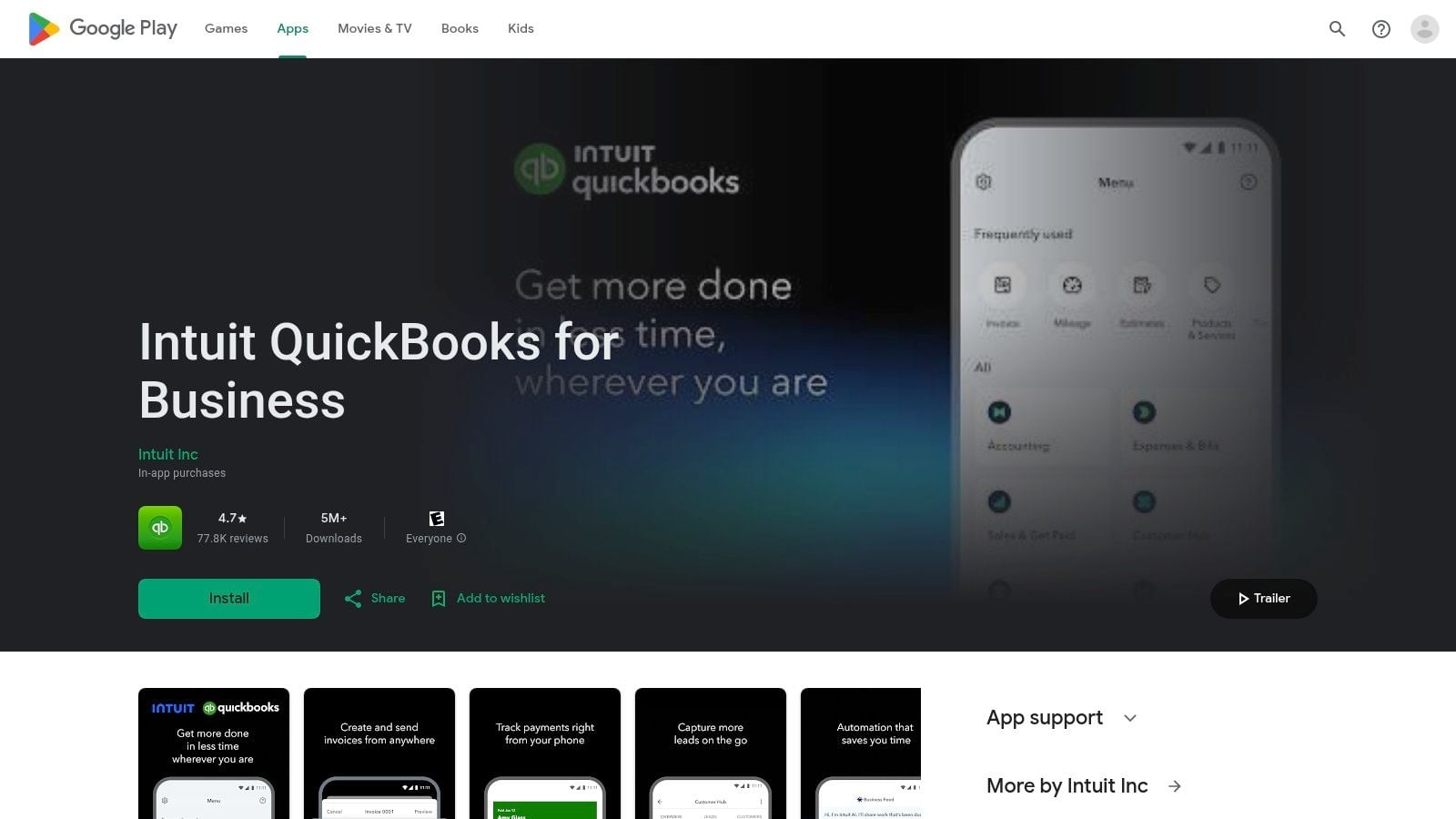
Start in the Google Play Store and search for Intuit QuickBooks for Business. That naming matters. It helps you avoid lookalike apps and random third-party tools that have nothing to do with your live accounting file.
Clean Android install process
- Search carefully. Look for the official Intuit listing before installing.
- Tap Install and let the app finish before opening it.
- Sign in with your QuickBooks credentials and complete the verification prompt if required.
- Turn on fingerprint or device biometrics if the phone supports it.
Permissions that are worth allowing
Not every permission needs to be enabled immediately. Give the app what matches your workflow.
Permission
Why it matters
Camera
Receipt and document capture
Photos or files
Attaching existing images or PDFs
Notifications
Invoice and account activity alerts
Biometrics
Faster secure sign-in
If your team only reviews transactions and doesn’t upload source documents from mobile, keep permissions tighter. That’s a better habit than granting everything and sorting it out later.
What works best on Android in practice
Android is strong for field use because many teams already carry Samsung, Pixel, or other business-ready devices. The main thing is consistency.
Use the same setup checklist on every phone:
- Confirm the right Google account is active in Play Store.
- Install the official app only.
- Enable screen lock on the device before storing client access.
- Test camera upload with a sample receipt.
- Verify the user lands in the correct company file.
That last point gets missed more often than people expect. In firms with several client entities, you want the user checking the right books before they start approving anything.
Security Permissions and Workflow Pro Tips
Downloading the app is the easy part. Running it safely is what separates a tidy mobile workflow from a mess.
Mobile accounting puts client data in more places. That doesn’t mean it’s unsafe. It means you need tighter operating habits.
Keep app access narrow
Give mobile users the minimum access that matches their role. A staff member capturing receipts in the field doesn’t need the same visibility as the person doing final review.
I tell new team members to think in layers:
- Device layer. Strong passcode or biometrics on the phone itself.
- Account layer. Intuit login protected with two-step verification.
- Workflow layer. Only the permissions needed for the task.
If one of those layers is weak, the whole setup is weaker than it looks.
Field rule: A lost phone shouldn’t become a client-data incident. Screen lock, biometrics, and prompt account removal on old devices matter more than people think.
Handle two-step verification properly
Two-step verification is where many teams get annoyed and start cutting corners. Don’t.
Use a method your staff can access reliably. If SMS codes are inconsistent for someone who travels, switch them to an authenticator-based flow if your internal policy allows it. The goal is consistent secure access, not constant login friction.
Also make sure old devices are signed out when staff upgrade phones. That’s basic housekeeping, but it’s one of the first things I check during mobile onboarding.
Build a better document flow
A good mobile workflow usually looks like this:
- A receipt or invoice enters your intake process.
- The document is collected and organized centrally.
- Someone reviews or approves the related transaction from mobile if needed.
- Final coding and cleanup happen during regular bookkeeping review.
Integrated document collection is critical. If your team is still hopping between vendor portals, email inboxes, and shared drives, the QBO app helps with review, but it won’t solve intake chaos on its own.
Practical mobile habits that prevent errors
- Use mobile for approval, not heavy editing when details are complex.
- Capture documents immediately instead of saving them to text messages or camera rolls for later.
- Check user identity on shared tablets before opening client files.
- Turn off unnecessary notifications on devices used in public settings.
The best mobile setup feels boring. Secure sign-in is quick, the right file opens, and the user can do one job cleanly without extra access.
That’s what you want.
Troubleshooting Common Download and Login Issues
Most app problems aren’t mysterious. They usually come from availability, verification, storage, or device settings.
The first mistake people make is assuming the app is broken when the issue is local to the phone or region. Common download pitfalls include geo-unavailability in over 20 countries, which accounts for 18% of failures, and 2FA timeouts, which cause 12% of login issues. Using an authenticator app can help mitigate those timeout problems.
If the app doesn’t appear in the store
Check your region first. Store availability can vary by country, so the app may not show up even when your device is otherwise fine.
If that’s the case, use the browser version temporarily and confirm whether your region supports the app before troubleshooting anything else.
If login keeps looping
Try these in order:
- Confirm the username and company are correct. Multi-company users often land in the wrong place.
- Wait for the verification prompt instead of reopening the app repeatedly.
- Use an authenticator option if SMS timing keeps failing.
- Update the device clock automatically because verification can behave badly when time settings are off.
If the install fails or the app feels sluggish
Storage and permissions are the usual culprits.
- Clear space if the device is close to full.
- Restart the phone before trying again.
- Review camera and file permissions if uploads don’t work after install.
- Update the operating system if the app opens but behaves unpredictably.
One good rule is to test one simple action after each fix. Sign in. Open a customer. Upload a sample document. Don’t change five things at once or you won’t know what solved it.
Frequently Asked Questions About the QBO App
Can I use the QBO app on more than one device
Yes, many teams do. The practical issue isn’t the number of devices. It’s making sure each device is secured, tied to the right user, and removed from access when it’s retired or reassigned.
Does the mobile app replace the desktop app
No. The mobile app is better for quick actions, review, and capture. The desktop app is still the better fit for heavier reporting and longer bookkeeping sessions.
Should I allow every permission the app requests
Not automatically. Only allow what supports the user’s actual job. Camera access makes sense for receipt capture. Broad access on a review-only device usually doesn’t.
Is the tablet experience different from the phone experience
Yes, mostly in comfort and visibility. Tablets are easier for reviewing more detail, while phones are faster for quick checks and capture. The right choice depends on how the person works day to day.
What’s the safest way to roll this out to staff
Start with a short checklist:
- Secure the device first
- Sign in with the correct user
- Turn on biometric login
- Test one live workflow
- Confirm the user only sees what they should
What if mobile doesn’t fit part of our process
That’s normal. Don’t force it. Use the app where it saves time, and keep more detailed work on desktop or web where review is easier.
If your team spends too much time chasing invoices across portals and inboxes before anything even reaches QuickBooks, Booksmate is worth a look. It helps bookkeepers and finance teams collect invoices and receipts automatically, organize them in one dashboard, and prepare them for export so the QBO app can do what it does best: quick review and action, not document hunting.