Articles
Quickbooks and hubspot integration: Optimize QuickBooks & Hu
A deal closes in HubSpot at 4:47 PM. Sales celebrates. Finance gets a Slack message, an email, and sometimes a screenshot of the deal amount. Someone then retypes the customer name, billing details, products, terms, and amount into QuickBooks.
Good processes often go awry during that handoff.
A single typo in the customer record creates a duplicate. A missing line item changes the invoice total. Payment status lives in QuickBooks, while the account manager keeps chasing the client from HubSpot because nobody updated the deal. Teams do not notice the damage right away because each step looks small on its own.
The QuickBooks and HubSpot integration matters for these reasons. It is not merely a convenience feature. It is the operational bridge between the team that closes revenue and the team that records it. Done well, it removes repetitive admin, tightens billing accuracy, and gives sales, finance, and leadership one cleaner view of what is happening.
Industry benchmarks cited by Uspeh note that disconnected sales and finance systems can cost small businesses up to 25% of operational time in redundant tasks, and automation can reduce admin burden by up to 50% for sales reps tracking unpaid invoices (HubSpot to QuickBooks integration overview).
Bridging the Gap Between Sales and Finance
The pattern shows up in almost every growing company.
A rep marks a deal as Closed Won in HubSpot. The finance team still needs to know what was sold, who approved it, which entity should be billed, what payment terms apply, and whether the billing contact matches the sales contact. If any of that lives in notes, emails, or someone’s memory, invoicing slows down.
Where the handoff usually breaks
The most common failures are not dramatic. They are ordinary:
- Customer records split apart because sales entered “Acme Ltd” and accounting already has “Acme Limited.”
- Product details drift when the package sold in HubSpot does not match the item structure in QuickBooks.
- Payment visibility disappears because the invoice gets paid in QuickBooks, but nobody sees that update inside HubSpot.
- Follow-up gets messy when account managers chase clients for payment without current finance data.
For business owners, that means slower invoicing and weaker reporting. For accountants and bookkeepers, it means cleanup work that should never have existed. For sales, it means less trust in CRM data.
What the integration changes
When the connection is configured properly, the workflow gets simpler. A deal closes in HubSpot. QuickBooks receives the right customer and invoice context. Payment status can flow back so the deal record reflects what happened financially.
That matters because the integration is not only about moving data. It is about deciding which system owns what.
HubSpot should generally own sales context. QuickBooks should generally own financial truth. Problems start when both systems are allowed to overwrite the same fields without rules.
Tip: Before turning on any sync, decide which app owns contacts, products, invoices, and payment status. Most sync issues come from skipping that decision.
The good news is there is no single “best” setup for everyone. A startup with one sales pipeline needs a different approach from a bookkeeping team handling multiple clients, portals, and edge cases. The right answer depends on business stage, team habits, and how much customization you need.
Choosing Your Integration Path
Most companies have three realistic options for a QuickBooks and HubSpot integration. The mistake is treating them as interchangeable. They are not.
Some teams need a clean, low-maintenance sync. Others need conditional logic across several apps. Others need tighter control because finance processes are too specific for out-of-the-box tooling.
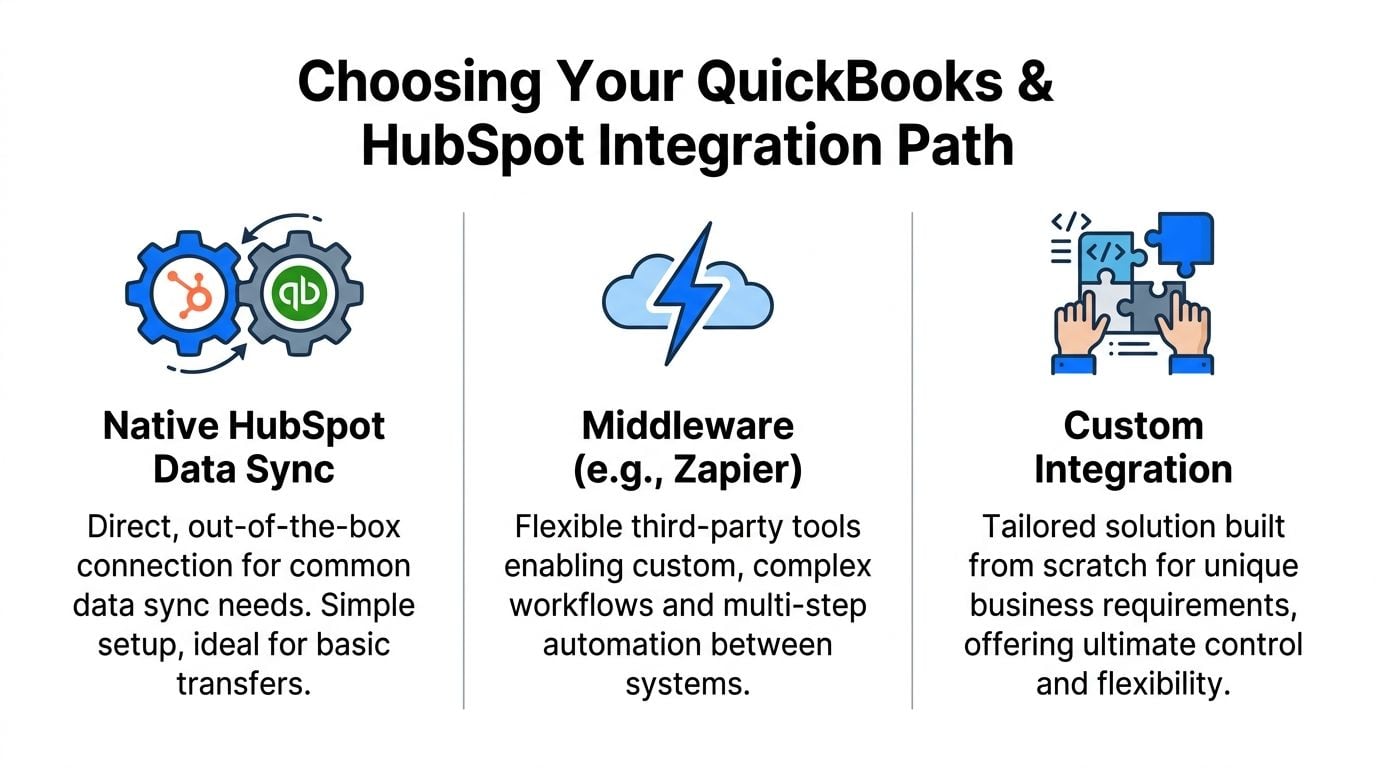
Option one with native HubSpot Data Sync
This is the default choice for many startups and simpler SMB setups.
It is best when you want a direct connection for common records and do not need complicated branching logic. If your process is “closed deal becomes invoice context, and payment updates should be visible to sales,” the native route is usually enough.
Good fit:
- Early-stage teams with a clean pipeline and standard invoicing flow
- Ops leads who want less maintenance
- Finance teams that prefer fewer moving parts
Less ideal:
- Businesses with unusual approval workflows
- Teams needing cross-app actions outside HubSpot and QuickBooks
- Companies with heavy custom property requirements
Option two with middleware like Zapier or Make
Middleware becomes useful when the business process is wider than a direct CRM-accounting sync.
If invoice status should also trigger project kickoff, customer onboarding, thank-you emails, reminders, or internal approvals, middleware gives you more control. Consequently, CRM integration becomes a broader operations decision rather than just a simple app connection.
- SMBs with multiple teams touching the customer lifecycle
- Revenue ops and finance ops teams that need custom rules
- Companies that want event-based workflows across more than two tools
Trade-off: Middleware solves flexibility problems, but it also creates more places for data conflicts, duplicate triggers, and troubleshooting headaches. If nobody owns automation QA, these setups drift.
Option three with specialized connectors or custom integration
This path makes sense when accounting complexity is the main story.
Think of firms managing several clients, high invoice volume, non-standard field mapping, or strict internal controls around what may sync and when. A specialized connector can reduce friction if it already understands the QuickBooks-HubSpot relationship well. A custom build makes sense only when standard tools cannot support the business model.
- Accounting firms and bookkeepers
- Businesses with complex invoice lifecycle rules
- Teams needing advanced mapping, validation, or bespoke reporting logic
Trade-off: You gain control, but you also take on more implementation responsibility. If the custom logic is poorly documented, future maintenance becomes painful fast.
A practical way to decide
Use this simple lens:
Business situation
Best starting path
Why
Startup with one sales team and standard invoicing
Native sync
Fastest route to value with less overhead
SMB with approvals, notifications, and multi-app workflows
Middleware
Better for conditional automation
Accounting-heavy environment with custom controls
Specialized connector or custom build
Better field control and process enforcement
The upside is real when you choose the right path. ScaleXP notes that businesses using HubSpot-QuickBooks integration report 30-40% faster cash flow decisions, 50% less follow-up time for sales through payment status visibility, and 15-20% higher upsell revenue from transaction-based segmentation (ScaleXP integration analysis).
Key takeaway: Choose the simplest method that supports your real process. Overbuilding creates admin. Underbuilding creates manual work and sync failures.
Setup Guide for the Native HubSpot Data Sync
If your process is straightforward, start with the native option. It is usually the fastest way to get useful results without building extra automation layers.
For standard setups under 10,000 records, providers report setup is typically completed in 1-2 hours, with success rates above 95%, and automated workflows can reduce manual entry by 80% and errors by 70% in sales-accounting handoffs (Belitsoft QuickBooks integration guide).
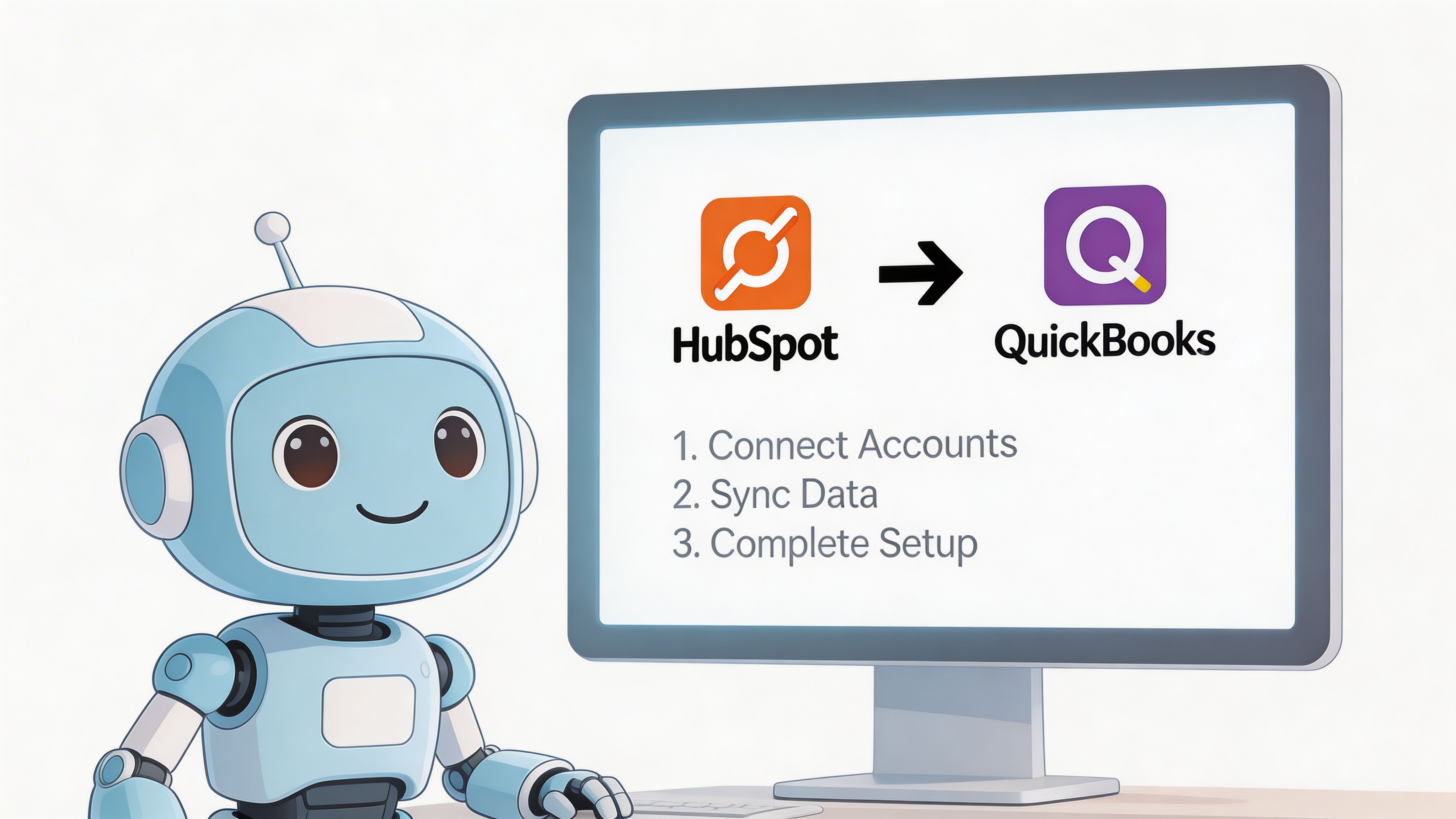
Start with your sync design, not the install
The install itself is easy. The design choices determine whether teams save themselves weeks of cleanup or create it.
Before you connect anything, write down:
- Which records will sync firstStart with contacts, products, invoice-related objects, and payment visibility. Do not switch on every available object at once.
- Which system owns each fieldIf QuickBooks is your accounting system of record, do not let HubSpot overwrite invoice totals, payment status, or accounting-specific customer data casually.
- What event should trigger invoice creationThe safest trigger is usually a very specific sales condition, not just any deal update. “Closed Won” is common, but many teams add an approval or billing-ready condition before the handoff.
Install and authenticate
In HubSpot, find the QuickBooks app in the marketplace and begin the connection flow. Authenticate HubSpot and QuickBooks Online with the correct admin permissions.
This sounds obvious, but access problems often begin here. If the person connecting the tools does not have the right accounting permissions in QuickBooks, the setup may look complete while write actions fail later.
Check these early:
- Right QuickBooks company file
- Admin or equivalent integration permissions
- Correct HubSpot account and portal
- Environment sanity check, especially if you manage more than one brand or entity
Configure sync direction carefully
This configuration step determines whether native sync remains clean or becomes noisy.
A practical rule set looks like this:
- ContactsIf finance maintains billing records more carefully, let QuickBooks feed billing contact data into HubSpot. If sales creates contacts first, use that workflow carefully and define duplicate controls.
- ProductsIf QuickBooks is where your finance team maintains sellable items for invoicing, treat QuickBooks as the authority. Product mismatches create invoice problems faster than almost anything else.
- Invoices and paymentsQuickBooks should usually remain the owner. HubSpot should display and react to those statuses, not rewrite them.
Tip: The more financially sensitive the field, the less freedom HubSpot should have to overwrite it.
Field mapping that prevents common headaches
This is the part most generic guides skip. Good field mapping is not about syncing everything. It is about syncing the minimum set of fields needed to run the process without confusion.
A sensible mapping approach often includes:
HubSpot field
QuickBooks field
Recommendation
Contact email
Customer email
Use as a primary matching field, but not the only one
Company name
Customer display name
Standardize naming before sync
Deal amount
Invoice total
Only if your sales process aligns tightly with invoicing logic
Billing address fields
Customer billing address
Prefer finance-owned updates where possible
Product or line item references
Product or service items
Keep naming consistent across systems
Payment status custom view in HubSpot
Invoice/payment status from QuickBooks
Make QuickBooks the owner
Three mapping mistakes cause repeated trouble:
- Using company name alone for matchingNames vary too much. Use a stronger identifier strategy when possible.
- Syncing loosely defined custom propertiesIf sales reps fill a field inconsistently, do not pipe it into accounting.
- Letting deal amount directly control invoice logic without reviewDeal value in CRM can reflect negotiation context. Invoice totals need accounting accuracy.
Add filters before the first sync
Never run a first sync across every historical record because the option exists.
Use filters such as:
- Only sync deals in a billing-ready stage
- Only sync active customers
- Exclude archived, test, or duplicate records
- Limit old records until matching logic is proven
That first sync should be boring. Boring is good.
A short visual walkthrough can help if your team prefers to see the setup flow before touching production systems.
Test with real but controlled records
Do not test with fake data that looks nothing like your actual customers.
Use a small set of real scenarios:
- One new customer
- One existing customer already in QuickBooks
- One deal with multiple line items
- One paid invoice that should update back into HubSpot
Watch what happens to names, addresses, products, invoice ownership, and payment visibility. If any one of those behaves unpredictably, stop and fix the rule before expanding the sync.
Connecting with Zapier for Advanced Workflows
The native sync is good at direct data movement. It is not built for every operational chain around that data.
A common real-world requirement looks like this: when a QuickBooks invoice is marked as paid, update the customer status in HubSpot, notify the account team, trigger an onboarding task, and segment the contact for a follow-up campaign. That is middleware territory.
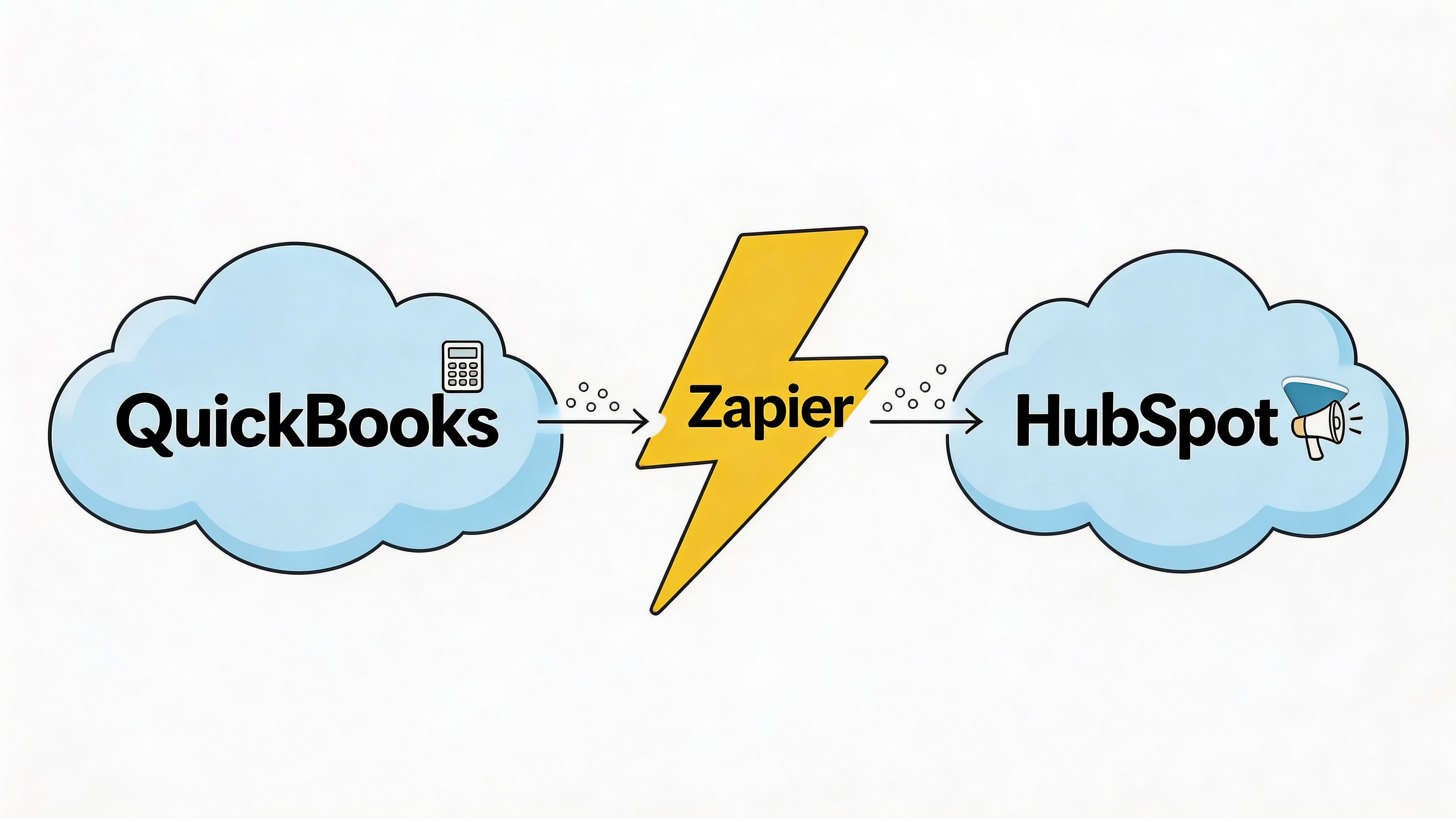
A workflow the native sync usually cannot handle well
Say you want this sequence:
- QuickBooks marks an invoice as paid.
- Zapier checks whether the customer is tied to an active HubSpot deal or company owner.
- HubSpot updates a property such as “Last Paid Invoice Date” or “Payment Status.”
- Asana creates a task for onboarding or account management.
- HubSpot adds the contact to a paid-customers list or workflow.
That is a practical multi-step automation. It connects finance events to customer operations without asking a human to relay updates.
If you are comparing options beyond Zapier, this roundup of powerful automation platforms is useful because the differences in branching logic, monitoring, and pricing matter once your workflows get bigger.
How to build the Zap cleanly
The build should stay narrow. One trigger. Clear filters. Few actions.
Use this structure:
- TriggerQuickBooks invoice payment event.
- FilterOnly continue if the invoice belongs to the customer segment you care about, or if a specific service line or status is present.
- Find or create stepMatch the customer in HubSpot using the strongest available identifier.
- Update stepWrite only the properties you need in HubSpot. Avoid broad record updates.
- Task or notificationSend the follow-up to Asana, Slack, or another internal tool.
What works and what breaks
Middleware works well when:
- The business event is clear
- Each action has a single purpose
- You log failures and review them regularly
It breaks when:
- Multiple Zaps handle the same event differently
- Matching relies on weak fields like company name only
- Teams let both native sync and middleware update the same property
Tip: Never let Zapier and native sync fight over the same field. Pick one automation owner per field or status.
The practical use of middleware is not “more automation.” It is targeted automation where native sync stops short.
Best Practices for a Bulletproof Sync
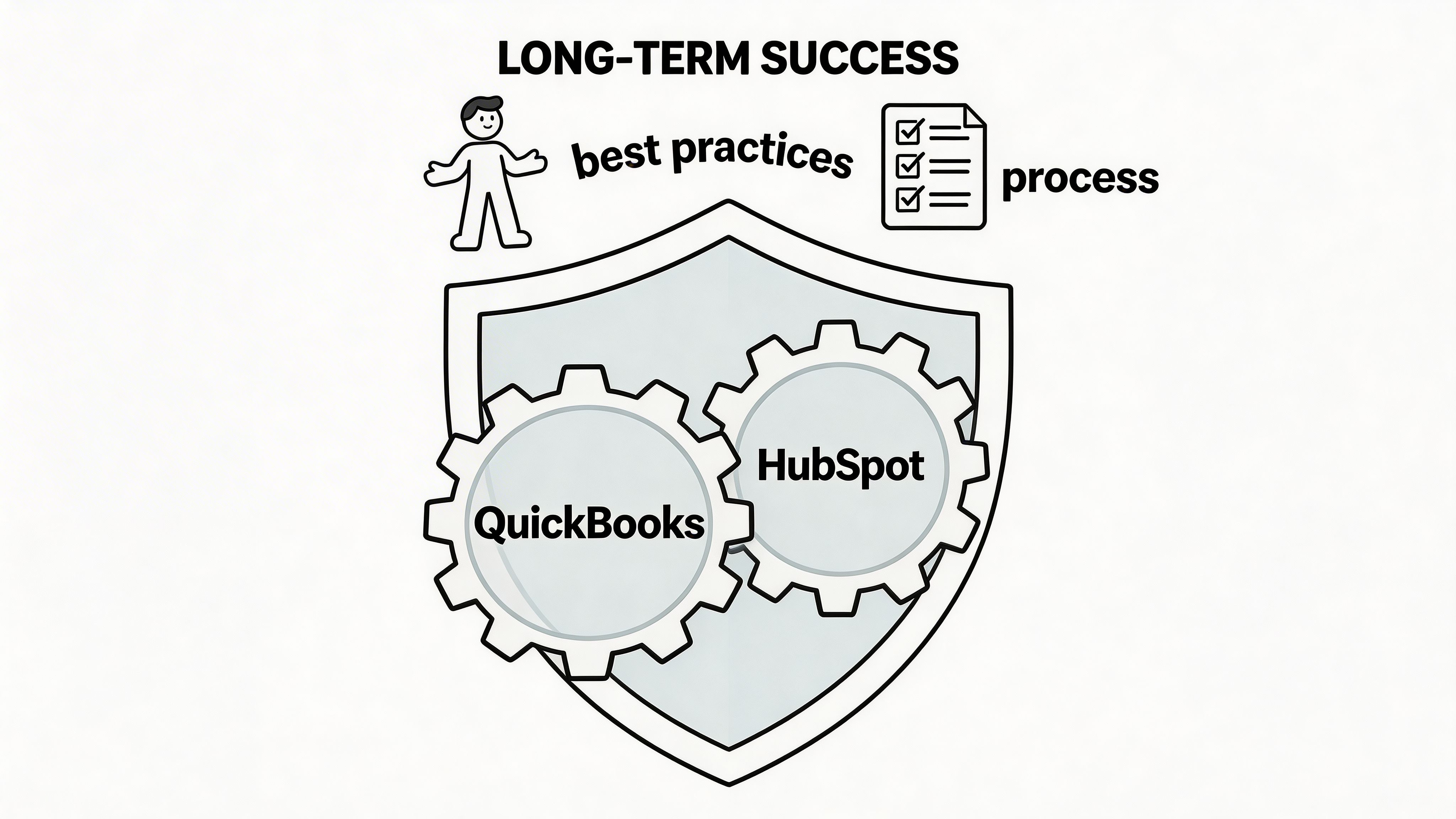
The best integration setups are process decisions first and technical decisions second.
Most sync problems do not come from bad software. They come from unclear ownership, inconsistent naming, and loose rules that let records bounce between systems until nobody trusts them.
Set a real system of record
If you remember only one rule, use this one: every important field needs an owner.
For most businesses, the practical setup is:
- HubSpot owns sales activity, deal stage, lifecycle context
- QuickBooks owns invoices, payments, customer billing details tied to accounting
- Shared fields get a written overwrite rule
That discipline matters. OneMetric reports that establishing a system of record and validation guardrails leads to 90% adoption post-training, and payment-triggered renewal reminders can reduce churn by 60% when QuickBooks data syncs back into HubSpot tasks (OneMetric integration blueprint).
Keep your matching logic boring and strict
Teams often want “smart” syncing. In practice, smart usually means risky.
Use matching logic that your team can explain in one sentence. If a contact or customer should match, you should know exactly why. If the rule depends on fuzzy naming habits, it will fail when volume rises.
A good operating standard includes:
- Consistent legal or billing names
- Required billing email fields
- Defined rules for subsidiaries and parent companies
- Clear handling for renamed customers
Protect high-risk fields with validation
Not every field deserves the same freedom.
Guard high-risk data:
- Invoice totals
- Billing addresses
- Payment status
- Product or service item references
- Renewal dates if they trigger revenue workflows
If a field can affect accounting or customer communication, it should not be editable in three places by three teams.
Key takeaway: Good integrations remove manual entry. Great integrations also prevent bad data from moving at all.
Clean data before expanding scope
Do not scale a messy sync.
Before adding more objects, more workflows, or more automation steps, review:
- Duplicate contacts
- Orphaned deals with no clean company match
- Product naming drift
- Old test data still sitting in production
- Users manually editing synced fields without understanding the rule. Many implementations stall at this point; the technology works, but the habits do not.
Troubleshooting Common Sync Errors
Most sync issues are predictable. The hard part is diagnosing them without wasting a day in the wrong place.
HubSpot’s documentation gives you the configuration tools, but common scenarios like mismatched customer addresses, partial invoice syncs, and duplicates still require practical troubleshooting because those failures can leave finance teams with outdated or duplicated records (HubSpot knowledge base on connecting HubSpot and QuickBooks Online).
Invoice did not generate from a deal
SymptomA deal is marked ready, but no invoice appears in QuickBooks.
Likely causeThe trigger condition was too broad or too narrow. Sometimes the deal reached the right stage without the required fields, products, or approval status.
FixCheck the workflow trigger first. Then confirm required billing data is present on the deal or associated record. Also verify that the connected QuickBooks account has permission to create invoices.
Duplicate contacts appeared
SymptomYou now have two versions of the same customer in HubSpot or QuickBooks.
Likely causeMatching relied on inconsistent fields such as display name, alternate email, or manually edited company labels.
FixPause the sync for that object group. Identify the matching rule. Merge or archive duplicates manually, then tighten the identifier logic before re-enabling sync.
Payment status is delayed or missing
SymptomQuickBooks shows payment received, but HubSpot still looks unpaid.
Likely causeThe payment field is not mapped correctly, a filter excluded the record, or another automation overwrote the update after it arrived.
FixReview field mapping and filters first. Then inspect any Zapier, Make, or HubSpot workflow that touches the same status field. Conflicting automations often create the appearance of a sync delay.
Customer address keeps flipping back
SymptomBilling address changes in one app, then gets overwritten later.
Likely causeYou have not assigned a source of truth for address fields.
FixPick one owner for billing address data. In most accounting-led setups, that should be QuickBooks. Change the overwrite setting so the non-owner app cannot keep pushing outdated values back.
Tip: If a sync issue repeats, stop looking at the error message alone. Trace the field owner, trigger event, and overwrite rule. The actual answer often lies there.
Frequently Asked Integration Questions
How should I handle historical data on the first sync
Do not sync everything at once. Start with a filtered slice of active customers and current deals. Test matching, field mapping, and overwrite rules on live but limited records before bringing in older data.
What about multi-currency transactions
This is one of the weaker areas in many setups. If you sell internationally or need currency-specific invoice handling, review your field design before syncing. Keep currency ownership in QuickBooks, and avoid using loosely defined CRM properties to drive accounting values.
Can I map custom HubSpot properties to QuickBooks fields
Sometimes, but custom properties often present limitations. Standard properties are easier. Custom properties such as VAT numbers, internal billing references, or special payment terms often need extra logic or a more flexible connector. If the field matters for accounting, test it with a small record set before making it part of your core workflow.
If your team spends too much time collecting invoices before they ever reach QuickBooks, Booksmate is worth a look. It helps bookkeepers, accountants, and finance teams fetch invoices and receipts from portals and email inboxes, extract the data, organize the documents, and export them into accounting workflows with less manual chasing.