Last updated: 2026-10-22
How to download invoices from Figma
Booksmate downloads Figma invoices automatically: add Figma in Booksmate, press Fetch All, and your invoices are downloaded for you. Manual steps are listed below if you prefer to download them yourself.
How do you download a Figma invoice?
In the Figma file browser, click Admin, then the Billing tab, then the Invoices tab. Select an invoice to open the details panel and download the PDF.
- Clicking the invoice number opens the same invoice in Stripe.
- Only admins can see Billing. This works on the Professional, Organization and Enterprise plans.
Why can't you find your Figma invoices?
Usually because you are not an admin, or you are signed in to an account or team that is on the free plan. Check that you are in the team that pays.
- If the team was downgraded to the free Starter plan, Figma says the billing section, including invoices, is no longer visible. Figma support can send you the past invoices.
- If you pause Figma between projects, download the invoices you need for your books before you downgrade.
Why do you get more than one Figma invoice?
On the Professional plan you get a monthly invoice, or an annual renewal invoice once a year. If you are on an annual plan and add paid seats or an AI credits subscription during the year, Figma sends monthly invoices for those too.
- Organization and Enterprise plans get a quarterly invoice for seats added in the last three months, plus the annual renewal invoice.
- Seat changes can create prorated charges or credits, which show on the invoice.
Can you download Figma invoices in bulk?
Not from Figma. The Invoices tab lists your invoice history and you open each invoice to download its PDF.
- On the Professional plan each team has its own billing, so check every team you pay for. Organization and Enterprise plans are billed for the whole organization.
- If you collect your Figma invoices every month for your bookkeeping, Booksmate can fetch them for you.
Automatically download Figma invoices
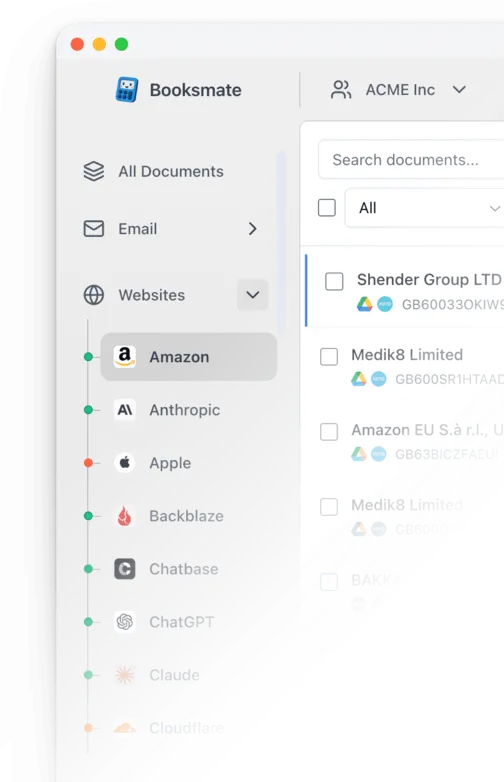
Booksmate downloads Figma invoices automatically in seconds. Add Figma in Booksmate, press Fetch All, and every invoice is downloaded for you without manual login.
-
Add
Figma inside Booksmate.
- Press Fetch All and log in to your Figma account.
- Done! Your invoices are automatically downloaded for you.
Start collecting Figma invoices automatically
Booksmate downloads your Figma invoices and saves them as PDFs, so you never log in manually again.
Sign up for Booksmate
Add Figma inside Booksmate
Press Fetch All and Booksmate downloads your invoices
No risk. Cancel anytime.
Manually download Figma invoices
- Log in at figma.com to open the file browser. If you are in a file, click the Figma menu, then Back to files
- Click Admin in the left sidebar
- Select the Billing tab, then the Invoices tab to see your invoice history
- Select an invoice to open the invoice details panel in Figma
- Download the PDF from the panel. You can also click the invoice number to view the invoice in Stripe
Important details
- Only admins can see Billing and invoices
- Invoices are in Admin, Billing, Invoices
- Invoices are hidden after a downgrade to the free plan
- Professional plan teams are billed separately
Requires admin or billing access
Figma Invoice FAQs
Is it safe to use Booksmate with Figma?
Yes. Booksmate runs on your own computer and never stores your Figma password, so your login details are not shared with any third party.
Can I download old invoices?
Yes. When you first add Figma to Booksmate, Booksmate downloads the full invoice history that is available in your Figma account.
Does Booksmate support email invoice collection?
Yes. Booksmate gathers invoices from your email inbox in addition to web portals like Figma, giving you one complete invoice collection setup.
Can I download all my Figma invoices at once?
Yes. Booksmate downloads your complete Figma invoice history automatically. Add Figma, press Fetch All, and every available invoice is saved to your computer.
Are Figma invoices saved as PDF files?
Yes. Booksmate saves every invoice as a PDF, so they are easy to organize, share, or upload to your accounting software.
How do I add my VAT ID to a Figma invoice?
From the file browser, click Admin, then the Settings tab. Under Plan and Billing (Billing on the Organization and Enterprise plans), select Value Added Tax / Goods and Services Tax and enter your VAT ID. The option only shows in countries where Figma charges VAT or GST.
How do I change the company name or address on my Figma invoice?
Click Admin, then the Settings tab. In the Billing section, click Invoice details, enter the name and address you want on your invoice and click Save. On the Professional plan you can change the company name there too. For anything extra, such as a trading name, contact Figma support.
Who gets Figma's billing emails?
The team owner, unless you change it. Click Admin, then Settings, and under Billing notifications click Billing contacts. The billing contact does not need a Figma account.
Can I add a PO number to a Figma invoice?
Yes, one per invoice, on an upcoming or unpaid invoice. Open Admin, Billing, Invoices, select the invoice and click Add next to PO number. If you already downloaded the PDF, download it again to get the version with the PO number. You cannot change it after the invoice is paid.