Last updated: 2026-10-16
How to download invoices from Dropbox
Booksmate downloads Dropbox invoices automatically: add Dropbox in Booksmate, press Fetch All, and your invoices are downloaded for you. Manual steps are listed below if you prefer to download them yourself.
How do you download a Dropbox invoice?
Go to dropbox.com/account/billing, or click your avatar, then Manage account, then Billing. Click Invoice next to the payment, then Print invoice and save it as a PDF.
- Invoice is the tax document. Receipt is proof that you paid.
- Card payments show on your bank statement as DROPBOX* followed by a transaction number, which helps you match the right invoice.
Where are invoices for a Dropbox team account?
Team admins with billing access open the Admin console, then Billing, then the Payment history tab. Click the more options menu next to a payment and choose Invoice.
- The direct link is dropbox.com/team/admin/billing.
- Team members who are not billing admins will not see these invoices. Ask your admin.
- Teams that pay by manual invoice get the invoice by email instead. For a copy, Dropbox says to email invoices@dropbox.com.
Why is the Billing tab missing in Dropbox?
Usually because the account you are signed in to is not the one that pays for the plan. On a Family plan only the Family manager sees billing, and on teams only certain admins do.
- Check which account you are signed in to. Many people have a personal and a work Dropbox.
- If you bought Dropbox in the iPhone or Android app, Apple or Google bills you, so the receipt is in your App Store or Google Play purchase history.
Can you download Dropbox invoices in bulk?
No. Dropbox support confirms there is no way to download all invoices at once. You open and save each one from Billing.
- Dropbox says email receipts may not be sent for every payment, so plan to use the billing page.
- If you collect the Dropbox invoice every month for your bookkeeping, Booksmate can fetch it for you.
Automatically download Dropbox invoices
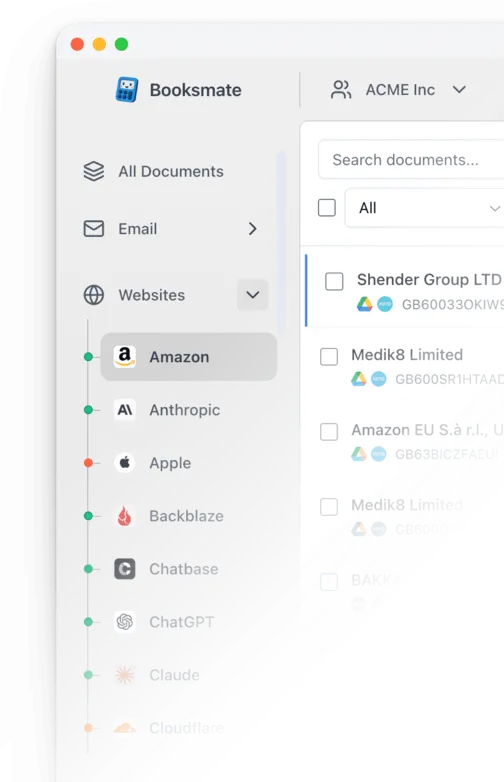
Booksmate downloads Dropbox invoices automatically in seconds. Add Dropbox in Booksmate, press Fetch All, and every invoice is downloaded for you without manual login.
-
Add
Dropbox inside Booksmate.
- Press Fetch All and log in to your Dropbox account.
- Done! Your invoices are automatically downloaded for you.
Start collecting Dropbox invoices automatically
Booksmate downloads your Dropbox invoices and saves them as PDFs, so you never log in manually again.
Sign up for Booksmate
Add Dropbox inside Booksmate
Press Fetch All and Booksmate downloads your invoices
No risk. Cancel anytime.
Manually download Dropbox invoices
- Sign in and go to https://www.dropbox.com/account/billing
- Click your avatar (your photo or initials) in the bottom-left corner, then Manage account, then Billing
- Find the payment you need in your billing history. On a team account, admins go to Admin console, then Billing, then the Payment history tab, and click the more options menu next to the payment
- Click Invoice next to the payment (on a team account, choose Invoice from that menu). Click Receipt instead if you only need proof of payment
- Click Print invoice, then choose Save as PDF as the printer to download it
Important details
- Team invoices are in the Admin console and only some admins can see them
- Email receipts may not be sent for every payment, so use the billing page
- Dropbox Sign and Dropbox Fax have their own billing pages
Dropbox Invoice FAQs
Is it safe to use Booksmate with Dropbox?
Yes. Booksmate runs on your own computer and never stores your Dropbox password, so your login details are not shared with any third party.
Can I download old invoices?
Yes. When you first add Dropbox to Booksmate, Booksmate downloads the full invoice history that is available in your Dropbox account.
Does Booksmate support email invoice collection?
Yes. Booksmate gathers invoices from your email inbox in addition to web portals like Dropbox, giving you one complete invoice collection setup.
Can I download all my Dropbox invoices at once?
Yes. Booksmate downloads your complete Dropbox invoice history automatically. Add Dropbox, press Fetch All, and every available invoice is saved to your computer.
Are Dropbox invoices saved as PDF files?
Yes. Booksmate saves every invoice as a PDF, so they are easy to organize, share, or upload to your accounting software.
How do I find a Dropbox Sign or Dropbox Fax invoice?
Dropbox Sign and Dropbox Fax have their own billing pages, separate from Dropbox storage. Sign in to Dropbox Sign or Dropbox Fax, open your settings from the menu in the top-right corner, then the Billing tab, and scroll to Receipts and invoices. On a team plan, only admins can see them.
How do I add my company name or VAT number to a Dropbox invoice?
On Professional and Essentials, go to Billing and click Update under Invoice details to add a VAT or GST ID. On team plans, an admin adds it from the Admin console, under Billing and Payment history. On Dropbox Plus, the name on the invoice is your account name, so change it in Settings, General. Dropbox only adds a VAT ID to future invoices, not ones already issued.
Is a Dropbox receipt the same as an invoice?
No. The invoice lists what you bought, the tax and the billing details. The receipt shows that the payment went through. For your bookkeeping, save the invoice.