How Do You Organize Your Email: how do you organize your email made simple
Discover how do you organize your email with clear systems and practical steps to boost focus and reclaim time.

If you’ve ever opened your inbox and felt an immediate wave of stress, you’re in good company. That feeling of being buried under an endless pile of notifications, newsletters, and "urgent" requests is a universal pain point in business.
The old advice to just "keep up" doesn't work anymore. The average professional is already dealing with around 120 emails every single day. And with projections showing that number climbing toward 392.5 billion global emails daily by 2026, the flood is only getting stronger. You can dig into the numbers yourself in the full email industry report on Clean.email.
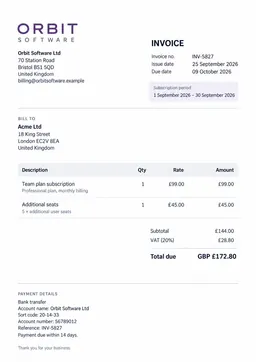
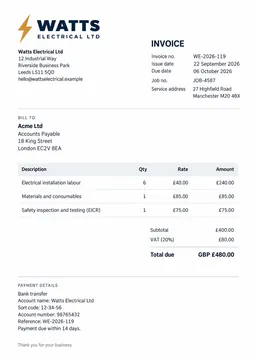
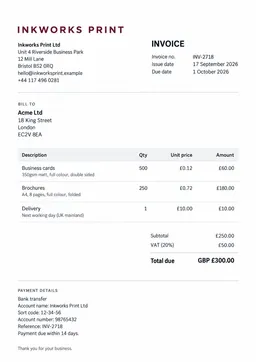
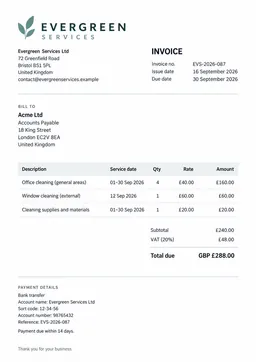
For founders, finance teams, and bookkeepers, this isn't just an annoyance—it's a liability. A chaotic inbox is where critical vendor invoices disappear and client communications get lost. The good news is there’s a much better way than just trying to muscle through the mess. The solution isn't about working harder; it’s about having a smart, repeatable system.
Your Roadmap from Chaos to Control
The secret to finally taming your inbox is a simple, four-part workflow. Think of it as your roadmap. It’s a process you can rely on every single day to turn your inbox from a source of anxiety into a genuine productivity tool.
This entire guide is built around these four core actions. Here’s a quick overview of the system we're going to build together.
Pillar
Core Action
Primary Goal
Triage
Quickly process new emails daily.
Get to Inbox Zero and identify what needs action.
Structure
Create a simple, logical folder or label system.
Give every email a permanent, findable home.
Automate
Set up rules and filters to sort emails for you.
Reduce manual work and pre-organize your inbox.
Maintain
Perform regular reviews and clean-ups.
Keep the system running smoothly over the long term.
This isn't a one-and-done cleanup. It's a continuous cycle that keeps your inbox under control for good.
Here’s a look at how these four pieces fit together to create a sustainable workflow.
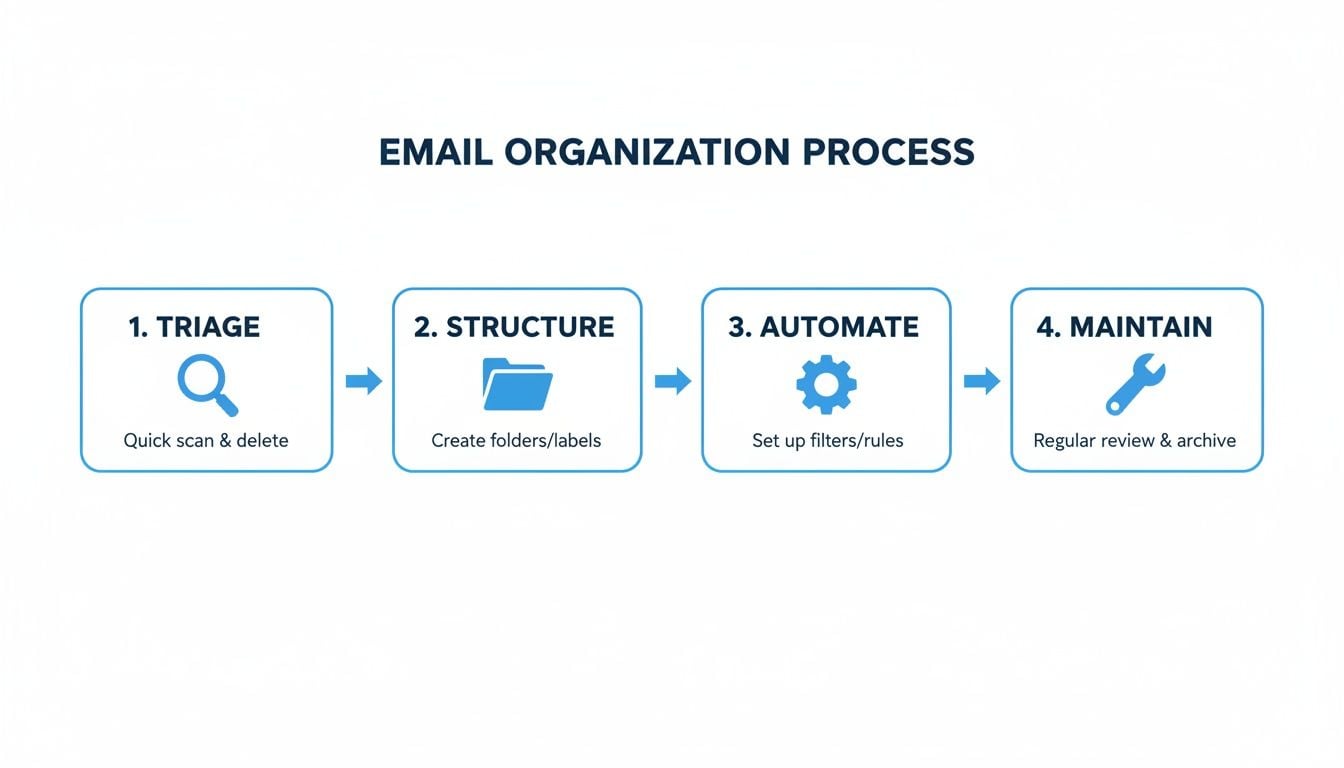
As you can see, each step naturally flows into the next, creating a system that practically runs itself once you have it set up.
The goal is to stop reacting to your inbox and start directing it. This framework gives you the power to do just that, turning your email into an asset that supports your business instead of a chore that drains your time.
In the following sections, we’ll dive deep into each of these four pillars. I’ll walk you through practical steps, share some real-world examples, and give you tips you can start using right away. Let's get started.
Mastering Inbox Triage with the 'Touch It Once' Rule
If you want to truly get a handle on your email, the first and most important habit to build is inbox triage. This isn't just about reading emails; it's about making a swift, decisive choice for every single message that lands in your inbox.
It all comes down to a simple but powerful philosophy I swear by: the 'Touch It Once' rule. Think about it. How often do you open an email, read it, close it, and just leave it sitting there? That single habit is what turns a manageable inbox into a cluttered, anxiety-inducing to-do list. When you touch it once, you make a decision right then and there.
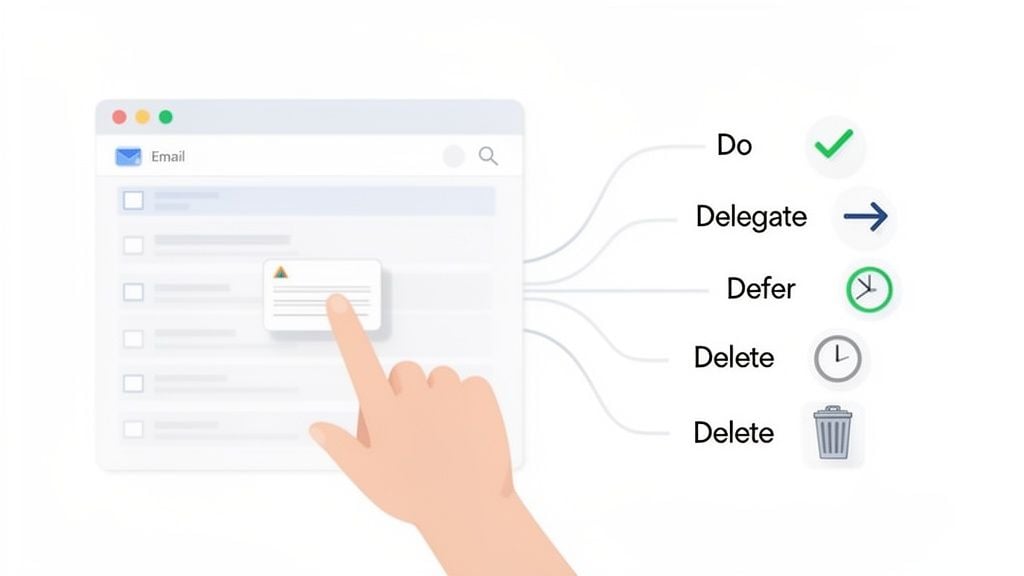
This approach transforms your inbox from a messy digital attic into a command center. You stop using it as a chaotic catch-all and start treating it like an assembly line, where every item gets processed and sent to its proper destination without delay.
The Four Decisions for Every Email
So, what are these decisions? Every message that arrives can be sorted with one of four simple actions. This is your entire decision tree for getting—and keeping—a clean inbox.
When a new email comes in, you immediately decide to:
- Do It: If the task takes less than two minutes, just get it done. We're talking quick replies, confirmations, or tiny actions that are faster to finish than to track.
- Delegate It: Is this email actually for someone else? Don't let it sit. Forward it to the right person immediately with a clear note.
- Defer It: If an email requires a more involved reply or a block of focused work, get it out of your inbox. This is where your email client's "snooze" feature is your best friend. You can also move it to a specific task folder you check later.
- Delete or Archive It: Is it purely informational, a newsletter you won't read, or just junk? Get rid of it. I recommend archiving messages you might need for reference later and deleting anything you know is useless.
Your inbox should function as a processing queue, not a long-term storage facility. By applying the 'Touch It Once' rule, you ensure nothing gets lost, and you only see emails that require your immediate attention.
Triage in Action: Real-World Scenarios
Let's look at how this plays out in the real world. The core idea is the same, but the context changes depending on your role.
For a startup founder:
- Do: A team member emails, "Is the new landing page copy approved?" You fire back a quick reply: "Yes, looks great. Proceed." Done.
- Delegate: A new vendor sends over their contract for review. You immediately forward it to your legal counsel, adding, "Please review and advise." It's off your plate.
For a bookkeeper managing multiple clients:
- Defer: An automated reminder for a quarterly tax deadline in two weeks pops up. Instead of letting it loom, you snooze the email to reappear one week before the due date.
- Delete: A marketing newsletter for a new software you don't need arrives. You hit archive instantly, keeping your inbox clear for the important stuff—like client invoices and bank alerts.
This whole system is about making quick, intelligent decisions. You stop procrastinating by default and start acting with purpose. That, right there, is the foundation of an organized email workflow.
Setting Up Your Digital Filing Cabinet: Folders and Labels
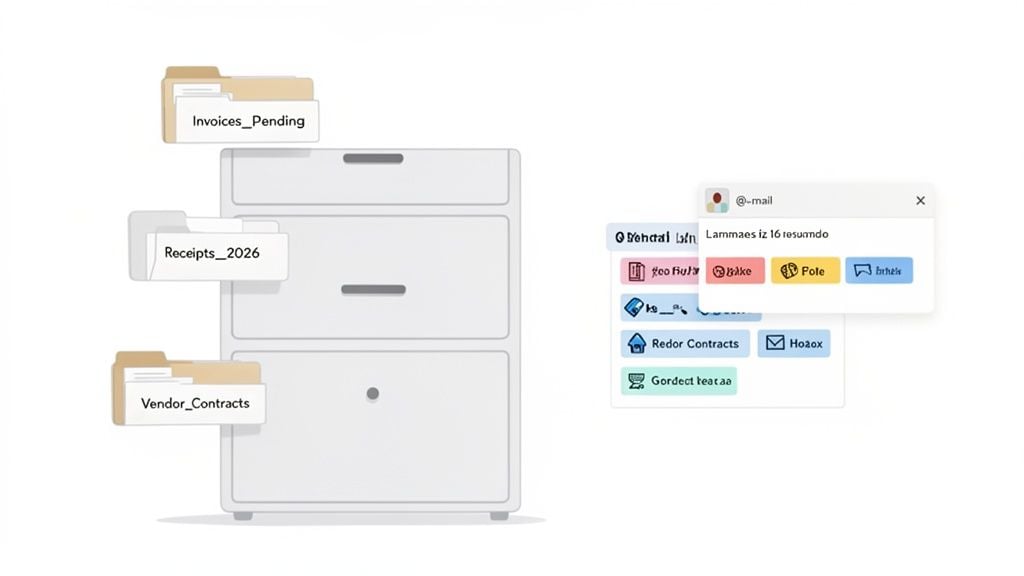
Alright, you’ve triaged your inbox. Now, where does everything go? Your inbox is a processing station, not a long-term storage unit. The real magic happens when you build a smart, simple system of folders or labels to act as your digital filing cabinet.
The goal isn't to create a hundred different folders that you'll never be able to navigate. I've seen people do that, and it's just trading one kind of chaos for another. A messy folder system is no better than a messy inbox.
Folders vs. Labels: What’s the Right Tool for the Job?
Before you start building, you need to know what tools you're working with. Most email clients give you two ways to organize things, and they work quite differently.
- Folders (the Outlook way): Think of these like the manila folders in a real filing cabinet. An email can only live in one folder at a time. When you move it, it’s gone from the inbox. Simple and decisive.
- Labels (the Gmail way): These are more like sticky notes or tags. You can slap multiple labels on a single email. So, a message can be tagged 'Invoice' and 'Client_ProjectX' simultaneously, all while staying in the inbox if you want.
So which should you use? Honestly, for most business workflows, I find the folder approach is cleaner. It forces you to make a decision and file something away for good. But if you’re juggling complex projects where emails touch multiple departments, labels give you that extra flexibility. Pick the one that clicks with how your brain works.
Designing a Folder Structure That Actually Works
Now for the fun part. Your folder structure should be a direct reflection of your job. Generic names like "Work," "Misc," or "Important" are totally useless because they don't tell you anything. Get specific.
Here are a couple of real-world examples I've seen work wonders:
For a Founder:
01_Action_Required(For anything that needs a reply or task)_Archive_Clients_Archive_Investors_Archive_Partnerships_Archive_Product_Feedback_z_ToRead
For a Finance Team:
Invoices_Pending_ApprovalInvoices_Paid_2026Receipts_Q1_2026Vendor_ContractsClient_Onboarding
Here’s a little trick I swear by: Use numbers or symbols (like 01_ or _) at the start of your folder names. This lets you control the order and keep your most-used folders right at the top of the list. It’s a tiny change that saves you seconds every single time you file an email.
Having a reliable system like this is more critical than you might think. Did you know that on average, only 84% of legitimate emails even make it to the inbox? That means one in six vendor invoices could be sitting in spam. With an average spam rate of 10.5%, a chaotic inbox means you're almost guaranteed to lose money or miss critical communications.
Of course, your email system is just one piece of the puzzle. To really get a handle on the flood of digital paperwork, it's worth looking into a proper document management system that can sync up with your email workflow and automate even more of the grunt work.
The point is to build a structure that feels second nature to you. Once your digital filing cabinet is in place, we can start making your email client do all the sorting for you.
Let's Put Your Inbox to Work with Rules and Filters
Okay, so you’ve got your triage habit down and a sensible folder structure in place. Now for the fun part. This is where you stop being a digital mail carrier and start being the architect of an intelligent system. By setting up rules and filters, you can teach your email client to do the heavy lifting for you, 24/7.
Manually dragging emails into folders is a soul-crushing waste of time. Rules (if you're in Outlook) and filters (in Gmail) are basically simple "if this, then that" commands. They can automatically file, flag, forward, or even delete messages based on criteria you define. It’s the single biggest leap you can take to get your email organized without dedicating hours to it every week.
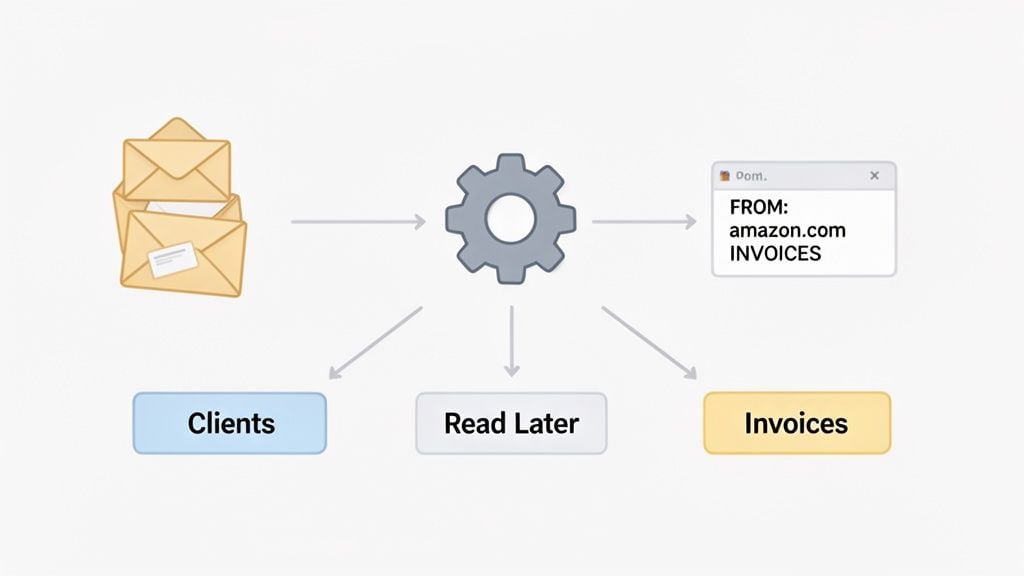
Don't worry, this doesn't involve any complex coding. It’s really about noticing the repetitive sorting you’re already doing. Every time you move a newsletter to your "Read Later" pile or star an email from a key client, you're performing a task that a simple rule can handle instantly and perfectly.
Creating Your First Automation Rules
The easiest way to get started is by automating the most obvious, high-volume stuff. Just glance at your inbox and look for the patterns. Are you getting daily reports, weekly newsletters, or a constant stream of app notifications? Those are your prime candidates.
Here are a few practical rules I recommend everyone set up first:
- Rule 1: Isolate Newsletters. Create a rule that automatically moves any email from specific senders (like that marketing blog you love) straight into your
_z_ToReadfolder. This simple move keeps your primary inbox focused on actual conversations. - Rule 2: Flag Key Clients. Set up a filter to automatically apply a "High Priority" flag or star to any email coming from a specific client's domain (e.g., from:@majorclient.com). You’ll never miss an important message again.
- Rule 3: Tame Notifications. If you’re getting bombarded by alerts from your project management tools, create a rule that files them away into a
_Project_Updatesfolder and marks them as read. You can check them on your own time.
The time we lose to email chaos is genuinely shocking. For many businesses, it's more than just an annoyance—it's a bottleneck. I’ve seen this firsthand with startup CFOs and bookkeeping firms, where a single missed invoice can cause late payments and serious cash flow headaches. Getting this right is huge; organized communication is part of a market projected to be worth $17.9B by 2027. You can dig into more of these email marketing statistics on Wix.com to see the full picture.
The Ultimate Automation for Financial Docs
For just about any business, chasing down invoices and receipts is a critical but mind-numbing task. Manually finding, downloading, and forwarding every single one is a surefire way to make mistakes and burn precious hours. This is where one powerful, targeted rule can completely change your financial workflow.
Pro-Tip Filter Logic: IF email CONTAINS 'invoice' OR 'receipt' -> FORWARD TO: accounts@example.com AND APPLY LABEL: 'Processed_Invoices' AND ARCHIVE
This one rule is an absolute workhorse. It scans all incoming mail for keywords like "invoice" or "receipt," automatically forwards any matches to your dedicated bookkeeping platform like Booksmate, slaps a label on it for your records, and archives it out of your inbox. All of this happens in the background, without you lifting a finger.
By setting up these kinds of automations, you're doing more than just tidying up your inbox. You're building a reliable system that supports your business, cuts down on human error, and frees you up to focus on the work that actually matters.
Let’s be honest—while general email rules are fantastic for taming a wild inbox, there’s one specific area that creates a disproportionate amount of chaos for almost every business: financial documents.

We've all been there. You're hunting down a vendor email, downloading that one PDF invoice, and then painstakingly uploading it to your accounting software. It’s tedious, repetitive, and a perfect recipe for errors.
This isn’t just a small frustration. For a growing company, this manual slog quickly becomes a major bottleneck. It's exactly how invoices get missed, leading to late payment fees, awkward conversations with vendors, and a completely skewed picture of your cash flow. Think about it: the time you spend digging for a $50 software receipt is time you're not spending on something that actually grows your business.
This is where basic email filters hit their limit. Sure, a rule can forward an email with "invoice" in the subject line, but it can't open the attachment, pull out the key data, and sync it with your books. For that, you need to bring in the specialists.
The Power of Automated Invoice Fetching
Imagine a system that quietly works in the background, connected directly to your email, constantly scanning for financial documents. It doesn't just flag emails with certain keywords; it intelligently identifies, downloads, and processes the actual documents from vendors like Amazon, Google, and Microsoft.
That’s the magic of automated invoice fetching. Platforms like Booksmate plug into your inbox (whether it’s Gmail or Outlook) and even your vendor portals to create a completely hands-off pipeline for your financial data. Instead of you chasing down documents, the system fetches them for you overnight.
This kind of automation brings a level of precision that manual sorting could never hope to achieve. For instance, Booksmate hits 99.7% accurate data categorization, making sure every single line item is correctly coded before it ever lands in your accounting software. That means no more manual uploads or panicked searches come tax season.
From Document Chaser to Strategic Advisor
Let me paint a picture for you. A bookkeeping firm we work with used to spend the entire first week of every month just chasing clients for missing paperwork. Their team was trapped in a reactive cycle of sending follow-up emails and manually keying in data from messy PDFs. They were document chasers, not the financial advisors they wanted to be.
After they brought in an automated system, their whole world changed.
- Before: Hours every day were lost to digging through emails and mind-numbing data entry.
- After: Invoices and receipts are captured automatically, appearing perfectly categorized in their dashboard each morning.
The firm now gets a steady stream of clean, structured data that flows right into their clients' Xero and QuickBooks accounts. To truly end the financial chaos, you have to look at the whole picture, and mastering the processing of invoices is the bedrock of healthy cash flow and a lighter administrative load.
This single change transformed their team from data entry clerks into strategic partners. Instead of asking, "Where's the invoice for this transaction?" they can finally ask, "How can we optimize your spending based on this data?"
By automating this crucial piece of your email workflow, you’re not just reclaiming dozens of hours. You're building a reliable financial foundation that actually supports your company's growth instead of holding it back. It’s all about making your bookkeeping invisible, effortless, and always on the money.
Your Email Organization Questions Answered
Whenever I walk someone through a new system for taming their inbox, a few common "what if" questions always come up. It's one thing to learn the theory of triage and automation, but it’s another to put it into practice. Let’s tackle those nagging questions head-on so you can feel confident moving forward.
Think of this as your go-to guide for troubleshooting and fine-tuning. We’ll cover everything from what to do with that mountain of old emails to fixing a rule that goes rogue.
What Should I Do with Thousands of Old Emails?
Seeing an inbox with 5,000 or even 10,000 old messages is overwhelming. It’s enough to make you want to throw in the towel before you even start. My advice? Don't even try to sort them.
Instead, declare email bankruptcy. It sounds dramatic, I know, but it’s one of the most freeing things you can do. Just create one folder—I usually call mine something like _Archive_Pre-2026—and bulk-move every single email from your inbox into it. Done.
Now you have a clean slate to start fresh with your new system. Anything you might need is still perfectly searchable in that archive folder, but it's no longer staring you in the face and stressing you out.
How Often Should I Review My Folders and Rules?
An email system isn't a "set it and forget it" machine. It’s a living part of your workflow that needs to adapt as your business evolves. A quick quarterly review is the perfect habit to get into.
Just block off 15 minutes every three months to do a quick health check. Ask yourself:
- Are my folders still relevant? Is that
Project_Alphafolder finished and ready to be archived? - Are my rules still working? Are they catching the right emails, or are they misfiling important messages?
- What new automations could I build? Have you started getting a new type of notification you're still sorting by hand?
This small time commitment is what keeps your system from becoming clogged and outdated.
The goal isn't just to clean up your inbox once. It's to build a framework that adapts with you. A quarterly check-in ensures your automations serve your business today, not the business you had six months ago.
What If an Automated Rule Misfiles an Important Email?
Sooner or later, it’s going to happen. A rule you set up will get a little too aggressive and file an urgent client email into a low-priority folder. Don't panic. This is an easy fix and a great learning opportunity.
First, just use your email’s search function to find the message. Searching for the sender's name or a unique keyword is usually the quickest way to track it down.
Once you’ve found it, drag it to the correct folder. But here's the crucial part: take 30 seconds to tweak the rule that caused the problem. For example, if a rule for "receipts" also caught a critical "invoice" from a client, you could make it more specific by adding a condition like **DOES NOT CONTAIN: invoice**.
For anyone buried in financial paperwork, this kind of workflow refinement is a game-changer. In fact, mastering the processing of invoices is one of the best things you can do to improve cash flow and cut down on admin headaches. Every time you tune up a rule, your system gets that much smarter.
Ready to make financial document chaos a thing of the past? With Booksmate, you can automate invoice and receipt collection directly from your email and vendor portals, saving hours of manual work. Get started with Booksmate today and turn your bookkeeping into an invisible, effortless process.