How to Find Invoices on PayPal App & Desktop (2026)
Learn how to find invoices on PayPal from the app or desktop. View, download, or print a PayPal invoice PDF for your records.

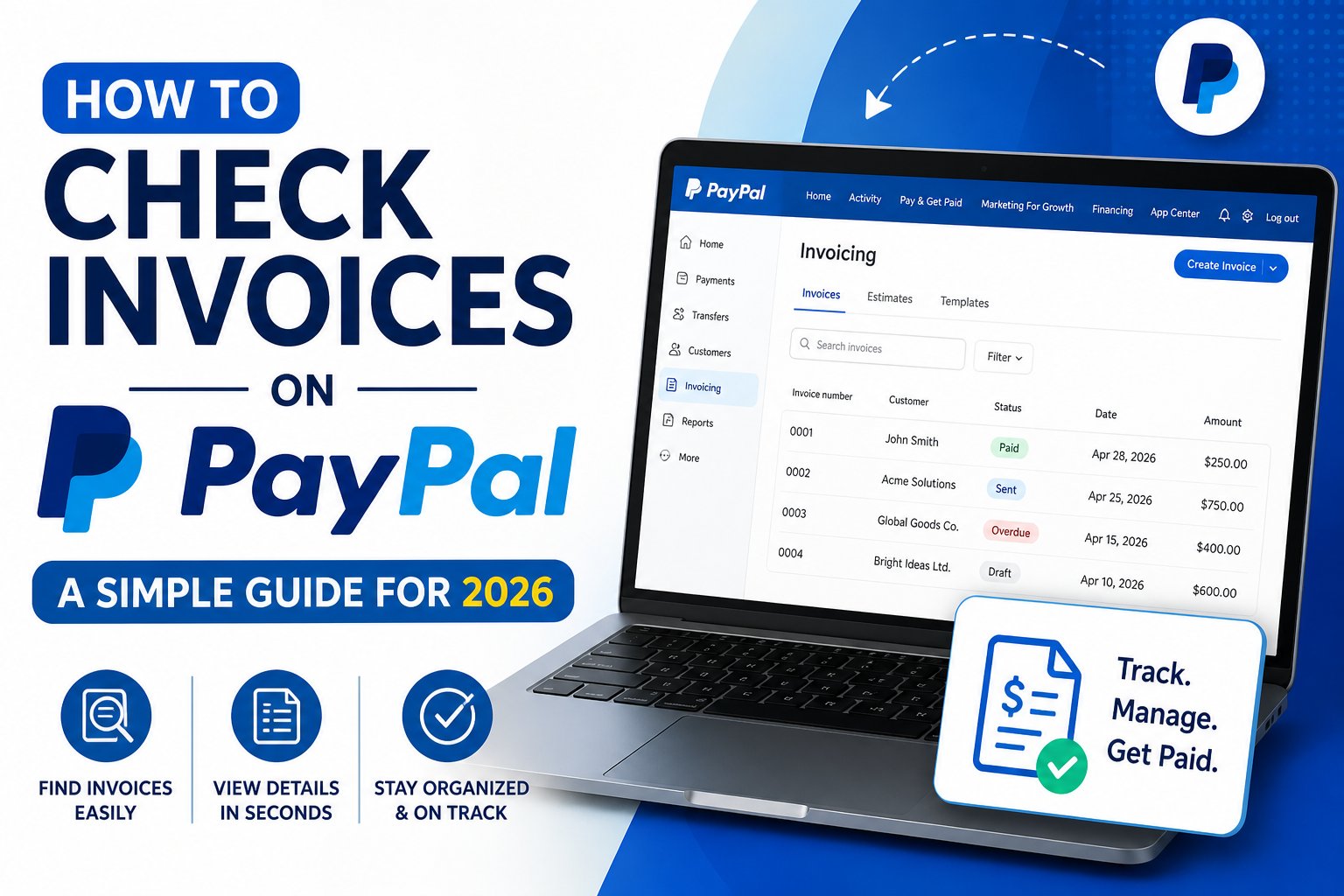
Ever had that moment of panic trying to track down a PayPal invoice? Whether you’re a freelancer chasing a late payment or just trying to find proof of a purchase, you know the feeling. The good news is, finding what you need is usually just a few clicks away.
You’ll just need to log into your account and head to the right spot—either the ‘Invoices’ tab for Business accounts or your ‘Activity’ feed for Personal ones. From there, you can see everything at a glance: who paid, who hasn’t, the amounts, and due dates.
Your Guide to Finding and Managing PayPal Invoices
Knowing where to look for invoices on PayPal is a fundamental skill for anyone using the platform. But here’s something that trips a lot of people up: the process looks a little different depending on whether you’re using a Personal or Business account.
Getting a handle on these differences is the key to keeping your records straight without pulling your hair out. We’ll walk through exactly where to find your invoices on both account types and cover the unique features that Business users get.
Why This Gets Complicated for Businesses
Finding one or two invoices is simple enough. The real headache begins when your business starts to grow. Let’s be real, the sheer volume of transactions can become overwhelming, fast.
PayPal processed a staggering 26.3 billion transactions in 2026, which was a 5% jump from the year before. With the average active user making 60.6 transactions that year, a small business could easily be juggling hundreds of individual PayPal invoices every month. Trying to manually check and reconcile all of that is a recipe for burnout. You can see how businesses are using PayPal for invoicing on their official site.
For a growing business, the challenge isn’t finding a single invoice. It’s managing the high volume of transactions without getting buried in manual data entry and spending hours on reconciliation.
PayPal Invoice Access: Personal vs. Business Account
So, how you find and manage your invoices really boils down to your account type. A Business account gives you a full-blown invoicing dashboard packed with professional tools. A Personal account, on the other hand, keeps things simpler by weaving payment requests right into your main activity feed.
Here’s a quick comparison to show you what I mean.
PayPal Invoice Access Personal vs Business Account
Feature
PayPal Personal Account
PayPal Business Account
Primary Location
‘Activity’ Tab
Dedicated ‘Invoices’ Tab
Functionality
View payment requests, send reminders, mark as paid.
Create, send, track, filter, download, and manage professional invoices.
Best For
Casual sales, side-gigs, and simple payment requests.
Freelancers, small businesses, and e-commerce stores needing formal billing.
Think of it this way: the Personal account is perfect for straightforward IOU’s and simple sales, while the Business account is built for anyone who needs a more robust and formal billing system.
How do you look up a PayPal invoice?
Sign in to PayPal directly, open Invoicing and select Manage or the invoice list. You can then search or filter invoices and view each invoice number, customer, amount, status and due date.
- Do not rely on links in an unexpected invoice email; sign in through paypal.com.
- Customers can also find received invoices in Activity or in the original PayPal email.
- Invoice access and menu labels can differ between personal and business accounts.
How do you track PayPal invoice payments?
Open PayPal Invoicing and review the status shown beside each invoice. Paid, partially paid, overdue and unpaid statuses let you identify what needs reconciliation or follow-up.
- Open an invoice for its payment and reminder history.
- Export invoice data if you need to reconcile a larger period.
- Verify suspicious invoices from inside PayPal before paying or calling any number shown.
PayPal invoice lookup
To look up a PayPal invoice, sign in to PayPal directly, open Invoicing or Activity, then search by invoice number, customer, status, date, or transaction. For security, do not use invoice links from suspicious emails; check inside PayPal itself.
- Sellers usually find sent invoices under Invoicing or Manage invoices.
- Buyers usually find received invoices from the dashboard, Activity, email, or pending requests.
How to receive invoice on PayPal
To receive an invoice on PayPal, the sender creates the invoice and sends it to your PayPal email address or mobile number. You should see it in your email, PayPal dashboard, Activity, or pending invoices area depending on your account type.
- Ask the sender to confirm the email address if the invoice does not arrive.
- Do not pay from forwarded invoice links unless the invoice also appears in your PayPal account.
PayPal invoice not received
If a PayPal invoice was not received, first check that the sender used the correct email address, then check spam, Activity, Dashboard, and any pending requests. If it still does not appear inside PayPal, ask the sender to resend it rather than paying from a forwarded link.
- This is both a delivery issue and a fraud-prevention step.
- Always log in to PayPal directly before paying an unexpected invoice.
PayPal invoice number lookup
A PayPal invoice number can help you search invoices inside your own PayPal account, but it is not a public lookup code. If the invoice is real, it should appear when you log in directly and search your invoices, Activity, or transaction details.
- Use the invoice number for internal search, reconciliation, and support.
- For wider validation context, see invoice number checks.
How to track PayPal invoice payments
To track PayPal invoice payments, open the invoice list and filter by status such as sent, viewed, paid, overdue, cancelled, or draft. For a paid invoice, open the transaction details and match the payment to the invoice number, payer, amount, and date.
- For businesses, tracking should happen before month-end reconciliation.
- For regular finance work, consider automatic PayPal invoice collection.
If you are unsure whether a PayPal document is an invoice or a receipt, this guide on invoice vs receipt differences explains the accounting distinction. For larger workflows, compare invoice scanning software.
Navigating Invoices in a PayPal Business Account
If you’re running a business or freelancing, your PayPal Business account is so much more than a way to get paid. The invoicing feature, in particular, becomes the heart of your financial operations, and it’s a world away from what you get with a Personal account.
When you log in, you’ll want to head straight for the “Invoices” section. Think of this as your command center. It’s not just a boring list of what you’ve sent out; it’s where you can create new invoices, track their status in real-time, and manage everything you’ve ever billed.
Finding Specific Invoices Quickly
Here’s where the Business account really shines. Let’s say tax season is looming, and your accountant is asking for all paid invoices from Q3. Instead of a frantic, endless scroll through your history, you can use the search filters to become a financial detective.
You can instantly pull up exactly what you need by filtering by a date range, a specific customer, or even the invoice status—like paid, unpaid, or overdue. Got an invoice number handy? You can search by that, too. This isn’t just a convenience; it’s a critical part of good Accounts Receivable Management that keeps your cash flow healthy and your books clean.
Getting to this dashboard is designed to be quick and painless.
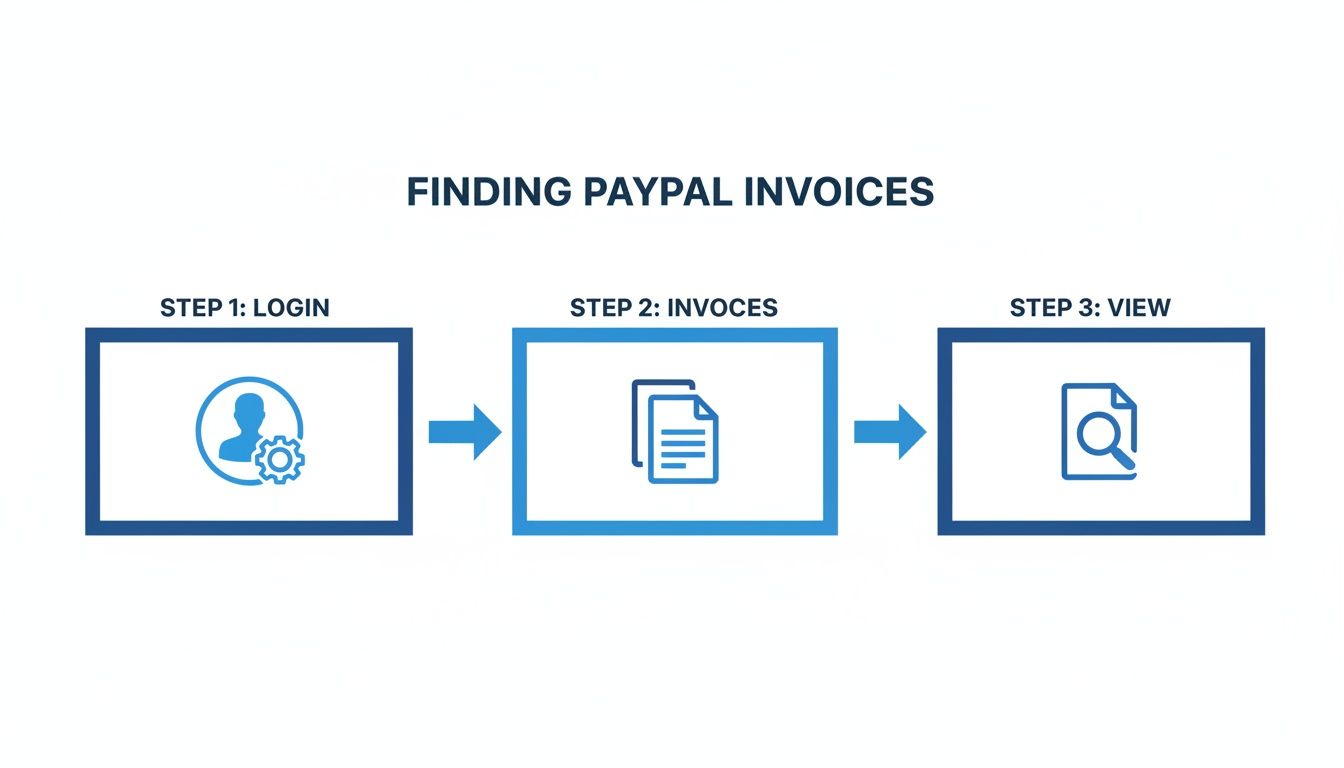
As you can see, it’s a simple three-step rhythm: log in, go to your invoices, and view what you need. No hidden menus, no confusing navigation.
Managing and Sharing Your Invoices
Okay, so you’ve found the invoice you were looking for. Now what? PayPal gives you a whole toolkit of options right from the invoice list or the detailed view.
You can easily:
- Download a PDF: This is perfect for your own records or for when a client needs a copy sent directly to their inbox, outside of PayPal’s system.
- Print: Need a hard copy for your files or to tuck into a product shipment? Just a couple of clicks.
- Share a Link: You can generate a direct, shareable link to the invoice. This is fantastic for sending a quick reminder via text or Slack.
These tools are lifesavers in everyday situations. Imagine a client emails you saying, “I never got that invoice.” Instead of a back-and-forth, you can find the invoice in seconds, download the PDF, and attach it to your reply. Problem solved.
The PayPal Business account isn’t just a passive record-keeper. It’s built for you to take action. It’s a complete system for handling an invoice from the moment you create it to the moment you mark it as paid and reconciled.
This level of control means you’re always prepared. Whether you need to quickly check an invoice status on your phone or download a dozen PDFs for your bookkeeper, the power is right there in your dashboard.
How to Check Invoices on a PayPal Personal Account
If you’re using a Personal PayPal account for a side hustle or selling things online, you might have noticed it works a bit differently than a Business account. There’s no fancy invoicing dashboard, which can be a little confusing at first.
Don’t worry, all your records are still there. PayPal simply mixes your payment requests and any formal invoices you’ve sent right into your main transaction history.
Finding Your Invoices and Payment Requests
Once you log in, your first stop should always be the “Activity” tab. Think of this as your financial command center—it’s a complete, chronological feed of every dollar coming in and going out.
As you scroll, you’ll see each payment request you’ve sent listed among your other transactions. Finding a specific one can feel like searching for a needle in a haystack if you’re busy, but the search bar at the top of the page is your best friend.
Just type in a client’s name, email, or even the specific dollar amount to instantly filter your history. This is a lifesaver when you need to track down a payment from a few months back.
When you click on a specific request, a detailed view pops up with everything you need to know.
- Payment Status: You can immediately see if it’s been paid, unpaid, or is still pending.
- Send a Reminder: If a payment is late, you can give the client a gentle nudge with a pre-written reminder. It only takes one click.
- Transaction Details: This is where you’ll find the unique Transaction ID, the date it was sent, and any notes you included.
Pro-Tip: If you regularly invoice the same person, find one of your old requests from them and click “Send another payment.” PayPal will pre-fill their details, which saves you a ton of time and tedious data entry.
Money Request vs. Formal Invoice
It’s easy to get these two confused. When using a Personal account, you’re most likely sending a simple money request. It’s the quick-and-dirty way to ask for a payment—informal, fast, and effective.
However, you can create a formal PayPal invoice from a Personal account. A formal invoice looks more official and lets you add line items, your logo, and specific terms and conditions. While both end up in your Activity feed, a proper invoice gives your clients a much more professional and detailed breakdown of what they’re paying for.
Understanding Invoice Statuses and Spotting Scams
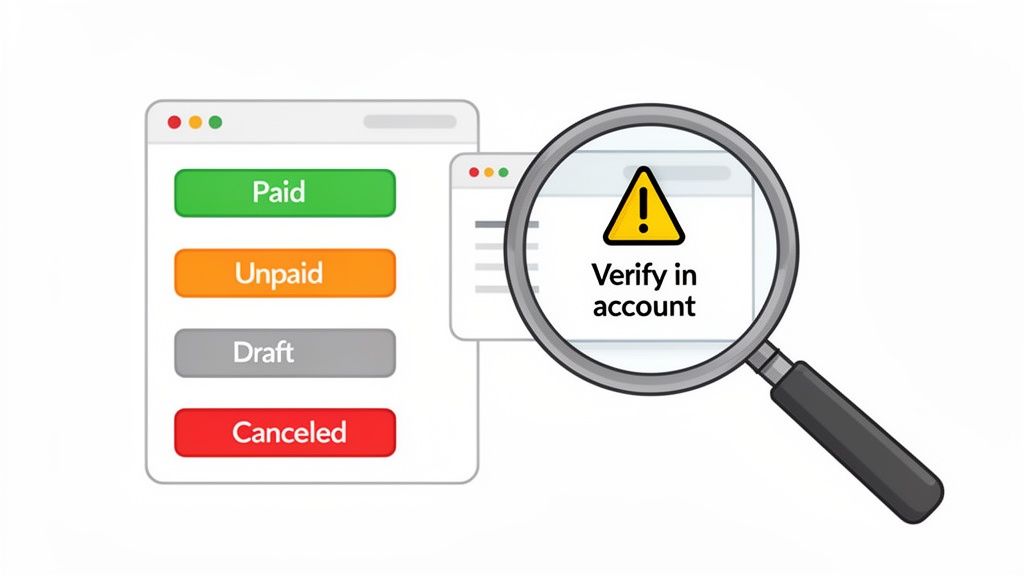
Alright, so you’ve found your invoices in PayPal. Now comes the important part: figuring out what they’re actually telling you. Every invoice has a status, and this little tag is the key to managing your cash flow and keeping your books straight. It’s a simple language that, once you learn it, makes everything so much easier.
Before we get into the nitty-gritty, it’s worth remembering the fundamental difference between an invoice and a receipt. An invoice is your request for payment—it’s what you send before you get paid. A receipt is the proof of payment you provide after the money has landed.
Decoding Common Invoice Statuses
When you’re scanning your invoice dashboard, you’ll see a few different statuses pop up. Each one represents a different point in the payment process and signals what you might need to do next.
Here’s a quick rundown of what you’ll see:
- Paid: This is the one we all love to see! It means your client paid, the transaction is complete, and the money is sitting in your PayPal account.
- Unpaid: The invoice has been successfully sent and delivered, but your client hasn’t paid up yet. If it’s past the due date, you might also see this flagged as Overdue—your cue to send a gentle reminder.
- Draft: You’ve started an invoice but haven’t hit “send” yet. It’s just sitting there, waiting for you to add the final touches.
- Canceled: This means the invoice was voided, either by you or the client. No payment can be made against it, but it stays in your records to show the transaction didn’t go through.
- Processing: Your client has initiated the payment, but it’s still working its way through the system. This is pretty common for eChecks, which can take a few business days to clear.
Getting comfortable with these statuses gives you a real-time snapshot of your finances. A quick glance tells you exactly how much cash is on its way versus how much you’ve already secured.
Key Takeaway: Checking your invoice statuses should be a regular habit. Think of an “Unpaid” invoice as a task on your to-do list and a “Paid” one as a win for your hard work.
The Rise of Sophisticated PayPal Invoice Scams
Now for a serious heads-up. The convenience of PayPal invoicing is, unfortunately, being exploited by scammers in a very clever way. There’s a nasty scam making the rounds where you get what looks like a 100% legitimate invoice or money request, sent directly through PayPal’s own system.
These aren’t your typical phishing emails with bad grammar and suspicious links. They are real PayPal invoices sent from fraudulent business accounts. The trap is usually hidden in the “Note to Customer” field, where they’ll write something urgent like, “Your subscription has auto-renewed for $499. For a full refund, please call our support line at [FAKE PHONE NUMBER].”
The goal is simple: to make you panic and call the fake number. Once you’re on the phone, a fake “support agent” will try to phish for your financial details or trick you into giving them remote access to your computer.
How to Protect Yourself from Invoice Fraud
The single most important rule is to never, ever call a phone number listed in a note on an unexpected invoice. If a suspicious request lands in your inbox, take a deep breath and follow these steps:
- Don’t Pay It: This sounds obvious, but in a moment of panic when you see a large sum, it’s easy to make a mistake. Just don’t touch that “Pay” button.
- Log In Directly: Never click any links in the notification email. Instead, open a new browser tab, manually type in PayPal.com, and log in to your account securely.
- Cancel the Invoice: From your account dashboard, find the fraudulent invoice in your activity feed and cancel it. This immediately nullifies the request.
- Report It: After you cancel, make sure to report the invoice to PayPal. This helps them identify and shut down the scammer’s account, protecting others.
Staying vigilant and treating any unexpected money request with a healthy dose of skepticism is the best way to keep your account and your money safe.
Moving Beyond Manual Invoice Checks
If you’re still logging into PayPal to check and download invoices one by one, you know the drill. It’s fine when you’re handling a handful of transactions, but as your business scales, that “quick task” balloons into a massive time sink. It’s tedious, mind-numbing work that’s just begging for a mistake to happen.
We’ve all been there—a single missed invoice or a typo in a spreadsheet sends you down a rabbit hole, trying to figure out why the numbers don’t match. That’s the hidden cost of manual work. It’s not just the time you spend downloading; it’s the hours you lose hunting down errors. Thankfully, there’s a much better way to handle it.
The True Cost of Manual Data Entry
And the problem only gets bigger. Consider that PayPal is on track to process 26.3 billion transactions by 2026, with the average active account making over 60 transactions. For businesses, this is compounded by dealing with an average of 679 chargebacks every month. You can dig into more of these numbers and the challenges they present in this PayPal statistics report from Chargebacks911.
When your finance team is buried under a mountain of manual downloads, they can’t focus on what really matters. They’re stuck doing data entry instead of strategic financial analysis. This isn’t just an inconvenience; it’s a genuine risk to your business’s financial health.
Embracing Automation for Financial Clarity
Now, picture this: a system that securely logs into your PayPal account on a schedule you set, grabs every new invoice, and pulls all the important details for you. No more manual clicking, downloading, or data entry.
That’s exactly what automation tools like Booksmate are built for. They take the entire invoice collection process off your plate, turning it into a background task that just happens. It’s not just about saving a few hours—it’s about building a rock-solid, accurate foundation for your financial records.
Automation removes the element of human error from invoice collection. It ensures every document is captured and every data point is accurate, giving you a reliable foundation for your bookkeeping.
How Automation Fits Into Your Workflow
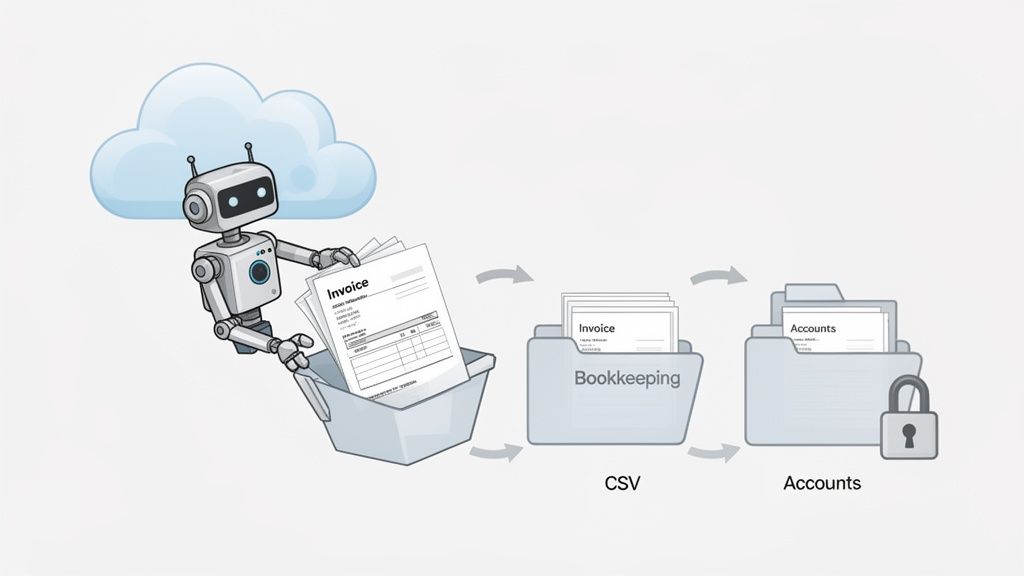
So, how does this actually work in practice? Think of it as building an automated bridge between PayPal and your accounting software. The whole process is incredibly straightforward.
- Automated Collection: First, the tool connects to your PayPal account and automatically fetches all your invoices. You don’t have to lift a finger.
- Intelligent Data Extraction: Next, smart AI scans each document and extracts the key information—invoice numbers, dates, totals, vendor names, you name it.
- Centralized Organization: All your documents and the data pulled from them are neatly organized into one central, easy-to-search dashboard.
- Effortless Export: Finally, with just a couple of clicks, you can export everything into your accounting software, whether it’s QuickBooks, Xero, or something else. Your books are always current.
Adopting a system like this is a game-changer for any growing business. You’ll get back countless hours and, more importantly, gain the peace of mind that comes from knowing your financial data is always complete and correct. It’s the next logical step when you’ve simply outgrown doing everything by hand.
Common Questions About PayPal Invoices
Even when you feel like you know the ropes, PayPal can still throw you a curveball. It’s those little hiccups—a missing invoice or a suspicious payment email—that can be the most frustrating. Let’s walk through some of the most common questions I hear and get you some quick, straightforward answers.
My goal is to help you clear these hurdles fast so you can get back to what you’re actually trying to do: run your business.
Where Did My Old Invoices Go?
It’s a classic scenario. Tax season is looming, and you suddenly need an invoice from 18 months ago. You scroll through your recent activity, and… nothing. It’s a heart-sinking moment, but don’t worry, your invoice hasn’t vanished into thin air.
PayPal simply archives older transactions to keep your main dashboard clean and running quickly. You just have to know where to look.
- For Business Accounts: Head to your “Invoices” dashboard. You’ll see a search bar with filter options. From there, you can set a custom date range that goes back years. Just plug in the period you need, and PayPal will pull up every invoice from that time.
- For Personal Accounts: Your “Activity” feed is the place to be. Look for a “Filters” or “Download” button. This lets you generate a custom statement for any date range, which will include all your payment requests and invoice history.
The key takeaway is that the data is always there; you just have to tell PayPal to look a little deeper into its records.
How Can I Securely Confirm a Payment?
That “You’ve Received a Payment” email is always a welcome sight. But before you ship that product or send over the final project files, you absolutely need to verify the payment. Scammers have gotten incredibly good at creating fake confirmation emails that look just like the real thing.
The golden rule of payment verification is to never trust an email notification alone. Always confirm the payment directly within your PayPal account.
Here’s the safest way to do it: open a new browser tab and manually type PayPal.com into the address bar. Never, ever click a link from a payment notification email. Once you’re logged in, check your balance or find that specific invoice in your dashboard. If the status is “Paid,” the money is in your account and secure. If it still says “Unpaid” or “Processing,” you know the payment hasn’t actually cleared. This simple habit is your best defense against scams.
Why Isn’t My Invoice Showing Up?
You just hit “Send” on an invoice, but it’s not in your list. Or worse, your client emails you saying they never got it. This almost always comes down to one of a few simple slip-ups.
First, check your “Drafts” folder. It is surprisingly easy to fill out an entire invoice and completely forget to click the final “Send” button. If it’s sitting in your drafts, it never went anywhere.
Second, give the recipient’s email address a once-over. A single typo is all it takes to send your invoice into the digital void.
Finally, sometimes there’s just a slight lag. PayPal’s system can take a few minutes to process and fire off the email. If you’ve already checked for drafts and confirmed the email is correct, just give it a moment and hit refresh. Nine times out of ten, it’ll pop right up.
Manually chasing down invoices every month is a drain on your time and resources. At Booksmate, we automate the entire process, fetching documents directly from portals like PayPal and organizing them for perfect, error-free bookkeeping. Reclaim your time and see how it works today.