The Best Way to Scan Receipts for Perfect Records in 2026
Discover the best way to scan receipts for perfect bookkeeping. Our guide covers hardware, software, and automation for flawless expense management.

Let’s be honest: the best way to scan receipts isn’t just about snapping a clearer photo. It’s about building a smart workflow that prepares, scans, names, and files every single receipt without you having to think about it. And for peak efficiency, the absolute best method is to skip the paper altogether by using a tool like Booksmate to automatically grab digital receipts straight from your email and online accounts.
Why That Old Shoebox System Is Silently Sinking Your Profits
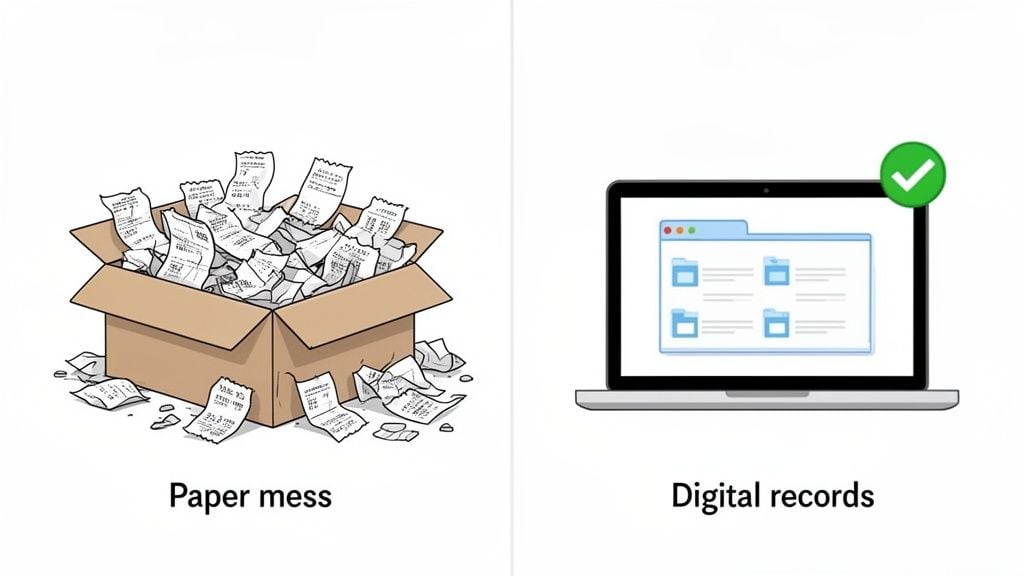
We’ve all been there. The overflowing shoebox, the random “Scans” folder on the desktop—it feels messy, but we tell ourselves we’ll get to it. The truth is, that disorganization is more than just clutter. It’s a genuine financial liability that’s quietly costing you time and money.
Think about it: every blurry smartphone pic that your software can’t read means you have to stop what you’re doing and manually type in the details. What feels like “just a minute” per receipt quickly snowballs into hours of tedious admin work each month. That’s time you could have spent talking to clients or actually growing your business, not squinting at faded thermal paper.
The Real-World Financial Penalties
The financial hit is even bigger than the lost time. A poor receipt system directly attacks your bottom line through missed deductions and scary compliance risks. When you can’t produce a receipt, you can’t claim the expense. It’s that simple.
A study on small business expenses found that disorganized records lead to an average of $5,000 in missed tax deductions every year. When your records are a mess, you’re literally just giving money away.
This chaos creates a domino effect, leading to bigger problems down the road. Here’s what’s really at stake when you stick with an outdated system:
- Missed Tax Deductions: Every lost or unreadable receipt is a legitimate business expense you can’t write off. This directly increases how much you owe in taxes.
- Compliance Risks: If you get audited, tax authorities demand clear, legible proof of your expenses. A shoebox full of crumpled paper or a folder of randomly named JPEGs won’t cut it and can lead to serious penalties.
- Flawed Financials: With incomplete expense data, your financial reports are pure fiction. You can’t get a true picture of your company’s cash flow or profitability, which makes smart business decisions impossible.
It’s Time to Move Beyond Just Snapping Photos
The answer isn’t just to buy a better scanner. The best way to manage receipts is a complete workflow overhaul—trading the manual chaos for the clarity of a modern, automated system.
For example, instead of hunting down an Amazon invoice in your email, printing it, scanning it, and then typing it into your books, a tool like Booksmate automatically pulls the invoice from your account, extracts all the key data, and archives it perfectly. This flips your process from being reactive and manual to proactive and automatic, saving you dozens of hours and ensuring nothing ever gets missed. It’s time to rethink the entire game.
How to Prepare Your Receipts for a Perfect Scan
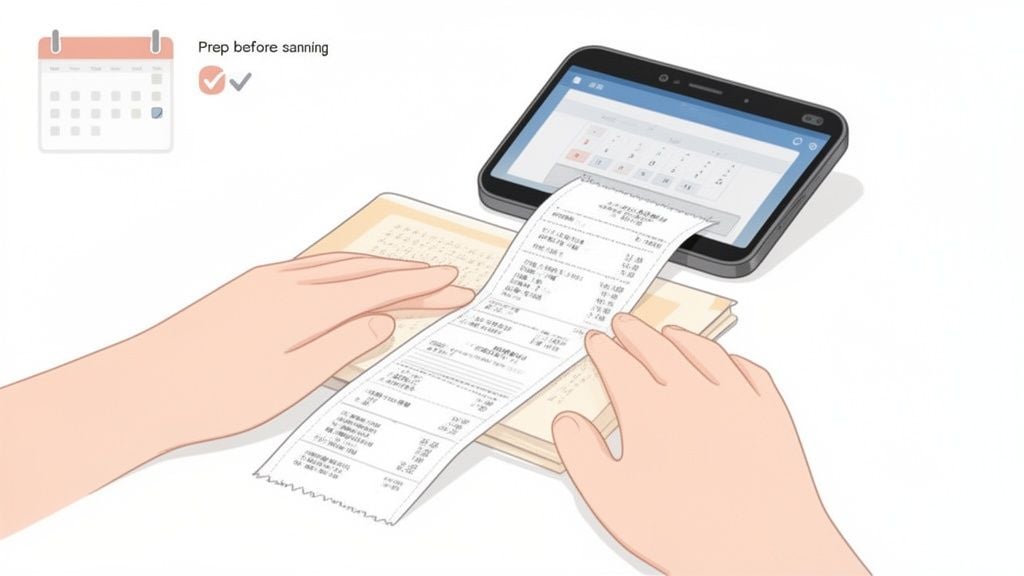
A great scan doesn’t happen at the scanner. It starts with what you do before you even hit the button. Think of it like this: the final dish is only as good as the ingredients. Taking a few moments to prep your receipts is the secret to avoiding those blurry, unreadable digital files that cause hours of headaches down the line.
Honestly, this little bit of prep work is what separates a frustrating chore from a smooth, reliable system. It’s a core part of figuring out the best way to scan receipts, making sure every piece of paper is perfectly primed for digital capture so the software can do its job right.
Dealing with Problematic Paper
Let’s face it, receipts are a pain. They’re often crumpled, faded, or printed on that flimsy thermal paper that seems designed to self-destruct. Here’s how I’ve learned to tame the most common offenders over the years.
For those crumpled-up receipts you pull out of a pocket, just flatten them under a heavy book for about an hour. It sounds trivial, but this simple step makes a huge difference in preventing shadows and distortions that confuse OCR software.
Those ridiculously long, register-tape receipts are another classic problem. Don’t even try to scan them in one shot. Instead, find the “multi-page” or “add page” function in your scanning app and capture the receipt in sections. The trick is to slightly overlap each scan to create a single, seamless digital document.
The absolute worst culprits are thermal receipts. They fade from heat, light, and even the oils on your skin. Your only real defense here is to scan them immediately. The longer you wait, the more data you risk losing for good.
Smart Batching Before You Scan
Instead of scanning receipts one-by-one as they come in, I highly recommend batching them. This doesn’t mean letting a mountain of paper pile up for a month. It’s about creating small, organized groups before you even think about scanning.
This simple shift turns a chaotic pile into a manageable workflow. You’re not just scanning; you’re pre-organizing your bookkeeping at the same time.
- Batch by Week or Month: My go-to method is a simple folder for the current month. At the end of each week, I have a small, contained pile ready for a single, focused scanning session.
- Batch by Project or Client: If you’re a freelancer or run a project-based business, keep a dedicated envelope for each one. This makes job costing and client billing incredibly straightforward.
- Batch by Expense Type: Grouping receipts by categories like “Office Supplies,” “Meals,” or “Travel” can really streamline the coding process in your accounting software later on.
The whole point of prep is to make the digital part of the process effortless. Of course, many finance teams are now trying to get rid of physical paper altogether. Instead of using phone cameras, they’re using tools that automatically fetch receipts from email inboxes and online vendor dashboards.
This trend is really taking off in North America, where tech-savvy U.S. businesses are adopting these tools to stay on top of strict record-keeping rules. If you’re curious about how automation is changing the game, you can explore market data from Data Insights. It’s all about ensuring accuracy right from the start.
Choosing Your Scanning Hardware and Software
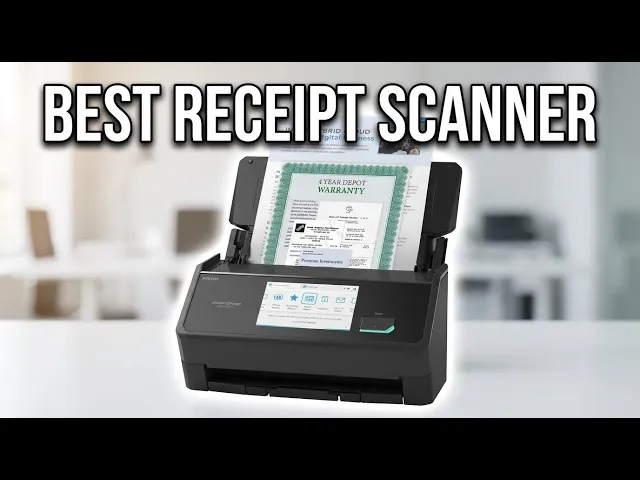
So, what’s the best way to scan a receipt? The first thing we need to figure out is what you’ll actually use to do the scanning. There’s no single “best” answer here—it all comes down to your specific needs. The tools you pick will shape your entire workflow, so it’s crucial to get this right from the start.
Think about it: a freelancer juggling a handful of receipts each week has completely different needs than an accounting firm processing hundreds a day. One person needs something quick and portable, while the other is looking for pure speed and automation. Let’s dig into the common options to see what works best for different situations.
The Smartphone in Your Pocket
For most freelancers and solo business owners, the easiest scanner to grab is the one they already own: their phone. Modern scanning apps are surprisingly good, turning a quick photo into a clean, cropped, and easy-to-read PDF. They’re fantastic for capturing an expense right on the spot—snap a picture of that lunch receipt before you’ve even left the table.
But that convenience comes with a trade-off. When you use a phone app, you are the scanner. Every single receipt requires you to stop, open the app, frame the shot, and save it. That’s fine for five receipts a week, but it becomes a serious time-waster when you’re dealing with fifty.
Upgrading to a Dedicated Scanner
Once you’re handling a steady stream of paper, a dedicated document scanner is a total game-changer. These machines are built for one thing: turning paper piles into pristine digital files, and doing it quickly.
- High-Speed Desktop Scanners: These are the workhorses for any busy office. With an automatic document feeder (ADF), you can drop in a whole shoebox of receipts and have them digitized in minutes, not hours.
- Portable Scanners: These smaller scanners are a great middle ground. They offer much better quality and speed than a phone but are small enough to toss in a bag. Perfect for business travelers who collect a lot of paper on the road.
These devices are a huge step up, but they still only solve half the problem. They’re great at digitizing paper, but what about everything else? For a closer look at specific models, this ultimate guide to a receipt scanner for business is an excellent resource.
To help you decide, here’s a quick breakdown of how these methods stack up against each other.
Receipt Scanning Method Comparison
Method
Best For
Pros
Cons
Smartphone App
Freelancers, low volume, on-the-go capture
Extremely convenient, no extra hardware needed, captures receipts instantly
Manual process, time-consuming for batches, quality can vary
Dedicated Scanner
Small businesses, high volume, batch processing
Very fast, excellent quality, handles large stacks of paper with an ADF
Requires an upfront investment, not as portable as a phone
Automation Software
Any business wanting to eliminate manual data entry
Fully automated, fetches digital-native receipts, integrates with bookkeeping
Subscription-based, requires initial setup of connections
Ultimately, while hardware is important for paper, the most powerful approach tackles the problem at its source.
The Most Powerful Method: Automation
Here’s a thought: the best way to scan a receipt is to not scan it at all.
Let’s be real—the vast majority of your most important receipts are already digital. Your software subscriptions, Amazon orders, and supplier invoices all start as emails or downloads in an online portal. You’re just manually turning them back into a task.
This is where true automation tools like Booksmate completely change the game. Instead of you spending time hunting down invoices in your inbox or logging into ten different websites, Booksmate connects directly to your accounts and fetches them for you. It’s a hands-off system that runs 24/7 in the background.
This isn’t just a niche idea; it’s where the entire market is heading. The receipt scanner market, valued at $500 million in 2025, is expected to skyrocket to $900 million by 2033, largely because of cloud integration and AI-powered data extraction. Businesses are tired of manual work, and automated fetching is the clear answer.
Turning Scans Into a Searchable Goldmine
Getting a crisp scan is a great first step, but the real magic happens when you turn that picture into searchable data and file it away smartly. This is where Optical Character Recognition (OCR) and a good filing system come in, transforming a messy folder of images into an organized, audit-ready archive.
Think of OCR as a digital translator. It looks at the image of your receipt, identifies all the letters and numbers, and converts them into actual text. This is what lets you search a PDF for “Home Depot” or a specific dollar amount months after you’ve scanned it.
Getting Clean Data With OCR
The accuracy of your OCR is only as good as the scan you feed it. If you give the software a blurry, low-resolution image, you’re going to get digital gibberish back. The goal is always to create a clean, high-contrast image for the software to read.
I’ve found the sweet spot for receipt scanning is 300 DPI (dots per inch) in black and white. This resolution is sharp enough for OCR to decipher even the finest print, while the black and white setting creates the bold contrast that helps the software easily separate text from the background.
While color or grayscale scans might look prettier, they create much larger files and can introduce shadows or shades that confuse the OCR software, leading to errors. For pure data extraction, stick with black and white. It’s all about efficiency.
A Naming System That Actually Works
Once you have a clean scan, what you name the file is just as crucial. A folder filled with Scan_001.pdf and Scan_002.pdf isn’t much of an upgrade from a shoebox stuffed with paper. A consistent naming convention, however, makes your files instantly useful without even opening them.
I swear by this format, and it’s served me well for years: YYYY-MM-DD_Vendor-Name_Amount.pdf
Putting it into practice, your files would look like this:
2026-07-22_Staples_47.98.pdf2026-07-24_Shell-Gas_61.50.pdf
This simple system automatically sorts your receipts by date, and you can see the vendor and total at a glance. It’s a small change that makes finding a specific transaction incredibly fast. To take this even further, you can extract data from documents using AI and automation, turning these organized files into structured information for your accounting software.
Smart Folders for Easy Archiving
Your naming system works best when paired with a logical folder structure. You don’t need anything complicated; a simple hierarchy is perfect. I just create a main folder called “Receipts” and then break it down by year and month.
Documents/Receipts/2026/07-July/Documents/Receipts/2026/08-August/
This keeps everything tidy and makes it a breeze to pull all your expenses from a specific period, whether it’s for tax time or a project budget review.
Of course, the most advanced setups do away with most of this manual work. The digital receipts market is already on track to hit $293 billion by 2030, fueled by the boom in online shopping and electronic payments. This is where modern tools shine by automatically fetching receipts from sources like PayPal and Stripe, using AI to pull out the key data with 99% accuracy. You can read more in this digital receipts market analysis. This hands-off approach is really the future of efficient bookkeeping.
From Scanned Paper to Tidy Books: Automating Your Workflow
Getting a receipt scanned is only half the battle. The real magic—and time savings—happens when you connect that digital file directly to your accounting system. The goal here is to build a smart workflow that ditches manual data entry for good. This is how you stop spending hours uploading files and typing in numbers, turning a painful chore into something that just… happens.
Think of it this way: manually typing data from a PDF into QuickBooks is just as mind-numbing as typing it from the paper receipt you just scanned. An automated system creates a bridge between your scanner and your books, ensuring everything is consistent and you aren’t the one doing the grunt work.
This simple flow shows how you can turn a messy pile of paper into a perfectly organized digital archive.
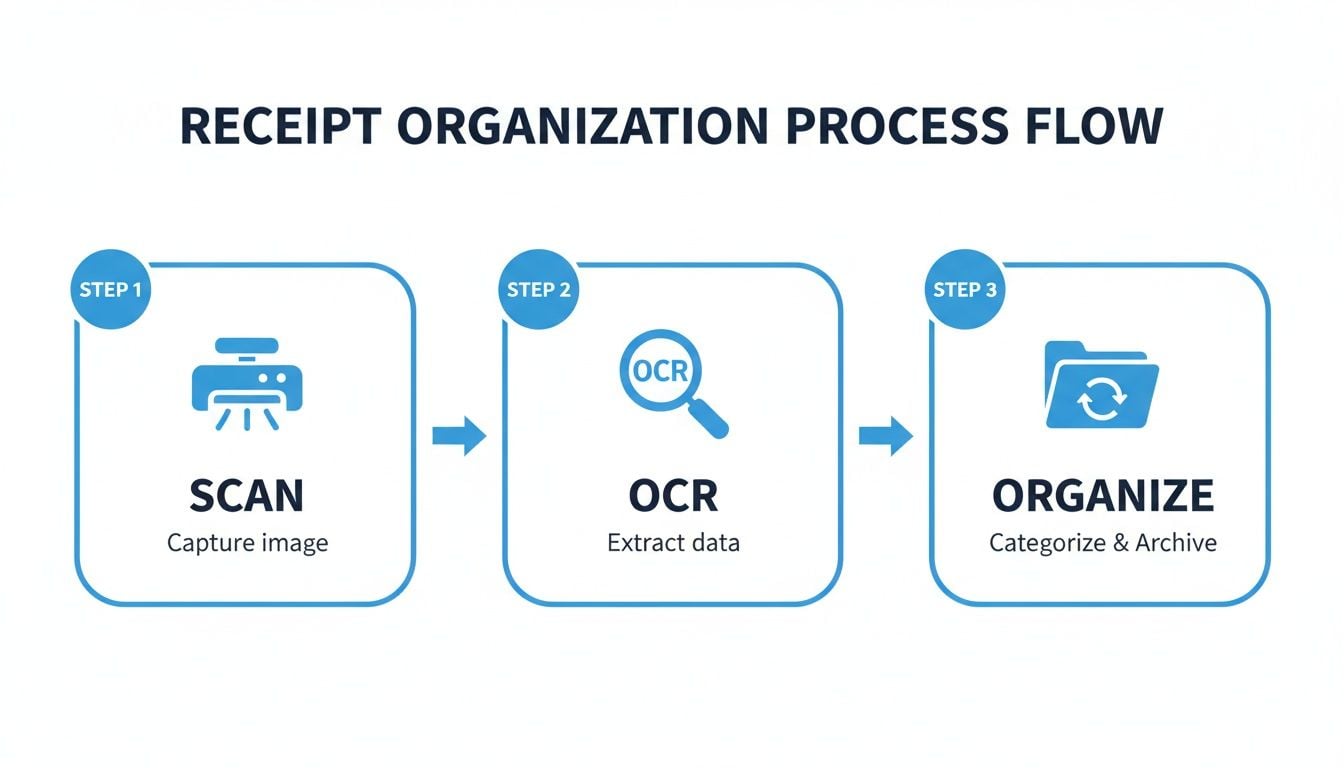
The real power isn’t just in the scanning or organizing, though. It’s in automating the connections between these stages so you don’t have to touch them.
Building Your Hybrid Automation System
In my experience, the most practical approach is a hybrid one. You need a smart way to handle the unavoidable paper receipts, but you also need to fully automate the ones that are already digital. This strategy covers all your bases so no expense gets missed.
For those paper receipts you’ve scanned, a tool like Booksmate can step in and do the heavy lifting. Its AI reads the key information—who you paid, the date, the total, and the tax amount. From there, it packages it all up, ready for a one-click export straight into your accounting software. That step alone can save you hours every single month.
But the most powerful part of a modern system has nothing to do with paper at all. True automation comes from tools that fetch your digital receipts for you—which, let’s face it, is where most business expenses live now.
Letting the Software Do the Work
This is where things get really good. Modern tools can connect directly to your online accounts and automatically pull in documents for you. This is, hands down, the best way to scan receipts because there’s no scanning involved.
Here’s how it typically works:
- Email Fetching: The software automatically monitors your inbox. When a receipt from a vendor like Adobe or a SaaS tool lands, it grabs the PDF or email content and pulls it into your dashboard. No more searching your email for that one missing invoice.
- Portal Connections: It can also log into your supplier portals—think Amazon Business, Google, or Microsoft—and download your invoices the moment they’re issued. You don’t have to remember to do it yourself.
This combination is a game-changer. The paper you can’t avoid gets handled efficiently with AI, while all your digital-native receipts are collected without you lifting a finger. This hybrid workflow is the key to finally getting ahead of your financial admin and taking back your time.
How to scan receipts
How to scan receipts: prep the paper, batch it, capture a clear image, save a searchable PDF, then file it where the books can use it.
- Flatten crumpled receipts. Scan thermal paper the same day, before it fades.
- Split very long register tapes into overlapping pages instead of one warped photo.
- Batch by week, month, client, or expense type so you are not scanning one slip at a time all day.
- Capture with a phone scanning app or a dedicated scanner, in even light, with the full slip in frame.
- Save as PDF, run OCR, and name the file with vendor and date.
- Put the PDF in the folder or tool your accountant actually opens, and attach it to the expense.
A JPEG screenshot with no text layer is harder to search later. PDF is the archive format.
FAQ: best way to scan receipts
How long should I keep physical receipts after scanning?
Tax agencies such as the IRS accept a clear, complete, securely stored digital copy of a receipt as the record. Hold the paper for one full tax year as a backup, then shred it if the PDF is a true copy of the original. A faded or cropped scan is not that copy, so the quality of the scan is the proof.
What is the best file format for scanned receipts?
PDF is the format to archive a scanned receipt. It can hold a long receipt as more than one page, keep the OCR text you can search, and open cleanly for an accountant or an expense report. A JPEG is only a flat image.
Can I trust automation tools with my receipt data?
It is normal to hesitate before connecting a tool to financial accounts. Booksmate encrypts receipt data in transit and at rest, and fetch is read-only: it can pull invoices and receipts, and it cannot make payments or change the account. A central archive is safer than emailing the same receipt around the team.
Is a phone photo a good way to scan a receipt?
A phone photo works when the receipt is flat, fully in frame, and easy to read. Shadows, curls, and cropped totals make OCR fail, and you end up typing the expense anyway. Use the phone's document or multi-page scan mode, then save a PDF rather than leaving a camera-roll JPEG as the only copy.
Should I scan thermal receipts immediately?
Yes. Thermal receipts fade from heat, light, and handling, and a later scan can lose the vendor, date, or total. Scan them the day you get them and keep the PDF as the record. The paper copy is a short-term backup, not the archive.
Ready to stop chasing down receipts and let automation handle the work? Booksmate connects to your email and online portals to automatically fetch, process, and organize your financial documents. Get started with Booksmate today.
For a comparison of free tools, is there a free receipt scanner for windows is covered in our practical guide.
If the original document is in a retailer account, how do you print a walmart receipt from the app walks through finding it before scanning.
Before you digitise a café receipt, can you add a receipt to the starbucks app explains how to recover the original record.