Apple Receipts: How to Find and Download Them
Find Apple receipts and invoices for App Store, iCloud and subscriptions on iPhone, Mac or the web, and save them as PDFs.

If you’re trying to identify an Apple charge before monthly bookkeeping, submit an expense claim, support a tax deduction, check a subscription renewal, or produce paperwork for a warranty or audit file, the hard part usually isn’t the purchase. It’s finding the right receipt in Apple’s split systems.
Apple does keep good records. It just doesn’t keep them in one obvious place. Digital purchases, subscriptions, and media receipts live in one set of menus and portals. Hardware orders live somewhere else. If you’re a bookkeeper, accountant, freelancer, or business owner with mixed personal and company Apple spending, that split causes real reconciliation problems fast.
How do you look up an Apple receipt?
Go to reportaproblem.apple.com, sign in with the Apple Account used for the purchase and open the relevant transaction. On an iPhone or iPad, you can also use Settings > your name > Media & Purchases > View Account > Purchase History.
- Change the date range if the purchase is older than 90 days.
- Search the email address linked to the Apple Account for Apple receipt emails.
- Apple Store hardware orders and App Store media purchases may appear in different histories.
Apple invoices
Apple invoices are split by purchase type: App Store, iTunes, iCloud and subscription receipts are usually found in Apple purchase history or email, while hardware invoices are found through Apple Store order status. Start with reportaproblem.apple.com for digital purchases and Apple Store order status for devices or accessories.
- Use purchase history for App Store, iTunes, iCloud and subscription receipts.
- Use Apple Store order status for Mac, iPhone, iPad, accessory and hardware invoices.
- For the exact clicks, see the step-by-step Apple invoice download guide.
Apple invoice lookup
For an Apple invoice lookup, use the Apple ID that made the purchase, then check purchase history, email receipts, and Apple Store order status. If the purchase was made in a physical Apple Store, the receipt may only be recoverable through the email address, order details, or Apple support.
- The device owner and the purchase owner may not be the same Apple account.
- Check family, business, and alternate Apple IDs if the purchase is missing.
Apple invoice download
Apple invoice download depends on the purchase source. For Apple Store hardware orders, open the order details and use View Invoice or Print Invoice; for App Store and subscription charges, download or print the receipt from purchase history or the emailed Apple receipt.
- Hardware orders and digital purchases do not always use the same invoice format.
- If there is no download button, use print or save as PDF from the browser. The Apple invoice download guide shows each step for App Store, iCloud+ and Apple Store orders.
Apple account invoices
Apple account invoices are tied to the Apple Account used for the purchase, not just the device. If you cannot see an invoice, check whether the purchase was made with another Apple ID, a family member's account, a business Apple account, or a different email address.
- Search the inbox attached to the purchasing Apple ID.
- For Apple Ads, use the separate Apple Ads invoices workflow.
Find Apple receipt with serial number
A serial number can help Apple Support identify a device, but it is not a guaranteed receipt lookup key. For proof of purchase, Apple usually needs the Apple ID, order number, email receipt, payment record, or original store/order details.
- Use the serial number as support context, not as your only receipt search method.
- If finance needs this every month, use automatic invoice downloads instead of manual lookup.
Can you find an Apple receipt with a serial number?
A serial number can identify the Apple device, but it does not directly retrieve an App Store receipt. Use it when contacting Apple Support about a hardware purchase, together with the purchaser name, store, approximate date and payment details.
- Check mysupport.apple.com for devices registered to your Apple Account.
- For an App Store charge, search Purchase History by date and amount instead.
Framing the Problem Use Cases and Critical Gotchas
Monthly bookkeeping is due tomorrow. A controller is staring at an Apple charge that does not match any submitted expense, a founder wants a receipt for a subscription renewal, and the employee who bought the app used a personal Apple ID on a company iPad. That is the primary problem with Apple receipts. The records exist, but they are split across different systems, different inboxes, and sometimes different people.
For accounting work, the first question is not “Where is the receipt?” It is “What type of Apple purchase am I trying to prove, and which account made it?” Apple keeps digital purchases such as apps, subscriptions, in-app purchases, media, and service charges under the Apple ID that bought them. Hardware orders, including Macs, iPhones, and accessories, sit in a separate Apple Store order system. Email receipts can fill gaps, but only if you have the right inbox and the right Apple ID.
That split becomes expensive in time once a business has more than one Apple ID in circulation.
What Apple tracks and what it doesn’t
- Tracked in digital purchase history: apps, in-app purchases, subscriptions, music, films, books, and service charges tied to a specific Apple ID
- Tracked separately: Apple Store hardware orders and other physical goods
- Sometimes easier to recover from: email receipts sent to the address attached to the purchasing account
The three gotchas that waste the most time
- One Apple ID means one purchase trailApple does not give you a unified cross-account ledger. If an employee bought software with a personal Apple ID, finance will not see that receipt under the company-managed account. This is the first check to make, especially in companies with shared devices, legacy logins, or reimbursements instead of centralized purchasing.
- Card charges may combine several purchasesA single Apple charge on the bank feed can represent multiple apps, subscription renewals, or small in-app purchases posted together. That creates a reconciliation gap. The card statement shows one total, while the receipt trail may sit across several line items inside Apple’s purchase records or email confirmations.
- Family Sharing obscures the buyerFamily Sharing is convenient for households and a headache for bookkeeping. The person using the app or subscription may not be the account that was billed, which means the receipt can land in a different inbox and under a different Apple ID than the user expects. For small businesses and owner-operated companies, this shows up constantly when personal and business spending are mixed on the same devices. That problem is discussed in this overview of Apple receipt management gaps for teams and finance users.
Practical rule: Before searching by amount, confirm the Apple ID, confirm whether Family Sharing affected the purchase, and confirm whether you need a digital receipt or a hardware invoice. These three checks can prevent common search failures.
Quick Comparison of Apple Receipt Retrieval Methods
No single method is best for every case. If you need a fast look-up on a phone, use device settings. If you need a proper invoice, use the web portal. If you’re trying to rebuild records across months or years, email usually matters more than the on-screen history.
Apple receipt retrieval methods at a glance
Method
Best For
Time to Receipt
iPhone or iPad Settings
Quick checks of recent digital purchases and subscriptions on the device you’re already using
Usually fast for recent items
Mac App Store
Checking purchase history from a desktop Apple device
Usually fast once signed in
Apple ID website
Managing account details and checking active subscription context
Better for account checks than old receipt retrieval
reportaproblem.apple.com
Full digital purchase history and formal invoice retrieval
Usually the best route when you need the actual invoice
Email search
Older receipts, one-off lookups, and cross-checking missing items
Fast if you know the subject line and the right inbox
Automated inbox scanning
Ongoing bookkeeping, multiple Apple IDs, recurring reconciliation work
Best once set up
A quick rule of thumb helps.
- Need to identify a mystery charge: start with reportaproblem.apple.com.
- Need a recent mobile lookup: start in Settings on iPhone or iPad.
- Need hardware paperwork: go to the Apple Store order area, not App Store history.
- Need a long paper trail: search your email archive.
If you’re learning how to find and view apple receipts for business use, think in channels, not devices. Digital history, hardware orders, and email archives are different systems.
Finding Receipts Directly on Your iPhone iPad and Mac
Native device access is the quickest route when you’re already on an Apple device and only need to verify a purchase, resend a receipt, or check a recent subscription charge.
On iPhone or iPad
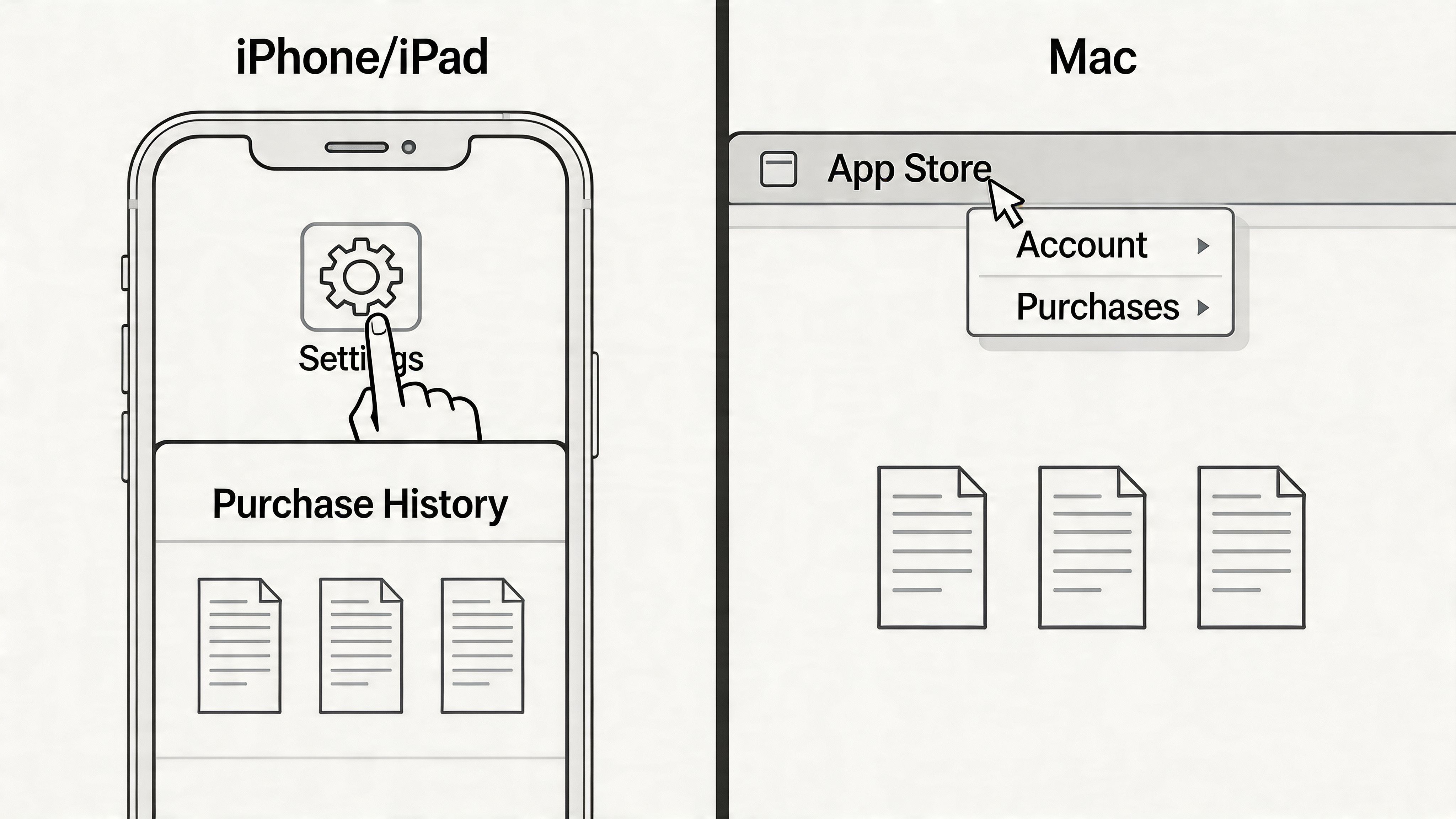
Apple’s device-native path is convenient because it loads recent transactions quickly. According to this guide to finding Apple receipts through iOS settings, the purchase history view is optimised for speed, defaults to the last 90 days, and lets you expand to the full archive with the date picker.
Use these exact steps:
- Open Settings.
- Tap [your name].
- Tap Media & Purchases.
- Tap View Account.
- Authenticate with Face ID, Touch ID, or your password.
- Tap Purchase History.
- If needed, tap the date filter that shows Last 90 Days and choose another period.
- Tap the entry you need.
- Review the charge details, then use Resend if Apple offers the email receipt option for that item.
One limitation catches people out. Tapping the billed amount on-device is good for review, but if you need a downloadable invoice for accounts or tax files, the web portal is usually the better path.
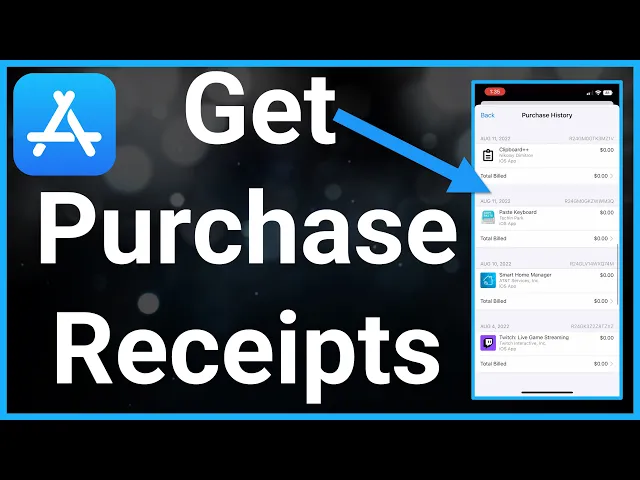
After you’ve looked at a couple on mobile, this walkthrough may help visualise the taps:
On a Mac
Mac access is useful when you’re already doing monthly bookkeeping work at a desk and want a bigger screen.
Use this route:
- Open the App Store.
- Click your name or account button in the lower sidebar.
- Open Account Settings if prompted.
- Look for Purchase History.
- Review the list and open the transaction details you need.
The exact layout varies slightly by macOS version, but the logic is the same. You’re checking the App Store account tied to that Apple ID, then opening the relevant purchase history list.
What works well and what doesn’t
Works well
- Recent lookups: good for checking what was purchased and when.
- Single-user accounts: easiest when one person uses one Apple ID.
- Subscription checks: useful for spotting renewals and confirming whether a charge belongs to Apple services.
Doesn’t scale well
- Multiple IDs: slow if you manage personal, work, and client Apple accounts.
- Shared devices: easy to open the wrong account history.
- Formal paperwork: not the best route when the accountant wants a proper invoice file.
Tip for business users: Device menus are fine for one receipt. They are poor for monthly reconciliation across several Apple IDs, shared inboxes, or staff devices.
Using Web Portals for Your Full Purchase History
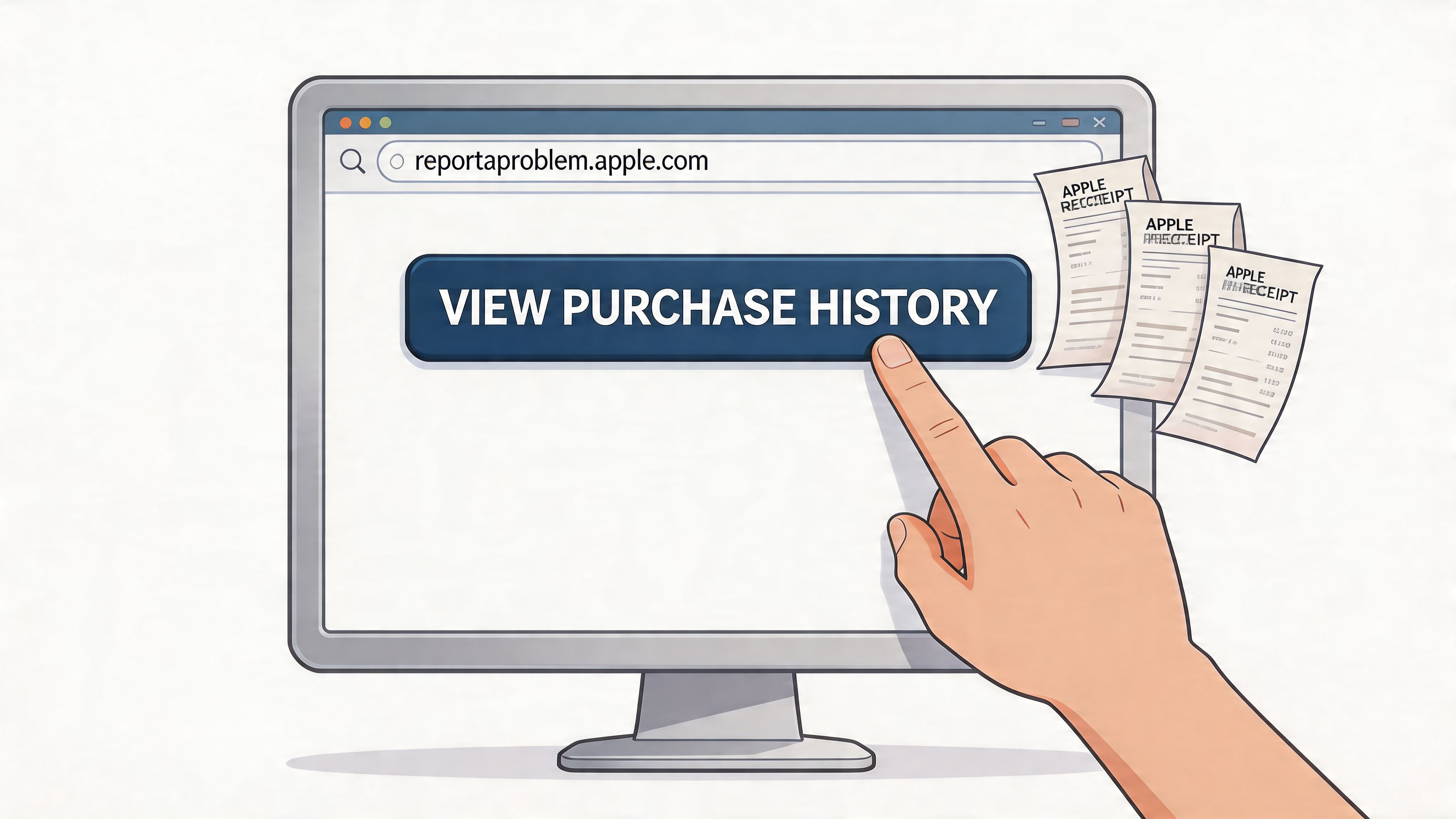
When someone needs an invoice that can go into an accounting file, I usually skip the device menus and go straight to the browser. It’s more reliable, especially for historic digital purchases.
reportaproblem.apple.com
This is the strongest option for digital receipts. The portal provides access to a broad list of digital transactions linked to the Apple ID, often going back to the account’s creation, and the View Invoice option can generate a cryptographically signed, tamper-evident PDF suitable for accounting and tax files, as described in this discussion of invoice retrieval through Apple’s problem reporting portal.
Use it like this:
- Go to reportaproblem.apple.com.
- Sign in with the Apple ID used for the purchase.
- Complete any verification step Apple asks for.
- Review the purchase list.
- Use the available filters to narrow by date or search details if needed.
- Click the transaction you want.
- Select View Invoice.
- Download or print the PDF invoice.
The PDF is the cleanest formal document Apple gives you for digital purchases. If someone in finance asks for a proper invoice rather than a screenshot, this is usually the answer.
appleid.apple.com
This site has a different job. It’s mainly for account management, security settings, and subscription context, not for digging through detailed historical receipts.
Use it when you need to:
- confirm you’re in the correct Apple ID
- review account details
- manage security and sign-in issues
- check subscription-related account context
If you’re on the wrong portal, you lose time quickly. appleid.apple.com helps you manage the account. reportaproblem.apple.com helps you find the digital purchase documentation.
Trade-offs worth knowing
- Best for formal invoices: reportaproblem.apple.com
- Best for account administration: appleid.apple.com
- Not useful for hardware orders: neither of these replaces Apple Store order history
- Still account-bound: if the purchase belongs to another Apple ID, the invoice won’t appear
For accountants, the web portal is usually the clean handoff point. You get a proper invoice file instead of relying on screenshots, forwarded emails, or a card statement with a vague Apple descriptor.
Locating Email Receipts and Hardware Invoices
Monthly bookkeeping gets messy fast when the Apple charge on the card statement says only “APPLE.COM/BILL,” the employee swears they bought it on a work device, and finance still has no invoice. In practice, the document usually exists. The problem is that it was sent to a different inbox, tied to a different Apple ID, or separated from the hardware order record entirely.
Email remains one of the fastest ways to recover Apple documentation, especially for older purchases and mixed personal-work setups. For businesses, this matters because Apple’s records are fragmented by account, purchase type, and ordering channel. A controller trying to reconcile ten app renewals across three Apple IDs is dealing with a different problem than a single user looking up one game purchase.
Email subject lines to search
Search the mailbox associated with the Apple ID, then expand outward if needed. The most useful subject lines are:
- “Your receipt from Apple”
- “Your invoice from Apple”
- “Order acknowledgment”
- “Shipment notification”
If nothing appears, check the places receipts commonly end up:
- Spam or junk folders
- Archived mail
- Shared finance or AP inboxes
- An older personal mailbox that was used when the Apple ID was created
- A family organizer’s inbox if the purchase flowed through Family Sharing
Often, “missing” Apple receipts are sitting in an unexpected inbox or attached to an Apple ID nobody thought to check.
How to search without wasting time
Start with the Apple ID email address used at the time of purchase, not the employee’s current preferred address. That one step avoids a lot of false negatives.
Then work through the search in this order:
- Search for the subject lines above.
- Narrow by the statement month or renewal date.
- Compare nearby Apple emails if the bank charge is grouped.
- Save the matching receipt as PDF or forward it into your records folder immediately.
Grouped charges are the part that trips up both individuals and bookkeepers. Apple may email separate receipts for several app purchases while the card network posts one combined amount. If the totals do not match one-for-one, check the adjacent receipts before marking the transaction as unsupported.
For teams handling recurring cleanup, a modern digital workflow for receipts cuts down the repeated inbox search and forwarding.
Hardware invoices and why finance treats them differently
Hardware purchases follow a different trail. An App Store receipt and an Apple Store hardware invoice are not interchangeable documents, and they do not live in the same place.
For a MacBook, iPhone, iPad, AirPods, or other Apple Store purchase, use the Apple Store app or the Apple Store order area after sign-in:
- Open the Apple Store app or sign in to the Apple Store order area online.
- Go to your orders.
- Review the order list.
- Open the relevant order.
- View or print the invoice if available.
This distinction matters in accounting. A software receipt usually supports a period expense. A hardware invoice may need to support capitalization, warranty tracking, serial number records, employee assignment, and depreciation. If the business bought the device through one Apple ID but the receipt was emailed to another person, fix that mapping now. It will come back during audit prep, asset disposal, or a warranty claim.
Automate Apple Receipt Collection for Bookkeeping
Monthly bookkeeping gets messy fast when Apple spending runs through three employee Apple IDs, one family organizer account, and a shared corporate card. The receipts exist, but they are scattered across personal inboxes, forwarded threads, and purchase histories that do not line up cleanly with the card statement. For a business or accounting team, the job is not just to find a receipt once. The job is to build a process that still works next quarter when the same exceptions show up again.
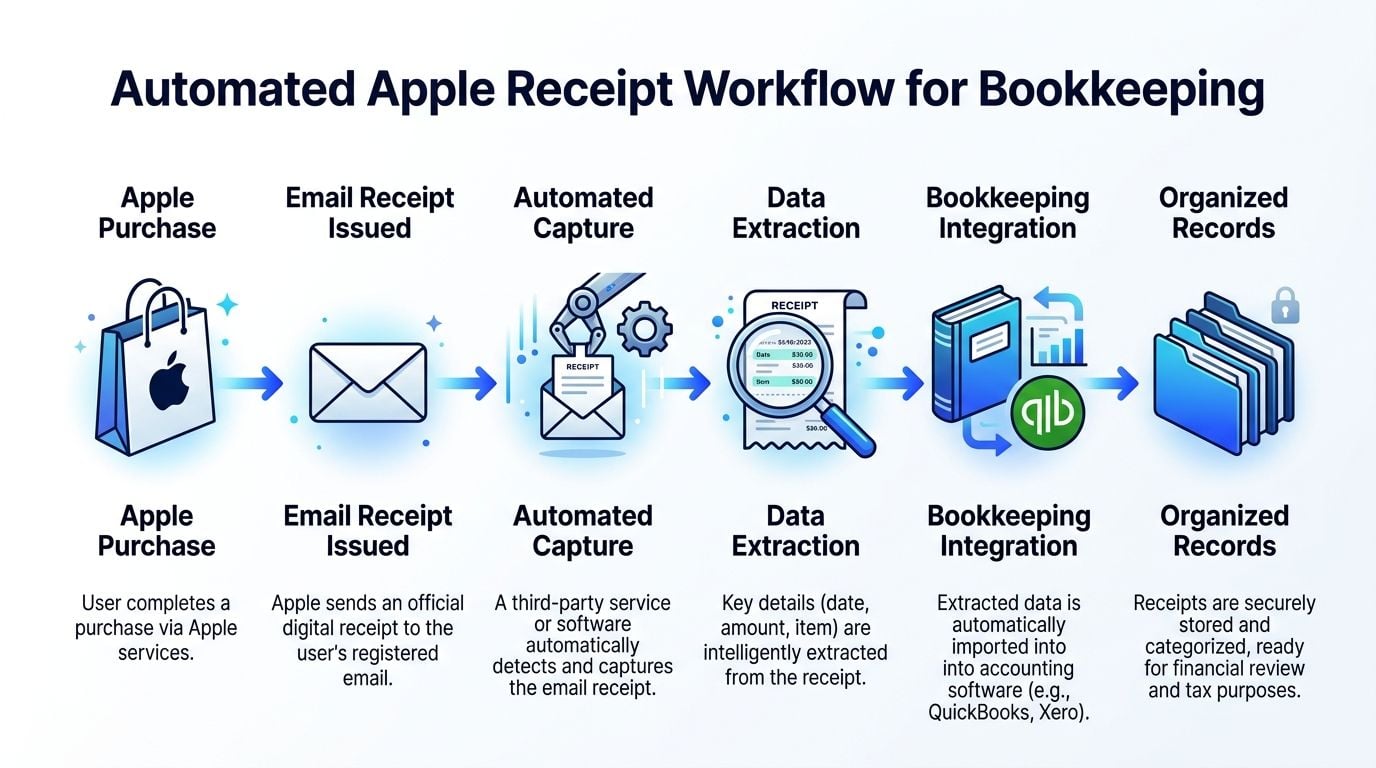
A better approach is to treat Apple receipts as part of a wider modern digital workflow for receipts. That means collecting them automatically, standardizing the data, and attaching support to the accounting record while the transaction is still fresh.
What an automated workflow looks like
A setup that holds up in practice usually has five parts:
- Connect the inboxes that receive Apple receiptsUse Gmail, Outlook, or another IMAP mailbox. For businesses, that often means more than one inbox, including a finance mailbox plus the individual mailboxes tied to employee Apple IDs.
- Scan historical emailPull prior receipts into one system so you are not rebuilding support one close at a time.
- Capture new receipts as they arriveRecurring subscriptions, storage upgrades, and one-off app purchases get picked up without relying on staff to forward emails.
- Extract accounting fieldsPull date, amount, merchant, item description, and order ID so the receipt is usable for coding and audit support.
- Send the record to the ledger or expense stackExport or sync to QuickBooks or Xero so the document sits with the transaction, not buried in somebody’s inbox.
The naming and routing rules matter as much as the capture step. I have seen teams collect every Apple receipt successfully and still waste hours during reconciliation because nothing identified which Apple ID, employee, or cardholder the purchase belonged to.
Where automation helps most
This process pays off for:
- Accountants cleaning up client books with heavy app spend
- Finance teams reconciling shared corporate cards
- Small businesses with purchases spread across founders, admins, and staff
- Freelancers separating deductible Apple charges from personal purchases
- Organizations dealing with multiple Apple IDs and Family Sharing spillover
The operational gain is consistency. Receipts arrive the same way each time, fields are searchable, and the close does not depend on whether someone kept an old email or remembers which Apple account they used six months ago.
Limits you still need to plan for
Automation only captures what you can access. If receipts were sent to a former employee’s mailbox, a personal inbox no one can reach, or an Apple ID the business never documented, the collection process will still have gaps.
It also will not fix Apple’s split systems. Digital App Store receipts and Apple Store hardware invoices belong in separate tracks, and the bookkeeping should reflect that. For clean reconciliation at scale, keep an Apple ID register, map each ID to a person or team, and document which card or reimbursement path each account uses.
That extra control work is what keeps Apple purchases from turning into recurring suspense items every month.
Frequently Asked Questions About Apple Receipts
Monthly bookkeeping usually breaks down on the same Apple questions. A charge hits the card, the receipt is nowhere obvious, and nobody is sure which Apple ID made the purchase. These are the cases that slow down finance teams, bookkeepers, and anyone cleaning up reimbursable spend.
How far back does Apple purchase history go
Apple keeps a long history for digital purchases, but the retrieval tools are better for recent transactions than older ones. Older purchases can be harder to surface because Apple’s account views are built for customer support and self-service, not for pulling multi-year documentation during a reconciliation or audit review.
For older items, the first fallback is the original receipt email. If that is gone, the next option is Apple Support, using the date, amount, and card details from the bank record. That can work for isolated exceptions. It does not scale well if a business is missing receipts across several Apple IDs or former employees.
How do I get a PDF invoice instead of a screenshot
Use reportaproblem.apple.com for digital purchases and open View Invoice when Apple provides it.
Accountants and finance reviewers usually prefer the PDF or invoice view because it is easier to file, review consistently, and match against the ledger than a cropped phone screenshot. For hardware purchases, go to the Apple Store order page or the Apple Store app, since those invoices sit in a separate system.
Why is a purchase missing from my history
Missing purchases usually come down to account structure.
- Wrong Apple ID: the app, subscription, or media purchase was made under another login.
- Family Sharing: one person used the service, but the billing trail sits under a different family member’s account.
- Grouped billing: the bank shows a combined Apple charge, while the portal shows separate underlying items.
- Hardware versus digital split: the search started in App Store purchase history, but the charge came from the Apple Store.
For businesses, this is why an Apple ID register matters. If you’re also tightening spend visibility, this guide to best apps to track spending is useful because Apple receipt problems often start with weak purchase tracking.
Are email receipts acceptable for tax or accounting records
Usually, yes, if the email shows the merchant, item or subscription, date, amount, and the record ties back to the payment method in the books.
Many accountants still prefer a formal PDF invoice when Apple offers one because it is easier to store in a standard format, review during monthly bookkeeping, and hand over during an audit or client file check. For lower-value app charges and recurring subscriptions, email receipts are often what businesses keep, especially when staff bought the item before any receipt process was in place.
What’s the fastest route when I need an answer right now
Use this order:
- Confirm the Apple ID tied to the purchase
- Check reportaproblem.apple.com for digital charges
- Check Apple Store orders for hardware
- Search the email archive by amount, date, and Apple billing terms
Starting with the bank statement alone usually takes longer because Apple often batches charges and uses billing labels that do not identify the exact item.
If you’re tired of manually hunting Apple receipts across inboxes, portals, and multiple Apple IDs, Booksmate is built for that exact bookkeeping mess. It connects to email and online accounts, captures receipts retroactively and going forward, extracts the key fields with AI, and keeps everything organised for freelancers, small businesses, accountants, and bookkeepers. There’s also a free plan, which makes it a practical place to start if your monthly bookkeeping process still depends on searching “Your invoice from Apple” by hand. For a step-by-step guide to downloading Apple invoices, see the full walkthrough.
For a broader approach to organising digital receipts across your business, explore the full guide.