Where to View Apple Ads Invoices: A Complete 2026 Guide
Learn exactly where to view Apple Ads invoices. Our 2026 guide provides quick steps to find, download, and manage your billing for seamless bookkeeping.

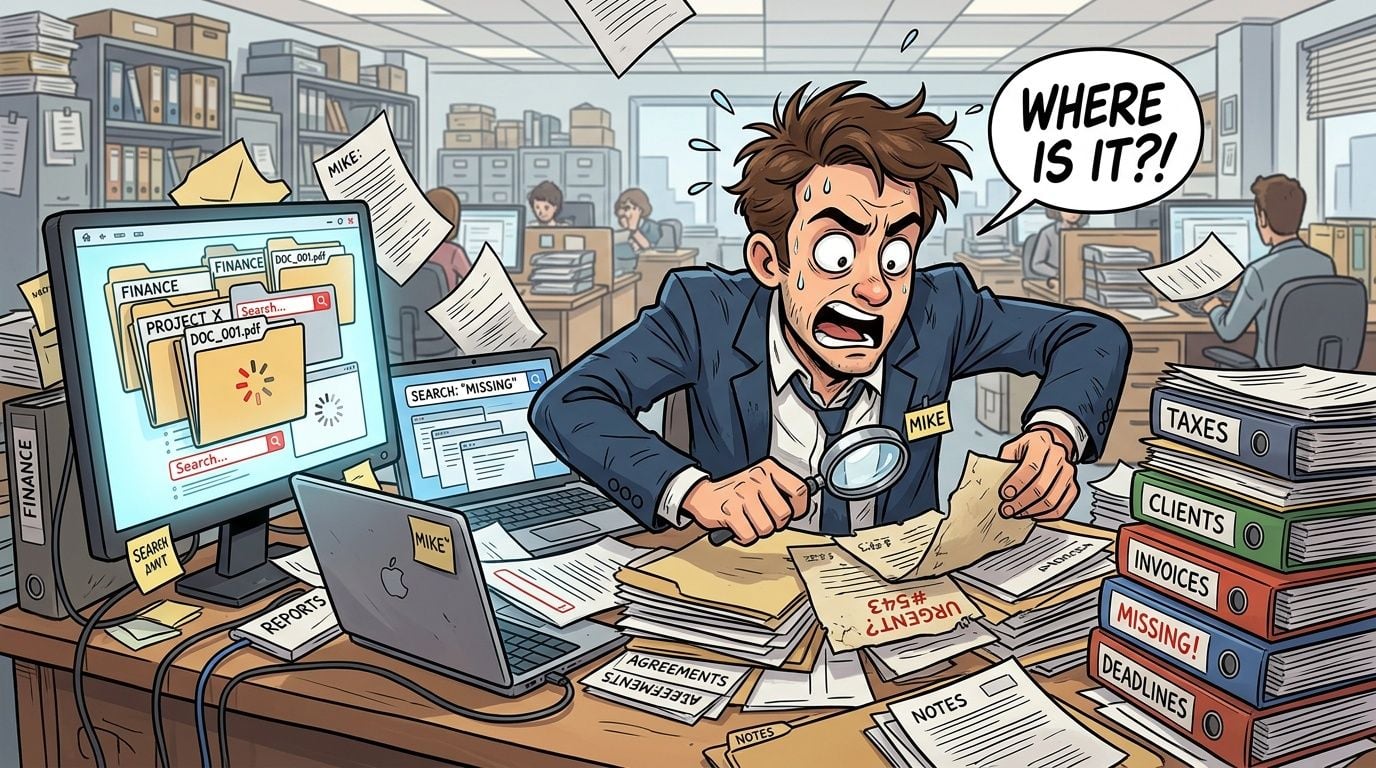
Monthly bookkeeping is under way, approvals are waiting, and one document is still missing. The Apple Ads invoice isn’t in the usual Apple purchase history. It isn’t in the App Store receipt list. It often isn’t in the inbox thread you expected either.
That is where teams frequently lose time. Apple’s billing systems are split by product line, so finance ends up checking the wrong portal first and treating a routing problem like a missing-document problem. If you’re trying to figure out where to view apple ads invoices, the short answer is simple: they live inside the dedicated Apple Ads billing area, not the consumer Apple account flow.
Table of Contents
- The Monthly Bookkeeping Scramble for Apple Invoices
- Finding Invoices Directly in the Apple Ads PortalUse the Apple Ads dashboard, not the other Apple portals
- What you’ll see after you open Invoices
- Decoding Your Apple Ads Invoice for BookkeepingFields that matter during close
- A practical review checklist
- Troubleshooting Why You Can’t Find an InvoiceThe wrong portal is the usual culprit
- Timing causes the second wave of confusion
- End the Manual Hunt with Invoice AutomationManual collection breaks at the handoff points
- What automation fixes in practice
- From Manual Search to Automated Certainty
A familiar scene in bookkeeping looks like this. Someone has the marketing spend total, someone else has the card statement, and the invoice itself is nowhere obvious. The natural reaction is to check the Apple ID purchase history, then App Store Connect, then old confirmation emails.
That sequence wastes time because Apple separates these systems. Apple Ads billing sits in its own portal, while App Store purchases and business device buying follow different paths. If your close checklist includes ad spend, this split matters as much as the invoice itself.
A lot of newer team members assume “Apple is Apple” and that every bill should appear under one login history. That assumption breaks monthly bookkeeping routines. In practice, you need a portal map, not just a download habit.
Practical rule: Treat Apple Ads, App Store purchases, and Apple business purchasing as separate document streams until proven otherwise.
That’s also why invoice handling belongs inside a broader payable workflow. If you’re training a junior bookkeeper, it helps to anchor this task inside the full what is accounts payable process so they understand why document source, coding, and timing all matter.
For teams that already manage multiple ad platforms, Apple’s setup feels similar to the headaches described in this guide to Google Ads invoice download. The pattern is the same. The invoice exists, but only in the billing environment that belongs to that ad product.
Finding Invoices Directly in the Apple Ads Portal
The correct location is specific. Invoices for Apple Ads are exclusively accessible via the dedicated Apple Ads account dashboard at ads.apple.com, under Settings > Billing > Invoices, and that applies to both Basic and Advanced accounts according to Apple’s billing help for understanding Apple Ads invoices.

Use the Apple Ads dashboard, not the other Apple portals
Start at your Apple Ads login. Use the credentials that have access to the advertising account, not just a general company Apple ID. A finance manager with App Store Connect access may still have no visibility into Apple Ads billing if permissions weren’t set there.
Once you’re in:
- Open ads.apple.com and sign in.
- Click your account name.
- Go to Settings.
- Select Billing.
- Open Invoices.
If the invoice exists, that is where it will be listed. Don’t detour into App Store purchase history, device procurement tools, or personal Apple account pages.
Go to the ad platform that created the charge. For Apple advertising, that means the Apple Ads billing area every time.
The invoice list is organized by transaction periods rather than the common method of tracking card activity. This distinction is important because finance teams often search by statement date before invoice date, yet Apple Ads presents these documents from the billing perspective.
The account type also affects what detail appears:
Account type
What you can expect
Basic
High-level charges by country, plus app promotion details at a simpler level
Advanced
More granular campaign names and transaction periods
When you open an invoice PDF, review whether the period shown matches the spend period you’re trying to reconcile. Save the file using a naming convention your team can search later. A clean pattern like vendor, period, and account identifier avoids repeated downloads and duplicate storage.
A few habits help here:
- Use the invoice list first: Don’t search email first if your objective is the official billing document.
- Check account permissions early: Missing access looks like a missing invoice until someone confirms role rights.
- Download the PDF immediately: Browser views are fine for checking, but the finance record should be stored in your document system.
The portal is the source of truth. Everything else is secondary.
Decoding Your Apple Ads Invoice for Bookkeeping
Finding the file is only the first half of the job. The second half is reading it correctly, because Apple Ads invoices contain details that matter for posting, tax handling, and spend allocation.
Apple’s monthly invoicing guidance notes that teams often misread Apple Ads invoices and fail to verify billing entities, VAT treatment, and charge line models such as CPT-TT and CPT-ST in its help on monthly invoicing for Apple Ads. That lines up with what happens in real closes. The invoice gets downloaded, but key fields never make it into the ledger review.
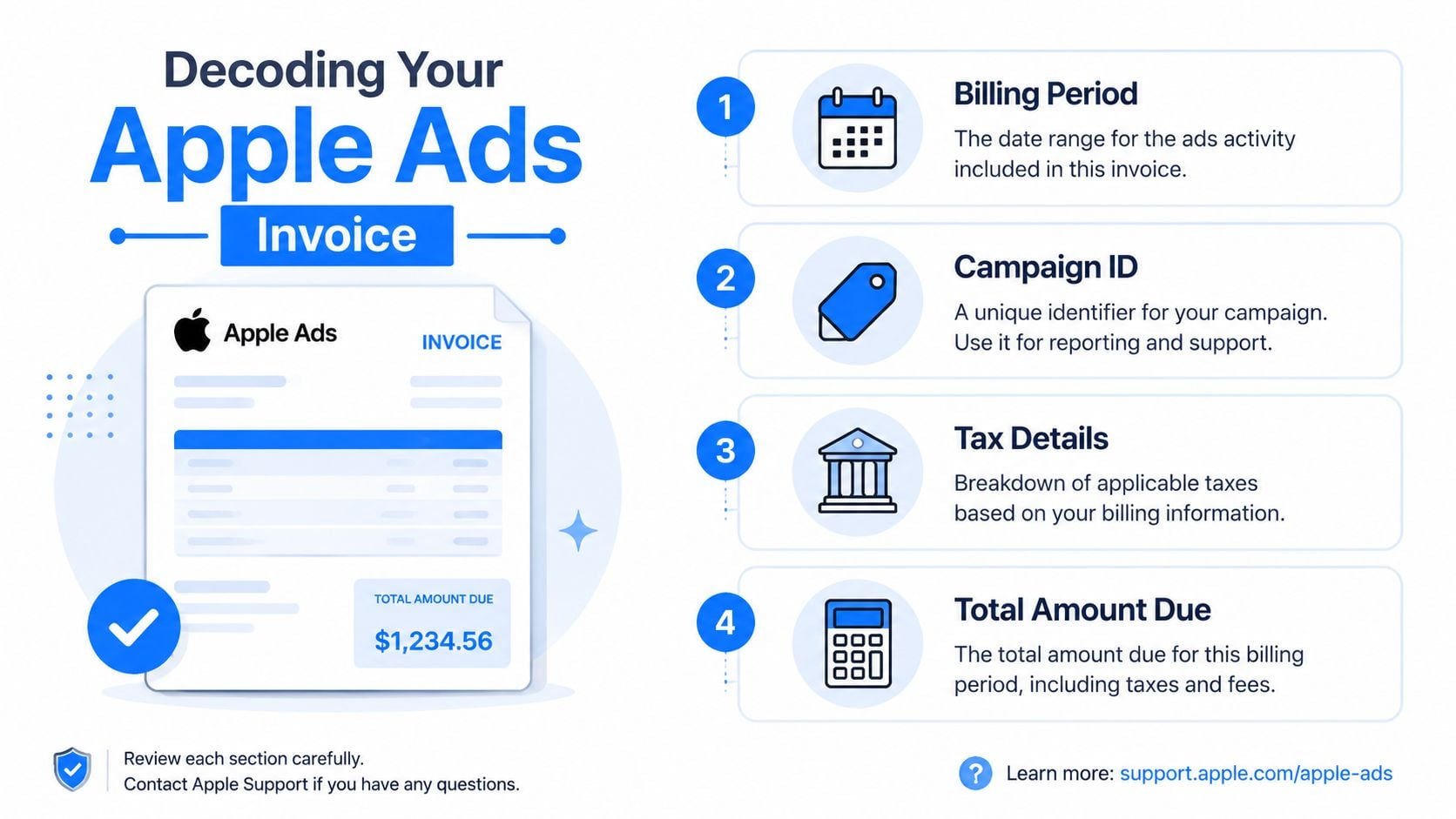
Fields that matter during close
The billing entity tells you which Apple entity issued the invoice. That matters for tax review and for matching the document to the legal entity your accounting team expects. If your team books from summary exports and ignores the PDF, this is one of the first places errors show up.
The campaign ID is your best operational anchor when you need to allocate spend internally. Campaign names can change over time. Internal budget labels may not match what the marketing team used in the ad account. Campaign ID is steadier and easier to map.
The charge line model needs attention too. Apple invoice detail may include labels such as CPT-TT and CPT-ST. If your chart of accounts or reporting package splits spend by placement or campaign type, these codes help classify the invoice lines more accurately.
If you can’t explain what each major line on the invoice represents, don’t book from memory. Re-open the PDF and map it before posting.
Use a short review pass before the invoice enters your accounting system:
- Confirm the legal issuer: Check the billing entity against your vendor record.
- Read the tax section carefully: VAT treatment shouldn’t be assumed from prior months.
- Tie the invoice to marketing records: Match campaign IDs to the budget owner or cost center.
- Review line-model codes: CPT-TT and CPT-ST shouldn’t be left as mystery abbreviations.
- Store the document with context: Save the PDF where both finance and marketing can retrieve it later.
If your team also handles regular Apple receipts, this walkthrough on how to find and view Apple receipts is useful because it highlights the difference between consumer-style Apple records and ad billing documents. They’re not interchangeable, and trying to force them into one filing logic usually creates confusion.
Troubleshooting Why You Can’t Find an Invoice
When someone says the invoice “isn’t there,” I usually check the search path before I check the billing period. Most misses happen because the team started in the wrong Apple system.

The wrong portal is the usual culprit
Research cited by Mintline says 73% of finance teams initially search the standard Apple ID purchase history or App Store Connect for ad invoices, resulting in zero retrieval, and recommends accessing the isolated Apple Ads billing portal first in its article on Apple invoice retrieval across portals. That matches the day-to-day problem. People follow the most familiar Apple login, not the correct one.
This confusion makes sense because Apple has separate homes for different transaction types:
- Apple Ads portal: Advertising invoices
- Consumer Apple purchase history: Personal or standard digital purchases
- Apple business purchasing tools: Organizational device and related procurement records
If you’re in the second or third bucket while looking for ad spend, you won’t find the invoice no matter how long you search.
The other issue is timing. Teams often expect the invoice to appear the moment the charge hits a card or the month flips. Apple Ads billing doesn’t always line up that neatly, so a document can feel missing when it is not posted yet.
When troubleshooting, run this sequence:
- Confirm you’re signed into the correct Apple Ads account.
- Confirm your role includes billing visibility.
- Check the Invoices area by transaction period, not just by the month name you use internally.
- If the period just closed, wait and check again rather than assuming the document is lost.
The fix is procedural. Your team needs a standard route for Apple Ads invoice searches so nobody burns an hour proving the wrong portal has nothing in it.
End the Manual Hunt with Invoice Automation
Manual invoice collection works when the account list is small, the owner is consistent, and nobody takes leave during close. It starts failing when multiple clients, regions, or Apple service types get involved.
Apple’s billing-cycle documentation notes that amounts on credit card statements may differ slightly from online totals because Apple Ads billing uses UTC while account time zones may differ, as described in Apple’s page on understanding the Apple Ads billing cycle. That’s a finance problem, not just a UI problem. A person can download the invoice correctly and still struggle to reconcile timing.
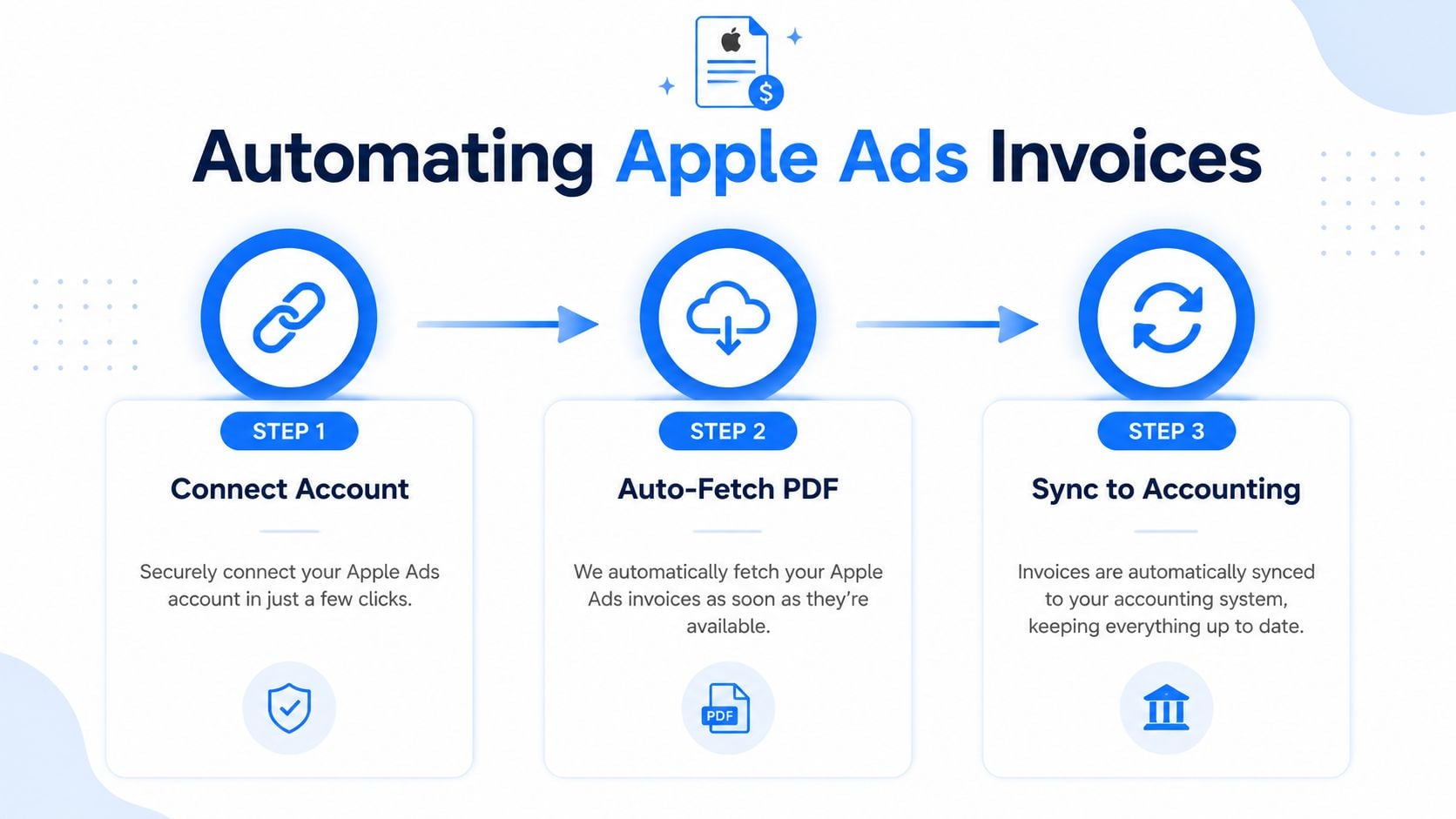
Manual collection breaks at the handoff points
The weak spots are predictable:
- Credential dependency: One admin has access, finance doesn’t.
- Download dependency: Someone remembers the task only after close starts.
- Interpretation dependency: The PDF is saved, but coding fields aren’t extracted cleanly.
- Reconciliation dependency: Statement timing and invoice timing don’t line up neatly.
A lot of teams don’t need another reminder checklist. They need the collection step removed from human memory.
Manual downloading is rarely the hardest part. The hard part is doing it consistently, storing it correctly, and matching it to the right accounting record every month.
Automation makes sense here because Apple’s billing setup is fragmented by design. A good system treats Apple Ads as its own document source, fetches new invoices when they appear, extracts the key fields, and sends standardized records into the accounting workflow.
If you’re comparing approaches, this automated invoice processing software guide is a useful reference for thinking through capture, extraction, approval flow, and export as one process instead of four separate chores.
For teams trying to get out of the browser-download cycle entirely, tools that download invoices automatically are usually the cleanest answer. The value isn’t just speed. It’s consistency. The same naming, the same storage logic, the same extraction method, every period.
The manual answer to where to view apple ads invoices is straightforward. Sign into the Apple Ads account, open Settings, go to Billing, and select Invoices.
The operational answer is different. If finance has to remember which Apple system holds which document, chase access, wait for PDFs, and reconcile timing by hand every cycle, the process is still fragile. The portal solves location. It doesn’t solve workflow.
The best teams separate those two truths. They know the exact source of record, and they build a repeatable collection process around it. That’s what turns Apple Ads invoicing from a recurring scramble into a controlled close task.
How to view Apple Ads invoices
How to view Apple Ads invoices: sign in at ads.apple.com with the advertising account, then open Settings, Billing, and Invoices.
- Open ads.apple.com and sign in with the Apple Ads account, not only a general Apple ID.
- Click your account name.
- Open Settings.
- Select Billing.
- Open Invoices.
- Download the PDF for the transaction period you are closing and save it with vendor, period, and account identifier.
Apple Ads invoices are not in Apple ID purchase history, App Store Connect, or a normal App Store receipt list. Basic accounts show higher-level charges. Advanced accounts show more campaign detail. Apple’s billing help for understanding Apple Ads invoices documents the same Settings, Billing, Invoices path.
FAQ: where to view Apple Ads invoices
Where do I view Apple Ads invoices?
Apple Ads invoices are in the Apple Ads account at ads.apple.com, under Settings, then Billing, then Invoices. That path covers both Basic and Advanced Apple Ads accounts. Start there before you search email.
Are Apple Ads invoices in my Apple purchase history?
No. Apple ID purchase history, App Store receipts, and Apple business device purchasing are different document streams. An Apple Ads invoice stays in the Apple Ads billing area. A finance login that can open App Store Connect may still lack Apple Ads billing permission.
What should I check on an Apple Ads invoice before I book it?
Check the billing entity, the tax or VAT treatment, campaign IDs, and charge line labels such as CPT-TT and CPT-ST. Apple Ads invoices are organized by transaction period, not by the card statement date. Match the period on the PDF to the spend you are reconciling.
Why can’t I find an Apple Ads invoice?
The usual miss is the wrong Apple portal. Confirm you are in the correct Apple Ads account and that your role includes billing visibility, then look up the transaction period in Invoices. If the period just closed, the Apple Ads invoice may not be posted yet.
Why doesn’t my card charge match the Apple Ads total?
Apple notes that credit card statement amounts can differ slightly from online totals because Apple Ads billing uses UTC while the account time zone may differ. Use the Apple Ads invoice PDF as the booking document and treat the card line as payment proof. Do not force the two totals to match by editing the invoice.
If Apple Ads invoices keep slowing down your close, Booksmate gives finance teams a cleaner way to work. It connects to portals and inboxes, fetches invoices automatically, extracts the key data, and keeps documents organized for export to accounting software so you’re not hunting through Apple systems by hand each month.