Connect Booksmate to Claude
Part of Booksmate's MCP Server.
Prerequisites
- A Booksmate account. If you do not have one, create one here first.
- A Claude account (claude.ai or Claude Desktop).
Setup
Easiest: Claude directory (recommended)
- Open https://claude.ai/directory/booksmate.
- Click Connect to Claude.
- Sign in with Booksmate and authorize.
- Start a chat and ask: “List my Booksmate organizations.”
Booksmate is a Community connector. Email fetching works in the Claude plugin. Web portal fetching still needs the Booksmate desktop app.
Or paste the setup line into Claude:
Set up Booksmate from booksmate.com/agents Or add the endpoint yourself (Settings, then Developer or Integrations):
https://mcp.booksmate.com Sign in with your Booksmate account and authorize access. Done.
Manual Desktop config (optional)
Prefer editing the config file? Add Booksmate to claude_desktop_config.json:
{
  "mcpServers": {
    "booksmate": {
      "type": "url",
      "url": "https://mcp.booksmate.com"
    }
  }
}
Restart Claude Desktop. You will be prompted to sign in through OAuth the first time you use Booksmate tools.
Start using Booksmate in Claude
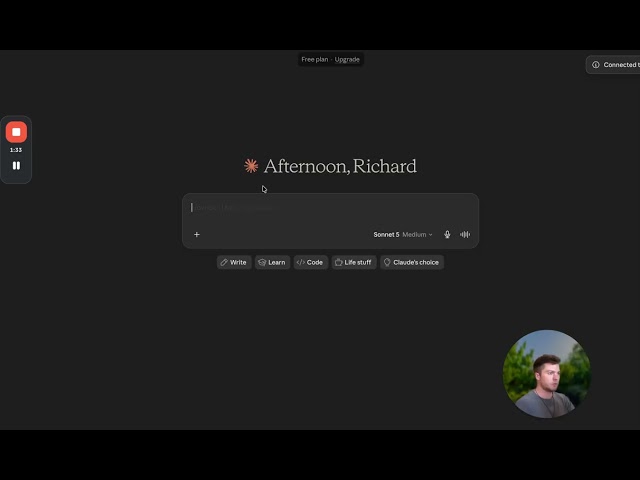
- Start a new conversation with Claude.
- Ask Claude to list your Booksmate organizations to verify the connection:
- "List my Booksmate organizations."
- If you have multiple organizations, Claude will ask which one to use. Select it.
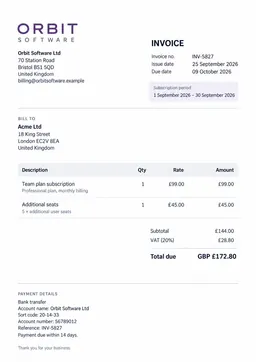
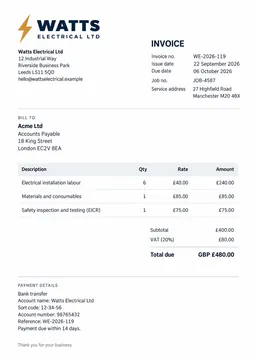
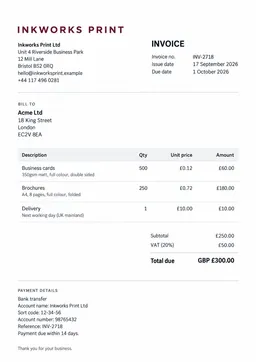
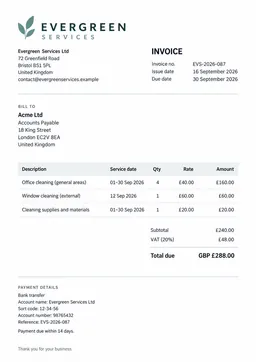
Once connected, you can start asking Claude questions about your invoices and expenses.
Example questions to get started
- "Show my invoices from last month."
- "How much did I spend on software this quarter?"
- "Export my unexported documents to Xero."
- "Find the AWS invoice for March."
- "Scan Gmail for new invoices."
- "Find any duplicate invoices for July."
- "Package these documents for my accountant."
- "Upload this receipt and tell me what it says."
What you can do
- Search documents: find invoices and receipts by vendor, date, amount, status, category, or currency.
- Upload files: upload invoice and receipt files for AI extraction.
- Summarise spend: group spend by vendor, month, category, currency, document type, or direction.
- Scan email: trigger ingestion for connected Gmail or Microsoft inboxes.
- Find duplicates: check for possible duplicate invoices.
- Package documents: create a ZIP of selected documents for accountant handoff.
- Export: export documents to Xero or Google Drive.
Troubleshooting
If Claude cannot connect to Booksmate:
- Verify the URL is entered correctly as
https://mcp.booksmate.comwith no trailing slash. - Check that your Booksmate account is active and you can sign in at app.booksmate.com.
- If you connected from the Claude directory or web, disconnect Booksmate in Claude connectors settings, then reconnect.
- If using Claude Desktop and the JSON config method, make sure the JSON is valid (no trailing commas, proper quoting), then restart Claude Desktop.
- Claude Desktop logs (Desktop only):
- macOS:
~/Library/Logs/Claude/ - Windows:
%APPDATA%\Claude\logs\
- macOS:
Related
- MCP Server overview : learn what you can do with the Booksmate MCP server.
- Connect Booksmate to ChatGPT : set up the MCP server in ChatGPT.
- Security & Privacy : how Booksmate protects your data and OAuth connections.