Google Drive Integration
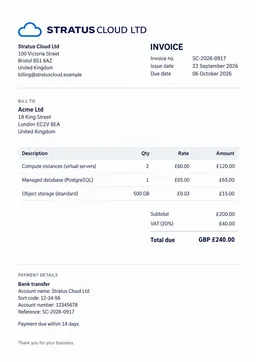
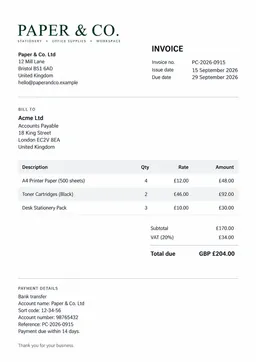
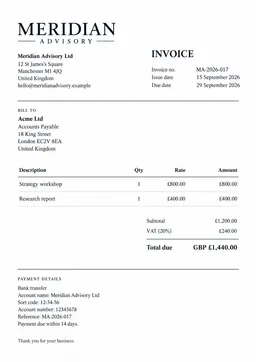
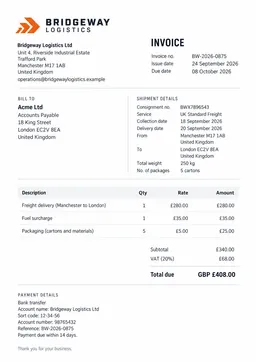
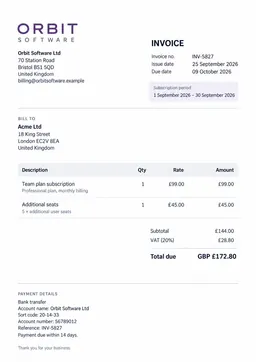
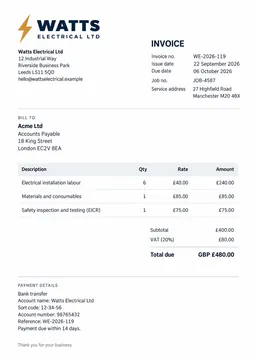
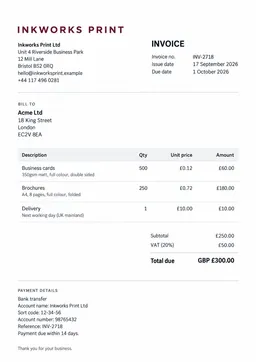
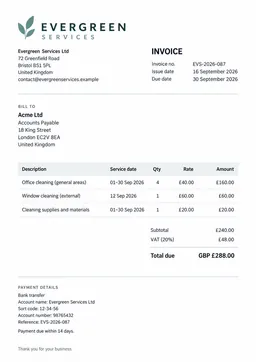
Part of Booksmate's export options.
Connecting to Google Drive
- Click "Exports" at the top of the Booksmate application.
- Click "Connect Google Drive" and follow the sign-in steps.
- On the "Google Drive settings" screen, choose your organization setup and click "Save Changes".
- You're all set.
From here on, documents auto-sync to the "Booksmate" folder on your Google Drive.
Historical documents sync too. To start right away, click "Export Now", or wait and it happens next time you get new documents.
Viewing Account Status
- Once connected, your integration status shows on the "Exports" page.
- You can see the connected account's email, connection status, and number of synced documents.
Exporting Receipts to Google Drive
After the connection steps above, this is fully automated. Nothing to do.
Pausing Syncing to Google Drive
To pause syncing:
- Click "Exports" at the top of the Booksmate application.
- Click "Pause" under your Google Drive connection.
- You're all set.
Managing Your Google Drive Connection
To remove or change your connected account:
- Click "Exports" at the top of the Booksmate application.
- Click "Settings" under your Google Drive connection.
- Click "Disconnect" at the bottom.
- Done. No more documents will sync.
NOTE: Existing documents on Google Drive stay put. Booksmate never deletes them. Reconnect anytime, no duplicates.
Benefits of Google Drive Integration
- Automatically save and organize receipts in Google Drive.
- Securely back up your financial data.
- Easier sharing with your team or accountant.
Related
- Xero export : sync documents straight to your accounting system.
- One-Time Export (ZIP) : download everything as a ZIP file.
- Invoices from Emails : automatically collect the documents you export.
- Security & Privacy : how Booksmate protects your data and OAuth connections.